Penlo now syncs straight from your BOOX. Here's everything it does with your handwritten notes
Penlo makes the handwritten notes on your e-ink tablet searchable. Here's the full tour: direct BOOX sync with the new Android app, Dropbox and OneDrive for every other tablet, pairing in one tap, Penlo AI, exports and MCP.

Michal Wlosik
· 11 min read
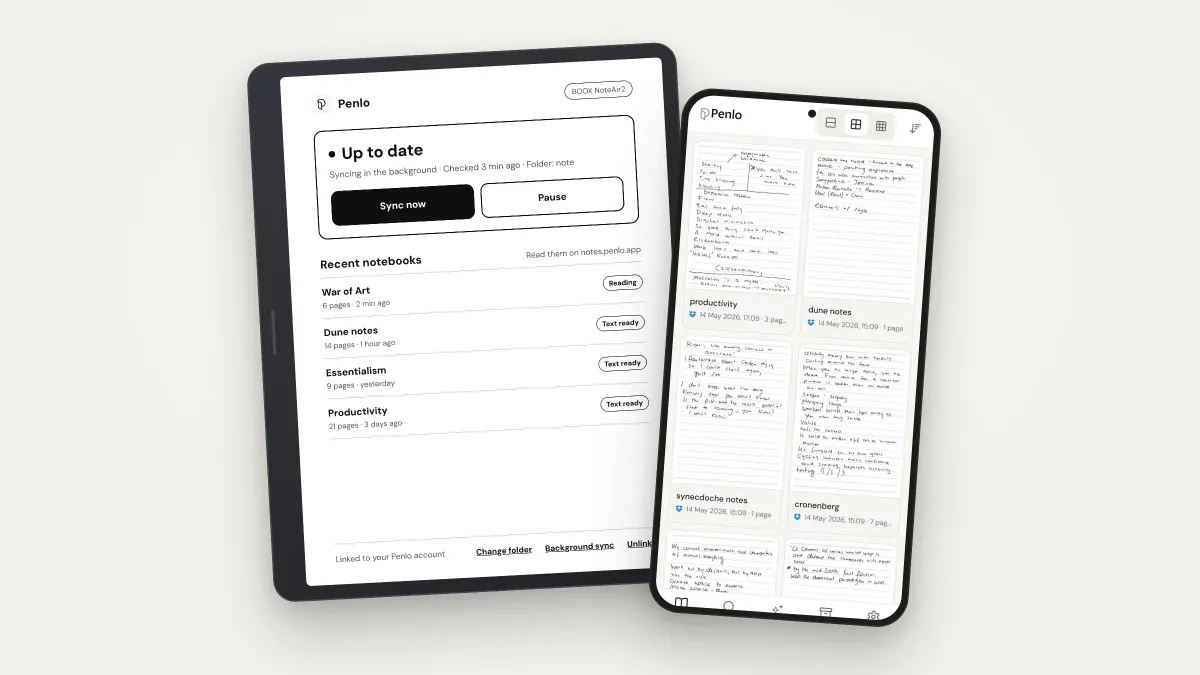
I've written by hand on an Onyx BOOX Note Air for years, and for most of those years my notes were a one-way street. Writing them was lovely. Finding them again was not. Penlo is the app I built to fix that, and this post is the full tour: what it does today, the two ways to connect a tablet, and the new Android app that lets a BOOX sync straight to Penlo without a cloud folder in between.
Coming soon to Google Play
Why I built it: notes trapped on a tablet
E-ink tablets are very good at the writing part. The paper feel, the battery that lasts for weeks, the lack of notifications. The trouble starts the moment you close the notebook. Every brand has its own app, its own cloud and its own idea of search, and most of it lives on the tablet itself. If you want to find what you wrote about a client three months ago, from your laptop, you are usually out of luck. If you own two tablets from different brands, searching both together isn't possible at all.
I spent a long time patching around this. I wrote about a Make.com flow that sent BOOX pages to an AI and the result to Notion, and I had OCR scripts and folder automations on top of that. They all worked until a notebook changed, and then they didn't. Penlo is what I built once I stopped patching: one place where every handwritten page becomes text you can search, read on any screen and send wherever you work.
I use it every day, which turns out to be the most useful thing about building it. When something annoys me, it gets fixed before it annoys anyone else.
What Penlo does today
In one sentence: Penlo takes the notebooks from your e-ink tablet, reads your handwriting, and turns every page into something you can search, ask questions about and export. In a little more detail:
- Sync. Notebooks arrive from your tablet automatically, either straight from a BOOX through the Android app or from a Dropbox or OneDrive folder for any tablet.
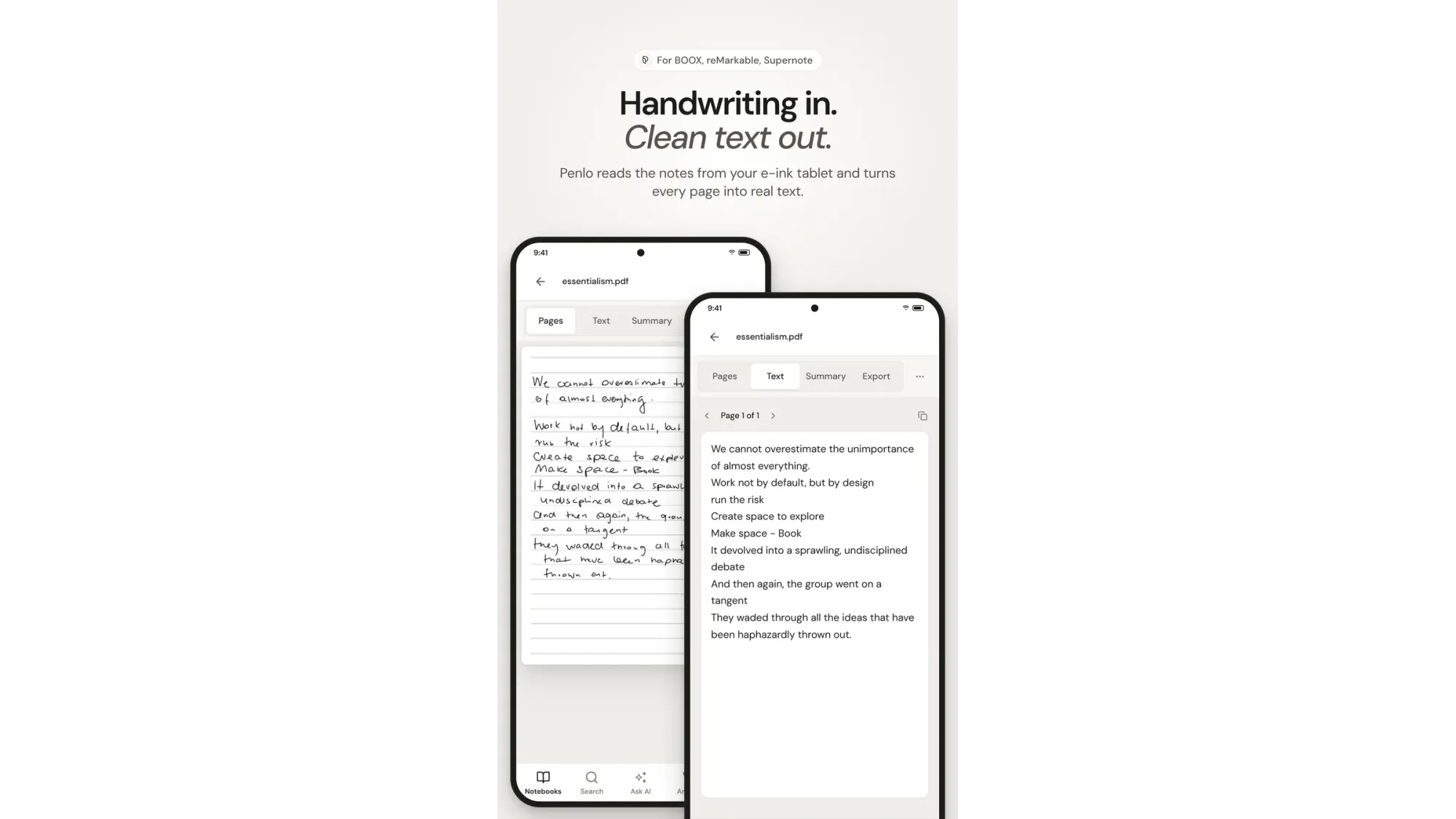
- Handwriting recognition. Penlo reads every page with Google Gemini image recognition, which copes well with messy handwriting, and gives you clean text next to the original page.
- Search. Every word on every page of every notebook is searchable, from one search box.
- Summaries. Each notebook gets a short summary, so you can tell what's inside without opening it.
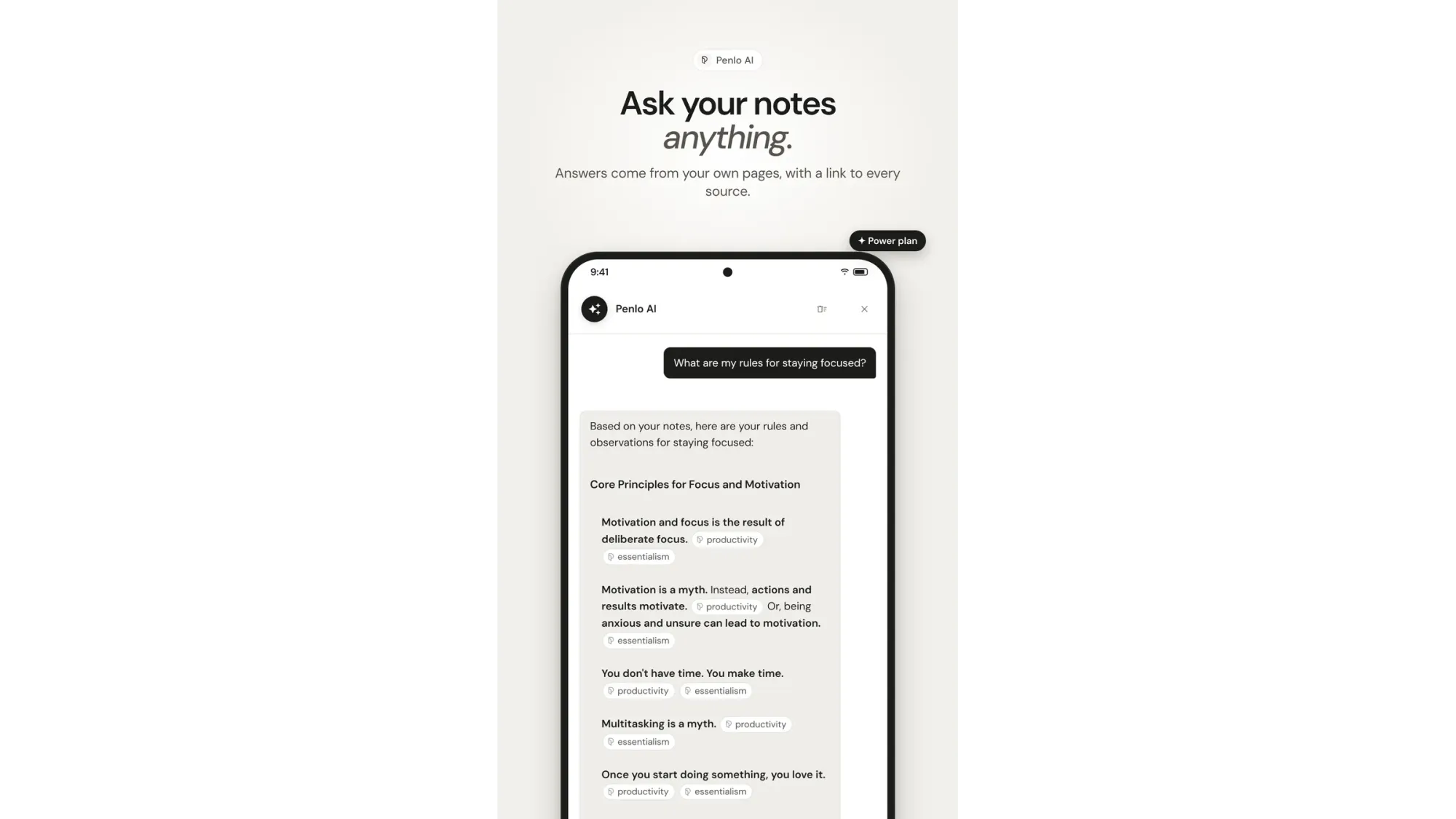
- Penlo AI. Ask a question in plain words and get an answer from your own notes, with links to the pages it came from.
- Exports. Send notes to Notion, Obsidian or any Markdown folder, as a searchable PDF, or by email.
- AI assistants. A built-in MCP server lets Claude, ChatGPT and Cursor search and read your notebooks while you work.
It works with Onyx BOOX, reMarkable, Supernote, Kindle Scribe and Kobo.
Two ways to connect your tablet
Until now, every tablet reached Penlo the same way: the tablet saved its notebooks as PDFs to a cloud folder, and Penlo watched that folder. That still works, for every tablet. What's new is a second, shorter route for BOOX owners.
Option 1: direct BOOX sync with the Android app
BOOX tablets run Android, which means Penlo can run on the tablet itself. On a BOOX, the Penlo app isn't a full notes app. It's a small sync helper built for e-ink: it reads the notebook PDFs that BOOX saves in its notes folder (usually Internal storage › note) and uploads them straight to Penlo in the background. No Dropbox or OneDrive connection to Penlo, no folders to choose in a cloud account, no waiting for a cloud service to pass the file along.
There's one quirk worth knowing about, and it's a BOOX one, not a Penlo one. BOOX only writes those notebook PDFs when a cloud account is switched on in Settings › Storage & Backup › Cloud Storage. Any one account works, and you don't connect it to Penlo. It's simply the switch that makes BOOX save the PDFs that Penlo reads. The setup screens walk you through it, so you don't need to remember this.
A few things I cared about when building it:
- No duplicates. When you edit a notebook, Penlo updates the same notebook. You won't end up with "Meeting notes", "Meeting notes (1)" and "Meeting notes (2)".
- Hands off your files. Penlo only reads the folder you pick. It never changes or deletes anything on your tablet.
- Quiet. It runs in the background, so you write, close the notebook and carry on.
I wrote a step-by-step guide on the Penlo blog: how to sync a BOOX without Dropbox. And the Android app has its own page at penlo.app/android.
Option 2: Dropbox or OneDrive, for every tablet
For reMarkable, Supernote, Kindle Scribe and Kobo, and for BOOX owners who prefer it, the cloud route stays exactly as it was. Your tablet saves notebooks to Dropbox or OneDrive, you connect that account to Penlo once, point it at the folder, and Penlo picks up every new or edited notebook from there.
If you're choosing between the two, Dropbox is the one I'd pick. It's what my own BOOX used before the Android app existed, and it's the cloud route that works best with Penlo.
Don't have Dropbox yet?
Sign up through my link and you get 500 MB of extra space on top of Dropbox's free plan.
Which plan you're on decides how many sources you can use. The Free plan syncs from one source: a tablet or one cloud account. Pro and Power can combine them, so a BOOX syncing directly and a reMarkable syncing through Dropbox end up in the same library and the same search.
How pairing a BOOX works
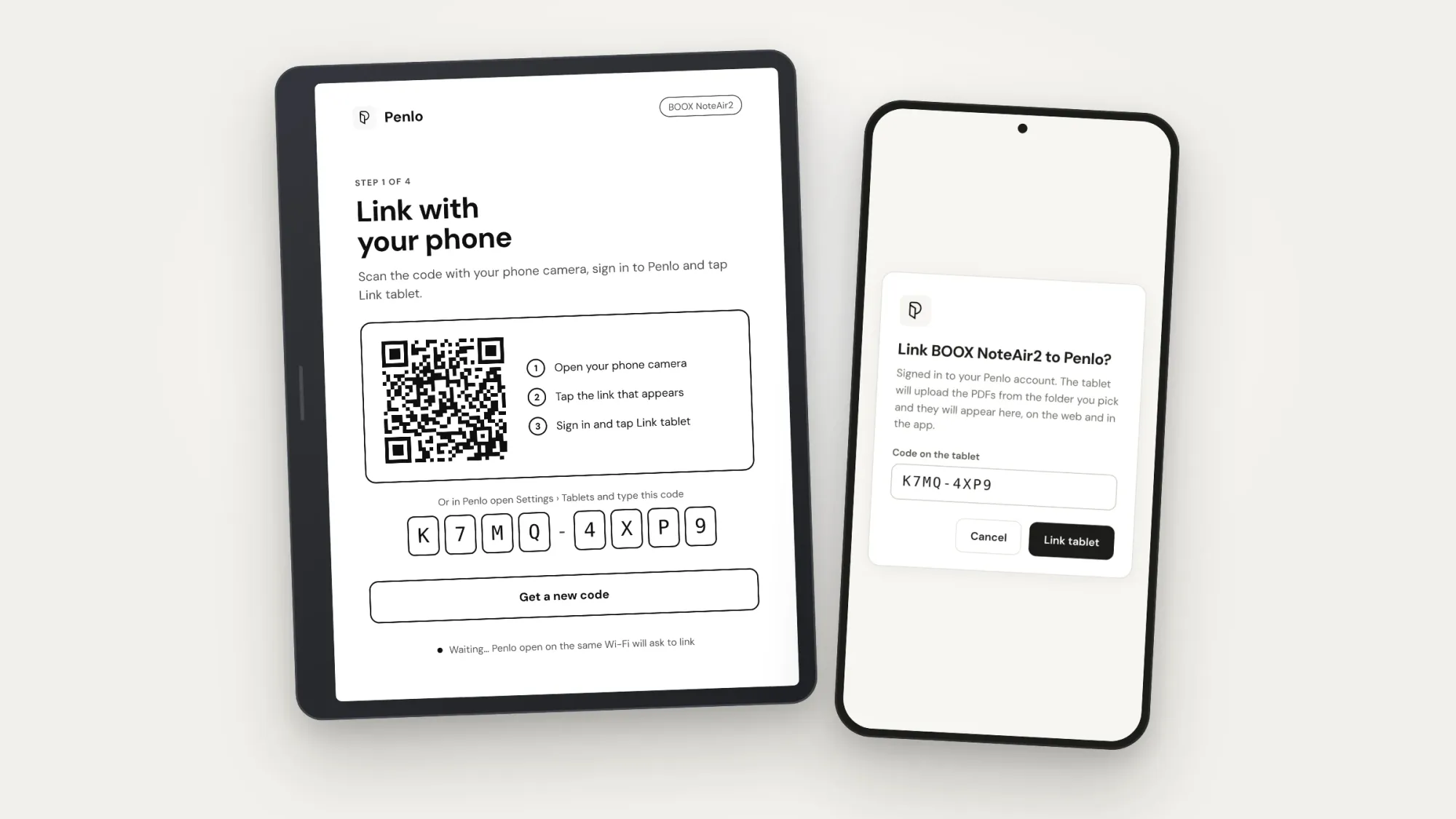
The BOOX side of Penlo has no sign-in. Typing an email and password on an e-ink keyboard is nobody's idea of fun, so instead you link the tablet to your Penlo account from a device you're already signed in on. When you open Penlo on the BOOX, it shows a QR code and an 8-character code. You then have three ways to link it, and you only need one.
1. Scan the QR code with your phone
Point your phone's camera at the QR code on the tablet. Penlo opens with the code already filled in, and you tap Link tablet. That's the whole step.
2. Open Penlo on the same Wi-Fi
This is my favourite, because there's nothing to scan or type. If your computer or phone is on the same Wi-Fi as the tablet, open Penlo in a browser and it notices the tablet waiting nearby. It asks something like "Link BOOX NoteAir2?", you tap once, and you're done.
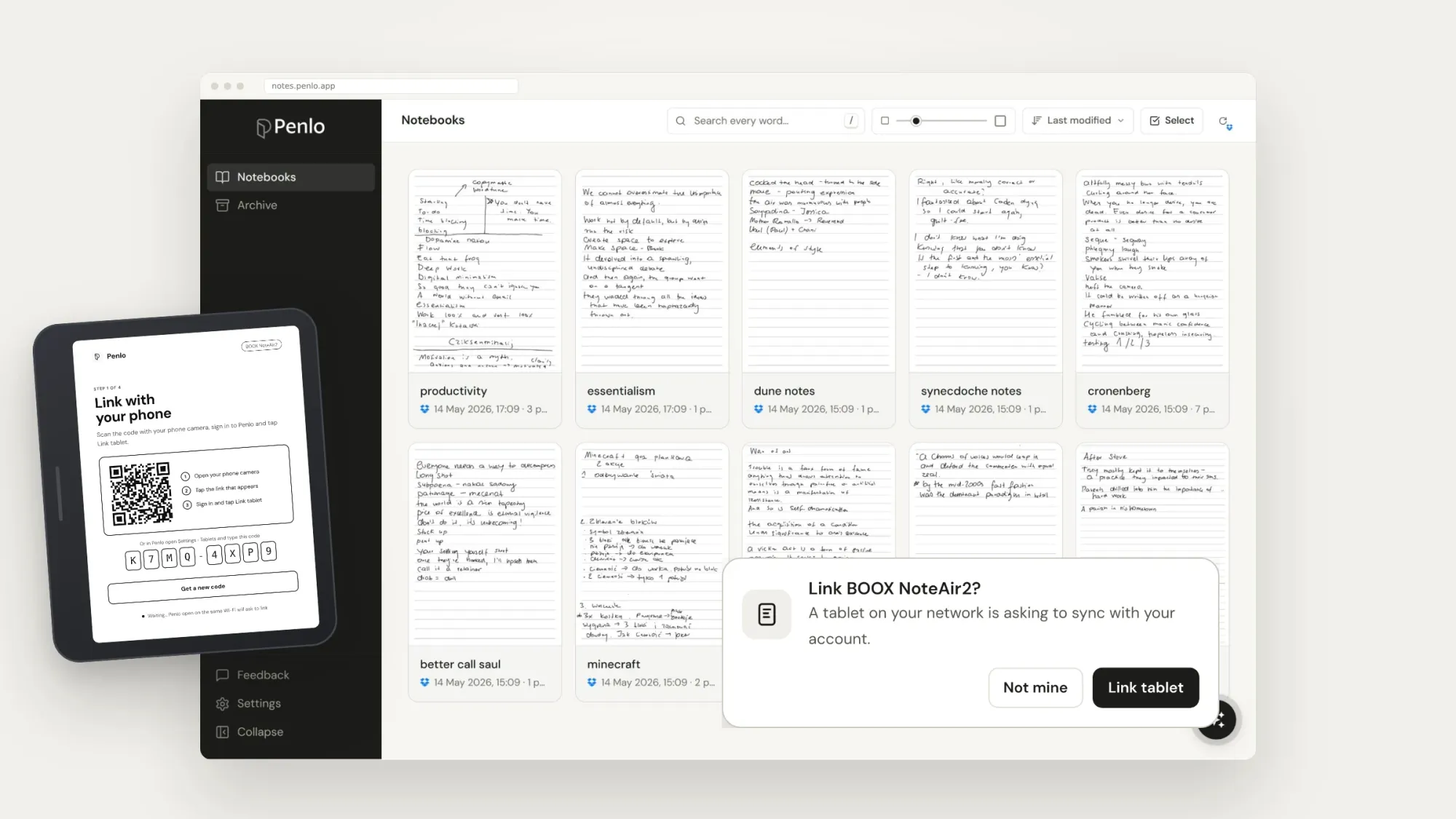
3. Type the code
If neither of those suits you, open Settings › Tablets in Penlo and type the 8-character code shown on the tablet.
The four setup screens
Once the tablet is linked, the app on the BOOX walks you through four short screens, one job each:
- Link the tablet to your Penlo account, using one of the three ways above.
- Let BOOX save PDFs by switching on one cloud account in BOOX settings, as explained earlier.
- Choose the notes folder Penlo should read, usually Internal storage › note.
- Allow background sync, which means giving Penlo the battery permission it needs and turning off BOOX Freeze for it, so the tablet doesn't put it to sleep.
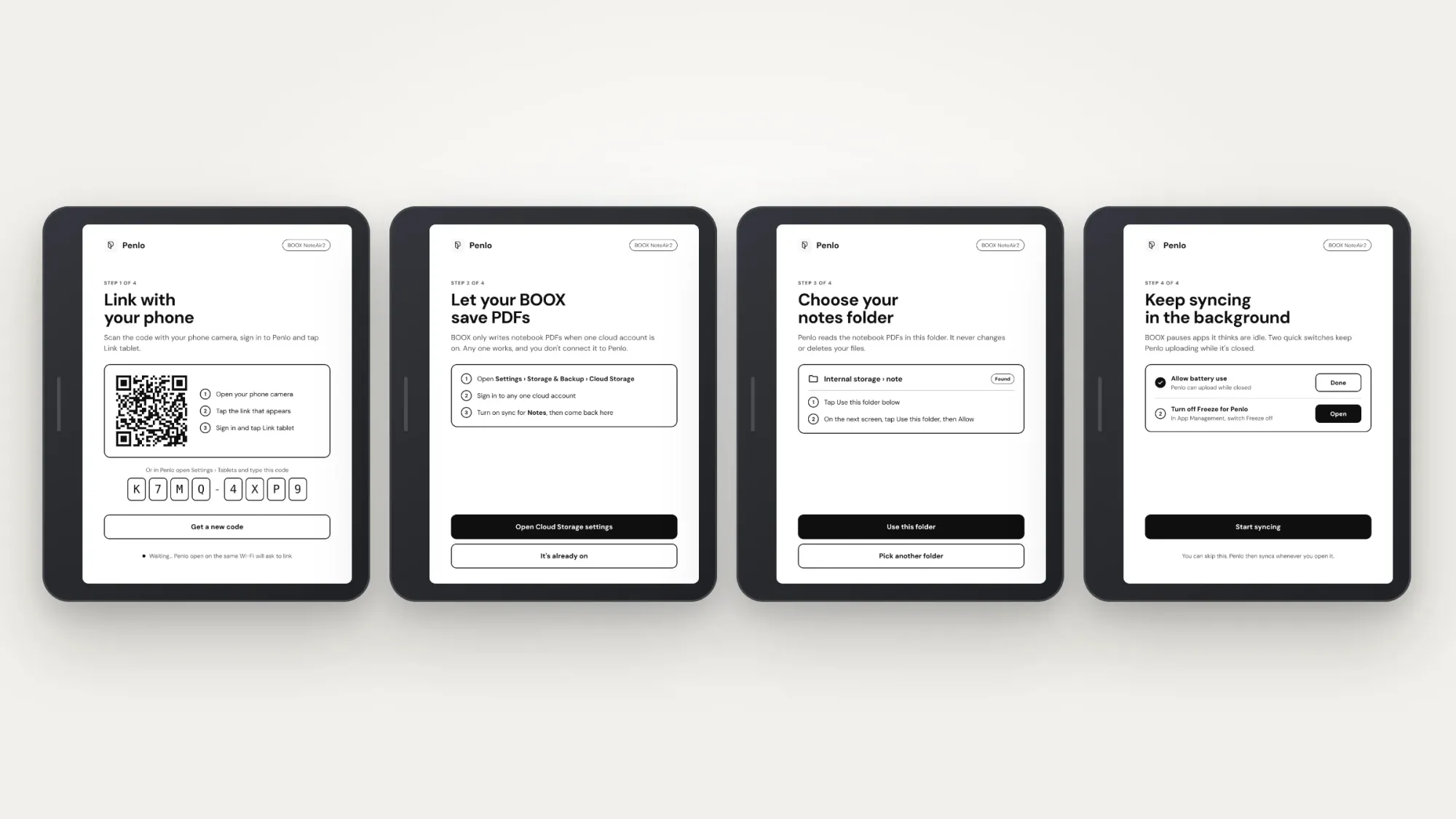
The last step matters more than it looks. BOOX is aggressive about saving battery, and BOOX Freeze will happily stop any app running in the background, including a sync helper. If sync ever seems to stall, that's the first thing I'd check.
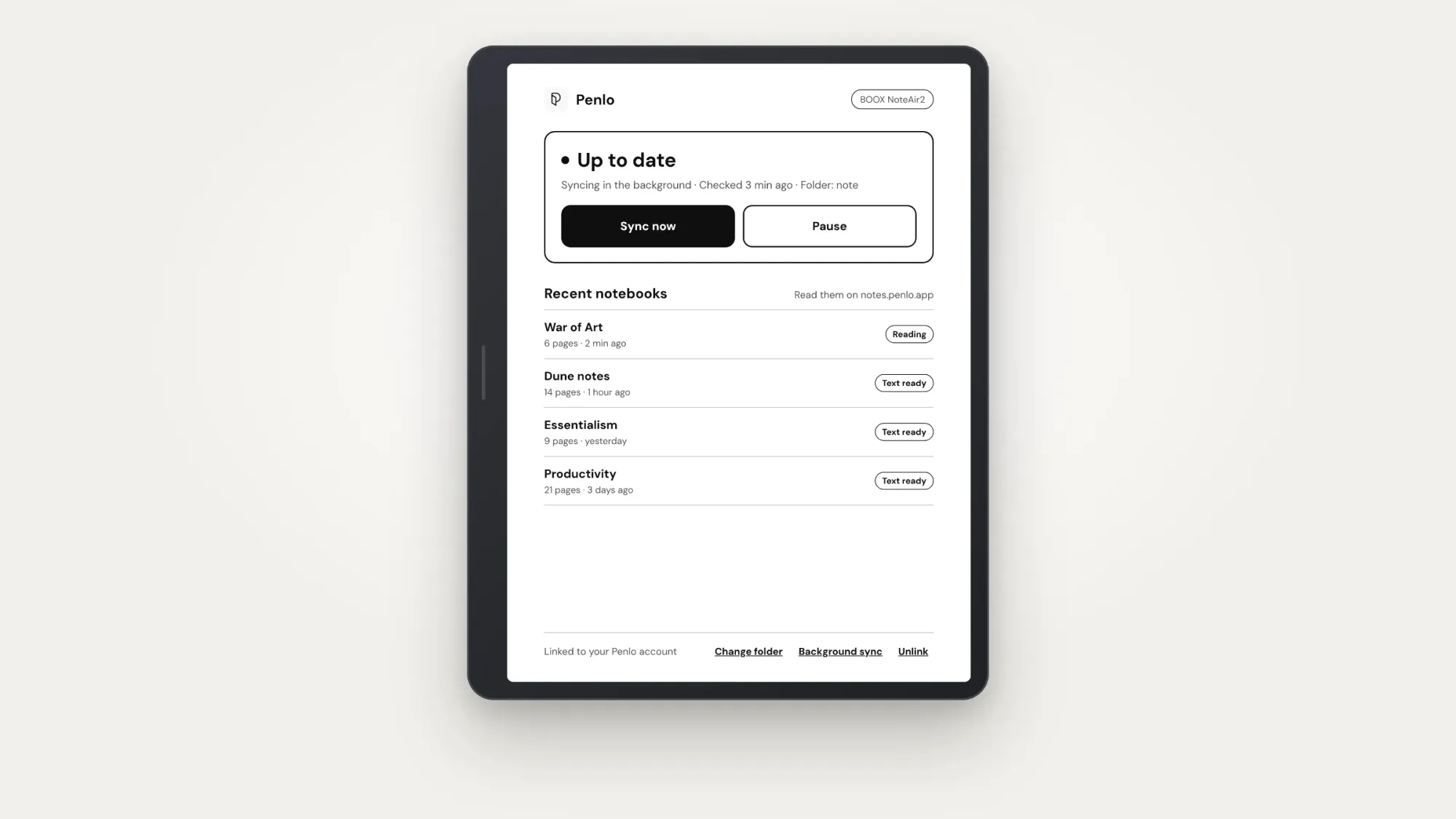
After setup, the tablet shows a simple status screen, so you can see at a glance that Penlo is linked and syncing.
The phone app
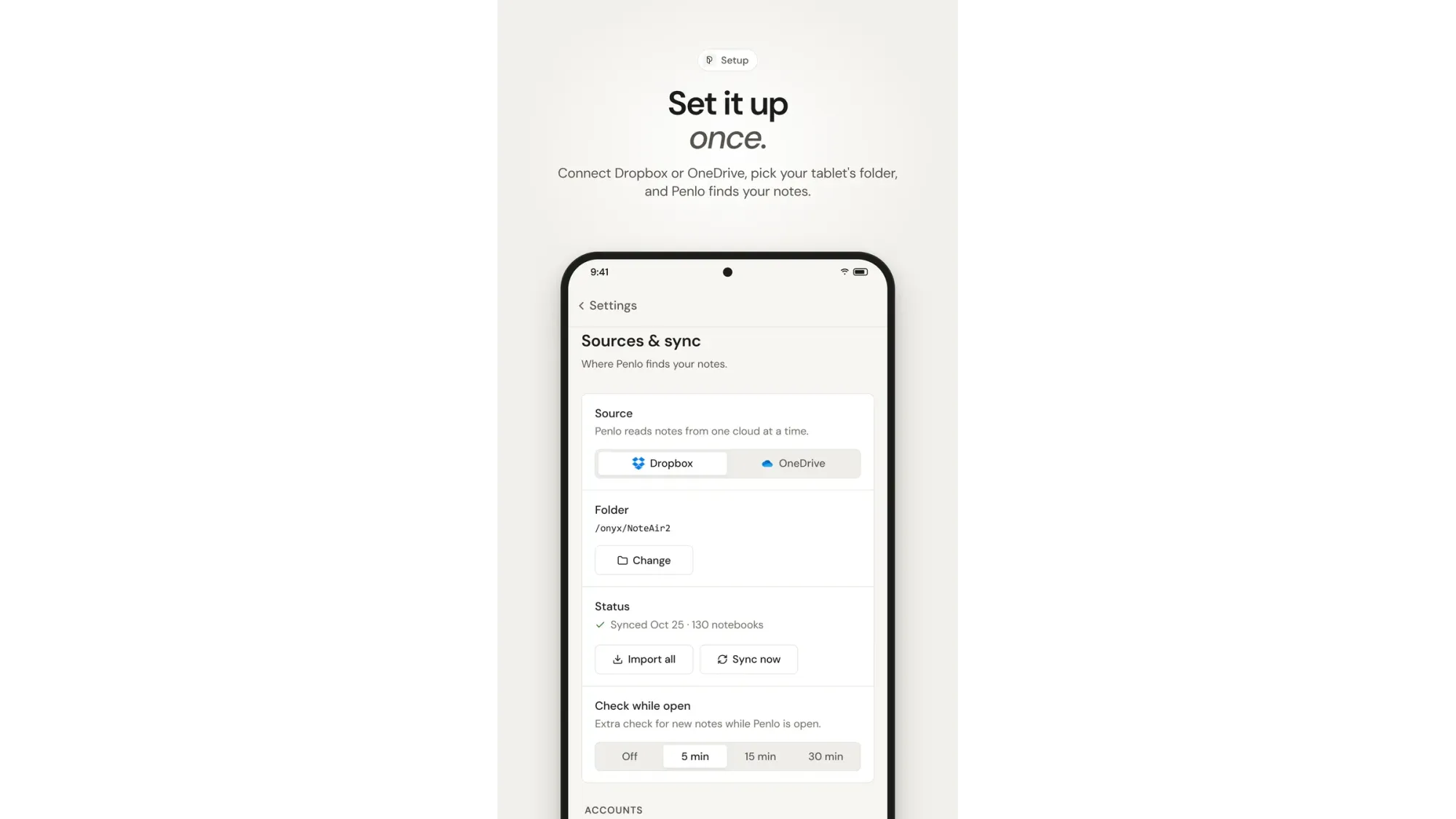
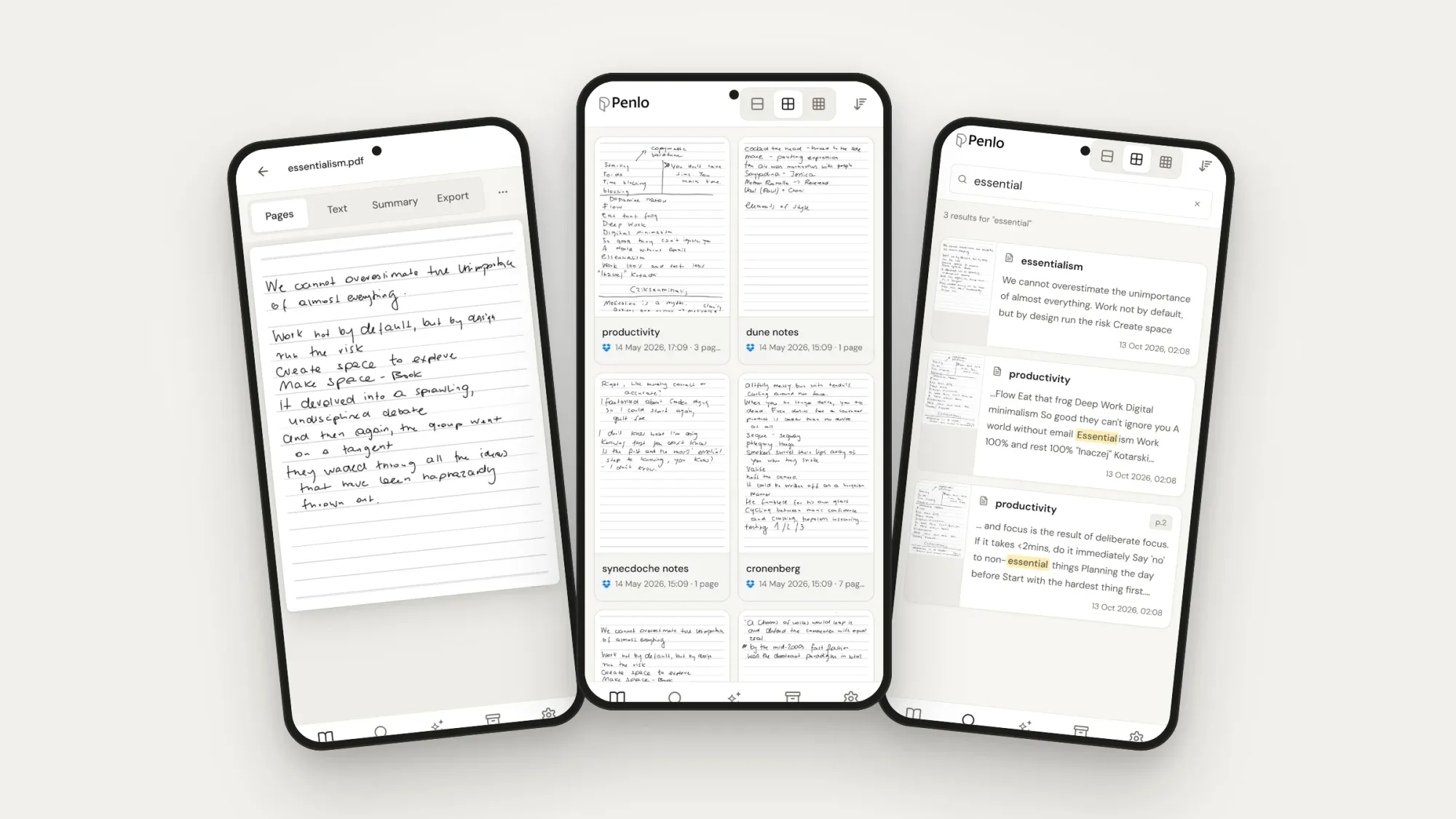
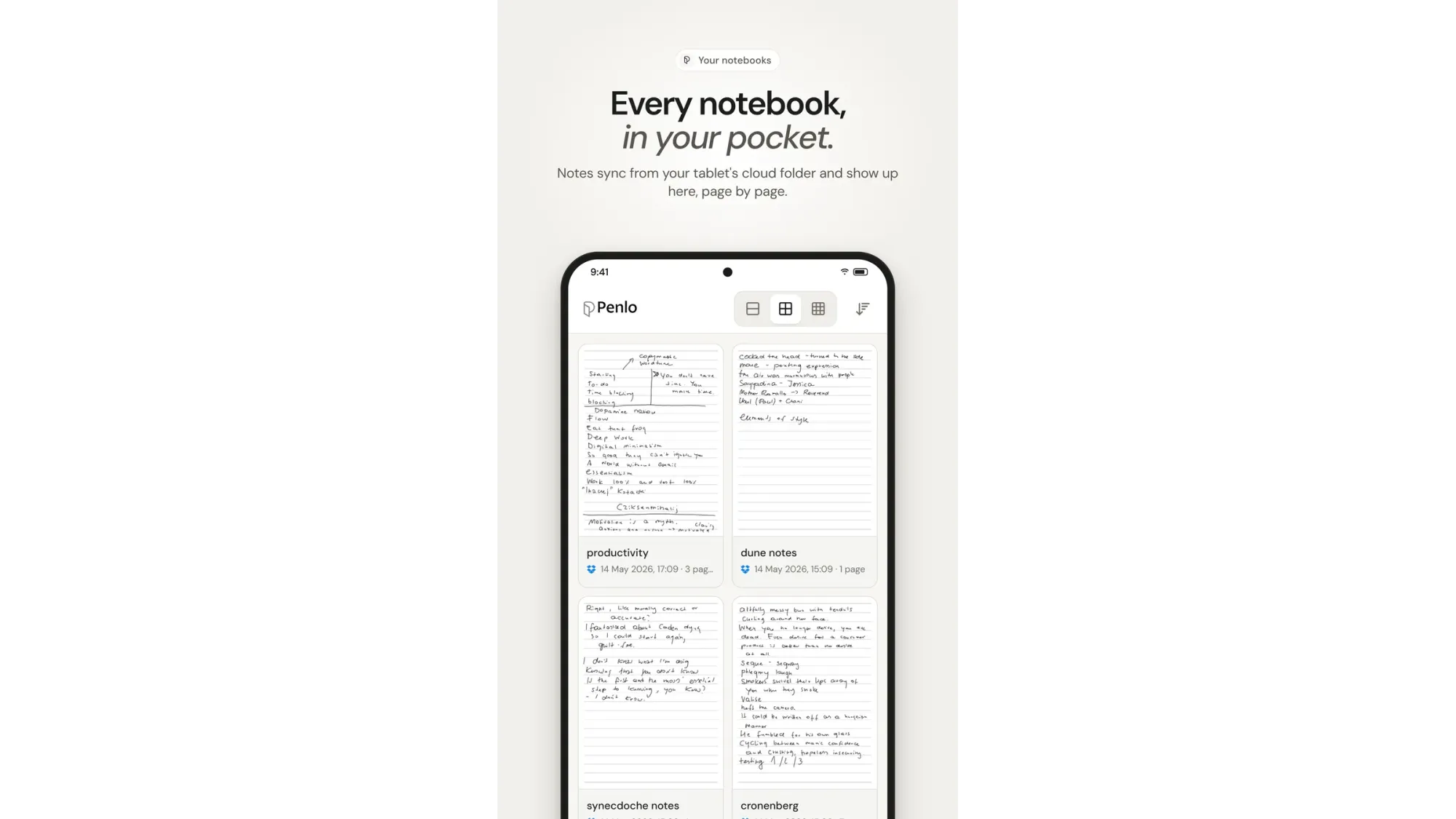
The same Android app behaves differently depending on where you install it. On a BOOX it's the sync helper. On any Android phone it opens your full Penlo library: every notebook, each page shown beside its text, search across everything, and Penlo AI.
This is the part I didn't expect to use as much as I do. I write on the tablet at my desk, and later, away from my desk, I look things up on my phone. The tablet stays the place for writing, and the phone becomes the place for finding.
The web app
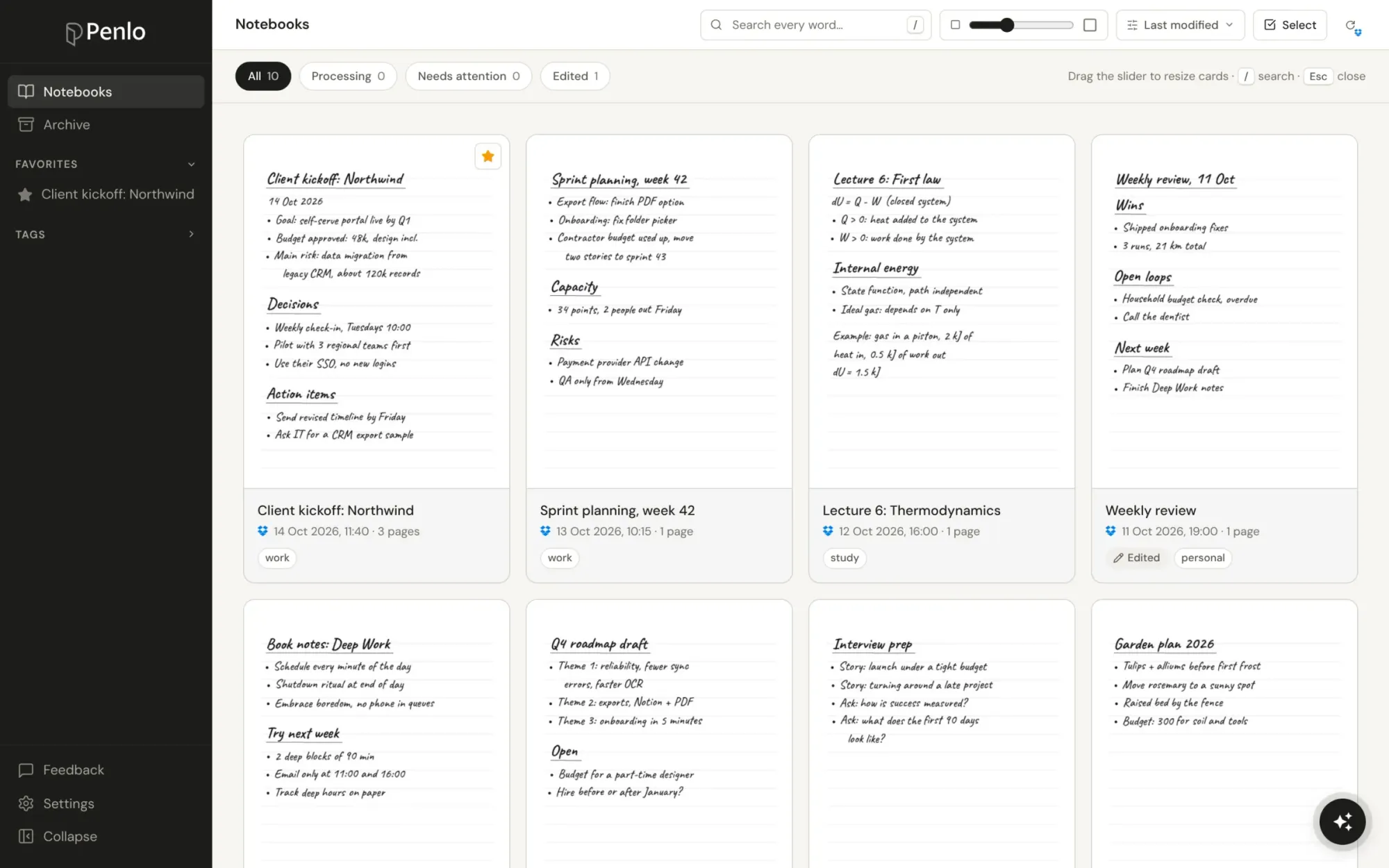
Penlo also runs in any browser at notes.penlo.app, which is how I use it on a laptop. A few small things there that make daily use nicer:
- You can tell where a notebook came from. Notebooks synced from a tablet show the Penlo logo on their card.
- Right-click a notebook card to Open, Pin, Select, Download PDF, Download Markdown, Copy text, Send to Notion, Read handwriting again or Archive it. Most of what you'd want to do with a notebook is one click away.
- Pinch on the grid to make the cards bigger or smaller, depending on whether you want to see the pages or see more notebooks.
Search that covers everything you wrote
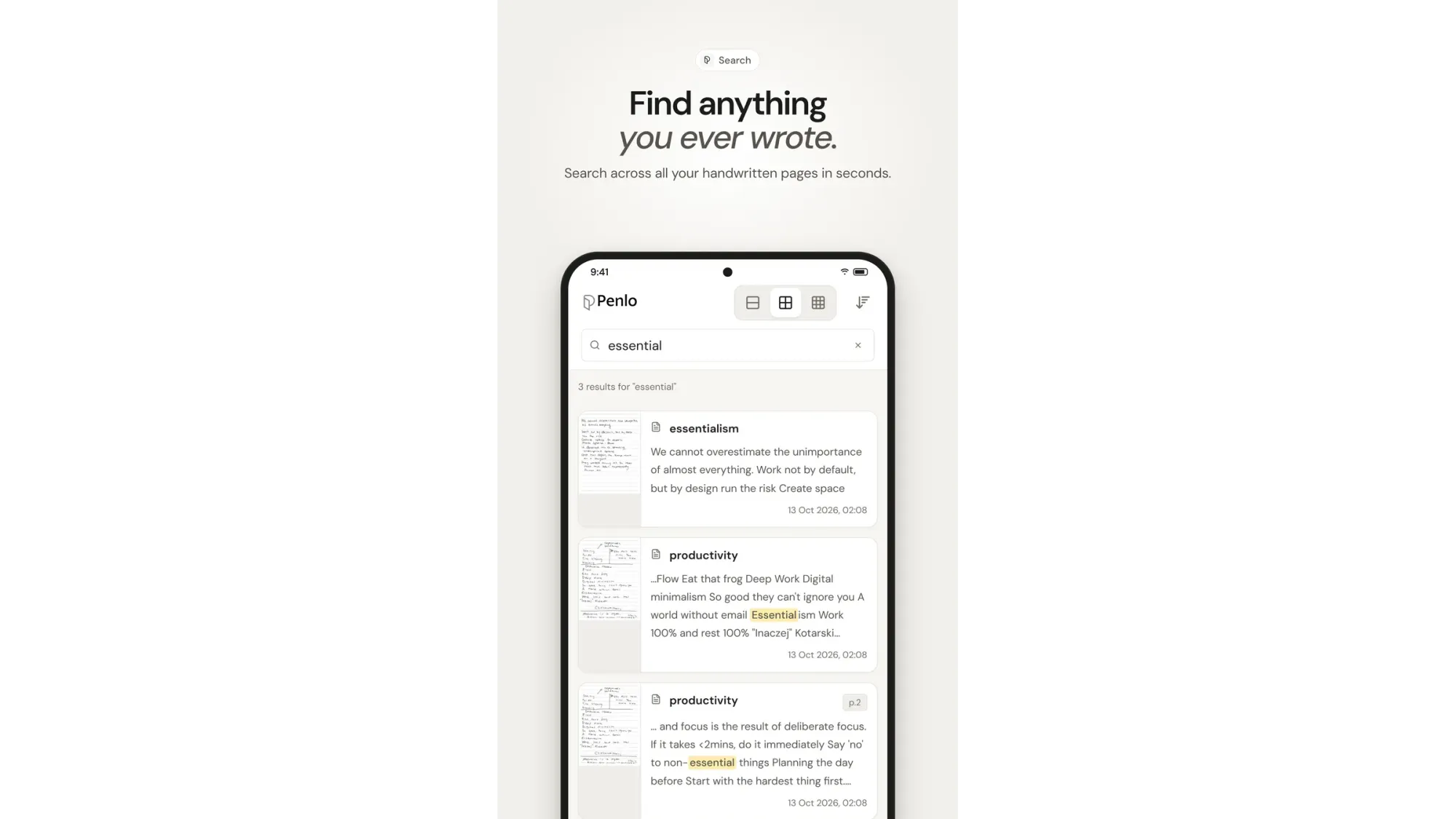
Search is the reason Penlo exists, so it gets its own section. Type a word and Penlo finds every page you ever wrote it on, across every notebook and every tablet, with the matching words highlighted. It doesn't matter whether the note is from this morning or from two years ago, or whether it came from a BOOX or a reMarkable.
The search works on the text Penlo read from your handwriting, which is why the quality of the recognition matters so much. If a page was read badly, you can choose Read handwriting again on that notebook.
Penlo AI: ask your notes a question
Keyword search is perfect when you remember the word you used. Penlo AI is for when you don't. You ask a question the way you'd ask a colleague, something like "what did we agree about the launch date?" or "what did I write about pricing last month?", and Penlo answers from your own notes, with links to the pages the answer came from. You can always click through and check the original handwriting.
I find it most useful for questions that would otherwise mean flipping through several notebooks: pulling together everything I wrote about one project, or finding the follow-ups from a series of meetings. I wrote more about it in this post about Penlo AI. Penlo AI is part of the Power plan.
Clean text you can actually use
Raw handwriting recognition tends to read like a ransom note: lines broken in odd places, words split in half. Penlo tidies that up, so the text you copy reads like something you typed. Every page shows the original handwriting beside the text, so you can compare the two whenever something looks off. And because it's clean text, it's something you can paste into an email, a document or a chat without fixing it first.
Exports: send your notes where you work
Your notes shouldn't have to live only in Penlo. You can send them to:
- Notion, as pages in your workspace.
- Obsidian, or any other tool that reads Markdown files.
- A searchable PDF: your original pages with the text layer added, so you can search and select the words in any PDF reader.
- Email, when you just want the notes in your inbox or someone else's.
For one-off exports, the right-click menu on a notebook card has Download PDF, Download Markdown, Copy text and Send to Notion.
MCP: your notes inside Claude, ChatGPT and Cursor
This is the feature I'd point to if someone asked what Penlo does that the tablet makers don't. Penlo has a built-in MCP server, the standard way AI assistants connect to outside data. Add Penlo to Claude, ChatGPT or Cursor once, and your assistant can search and read your handwritten notebooks in the middle of a conversation.
That changes what your notes are good for. You can ask Claude to draft a proposal from the notes you took in a client meeting, or have it pull every idea you wrote down about a project into one list, without copying anything by hand. I wrote a full setup guide: how to access your handwritten e-ink notes from Claude and other LLMs. MCP is part of the Power plan.
Privacy
Handwritten notes are often the most private things people write, so here is plainly how Penlo treats them:
- On a BOOX, Penlo only reads the notes folder you pick, and it never changes or deletes files on your tablet.
- With Dropbox or OneDrive, Penlo works with the folder you point it at.
- Your pages are read with Google Gemini image recognition, which is how the handwriting becomes text.
- Your library is yours alone: you see your notes, and nobody else's notes show up in your search, your Penlo AI answers or your assistant.
Plans
Penlo has three plans:
- Free: 20 pages a month, synced from one source (a tablet or one cloud account). Enough to see whether it reads your handwriting well and fits the way you work.
- Pro: for people who write regularly, with more pages and the option to combine sources.
- Power: everything in Pro, plus Penlo AI and the MCP server for Claude, ChatGPT and Cursor.
You'll find the details on penlo.app.
What's next
The Android app is in Google's review right now. The badge below links to the real store page, and it will start working as soon as Google approves the app. Until then, the Dropbox and OneDrive route works for every tablet, BOOX included.
After that, the plan is the same as it has always been: use Penlo every day, listen to the people who use it, and fix whatever gets in their way. A lot of Penlo has been shaped by owners in r/onyxboox, r/RemarkableTablet and r/Supernote telling me how their tablets actually behave. If you own an e-ink tablet and something about your notes annoys you, I'd love to hear it. I'm on LinkedIn.
Try Penlo
If you write on a BOOX, reMarkable, Supernote, Kindle Scribe or Kobo, you can start on the Free plan and have your first notebooks searchable in a few minutes.
Coming soon to Google Play
Written by
Keep reading
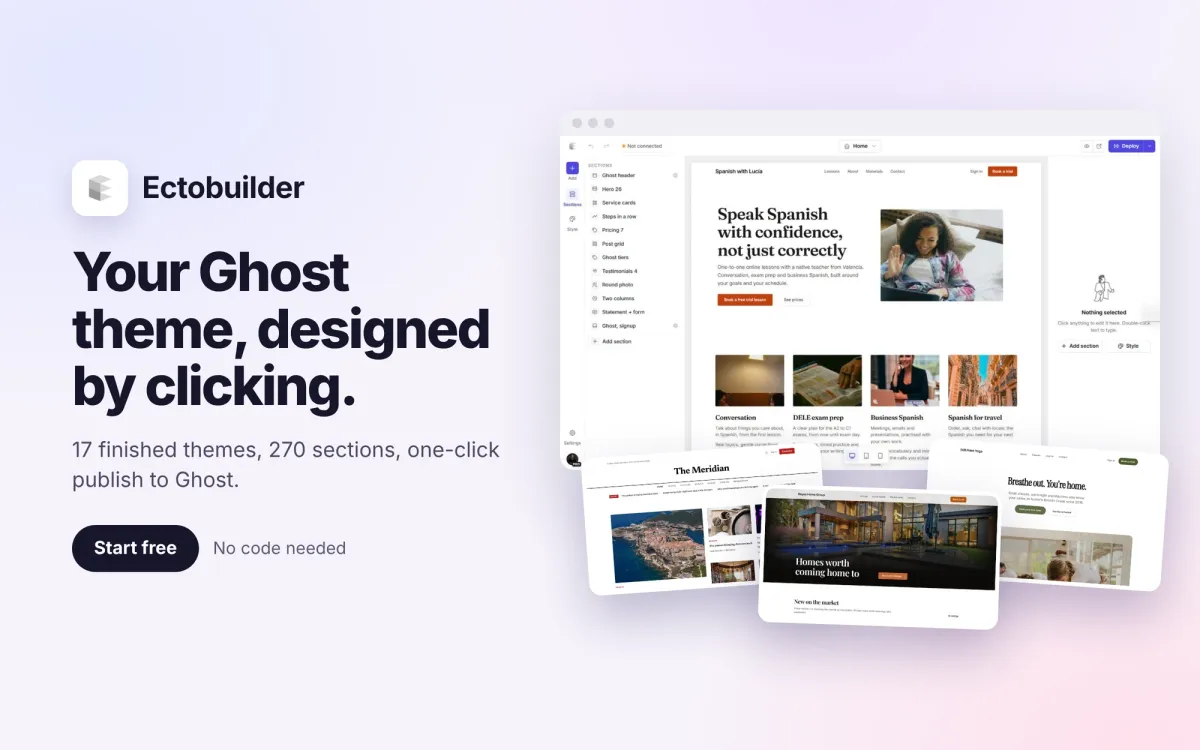
Ectobuilder: design your Ghost theme by clicking, then publish it in one go
I built Ectobuilder because designing a Ghost theme still meant writing Handlebars. Now you pick one of 17 finished themes, change everything on the page, and publish a real Ghost theme to your site in one click.
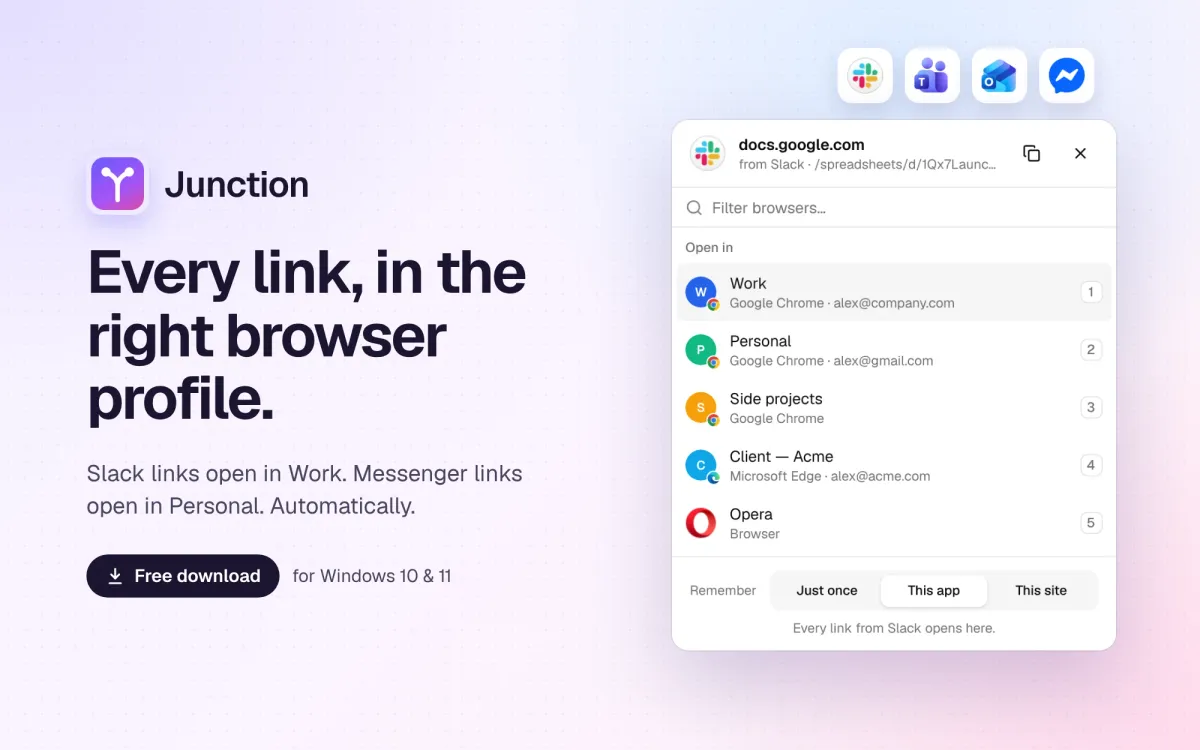
Junction: a free Windows app that opens every link in the right browser profile
Windows sends every link to one browser and ignores your profiles. Junction is a free app that opens Slack, Teams and Outlook links in the right Chrome or Edge profile, and asks only once.