

If you take notes on an e-ink tablet — BOOX, reMarkable, Supernote, Kindle Scribe, any of them — you already know the rough edges. Each device has some form of search, but it's all on-device: trapped inside that specific app, on that specific tablet, indexing only what that vendor's OCR was willing to figure out. You can't reference your notes from another app, you can't pull a quote into a doc you're writing, and you definitely can't ask an AI assistant about them. The notes are excellent at the moment you write them. After that they might as well be locked in a drawer.

Penlo is the enhancement suite for your Onyx Boox Note. It reads your handwriting using AI, makes every note searchable, and sends your notes to Notion, Obsidian, or your email the moment you close a notebook.
This post shows you how to fix that — using Claude, ChatGPT, or any other AI assistant that speaks MCP. Five-minute install. Ask in plain English, get answers grounded in what you actually wrote by hand.
I write on an Onyx BOOX Note Air 2 that syncs through Dropbox, so the screenshots and details below reflect that setup. The integration itself is device-agnostic: anything that can drop a PDF into Dropbox, Google Drive, or OneDrive works the same way.This post shows you how to fix that — using Claude, ChatGPT, or any other AI assistant that speaks MCP. Five-minute install. Ask in plain English, get answers grounded in what you actually wrote by hand.
I write on an Onyx BOOX Note Air 2 that syncs through Dropbox, so the screenshots and details below reflect that setup. The integration itself is device-agnostic: anything that can drop a PDF into Dropbox, Google Drive, or OneDrive works the same way.
A quick word on what makes this work
Behind the scenes there's a piece of software called Penlo doing the heavy lifting. It's a small SaaS I built to fix the e-ink notes problem — it pulls notebooks out of whichever cloud folder your tablet syncs to, runs OCR on the handwriting, and exposes the results through a clean API. It works with any device that can push PDFs to Dropbox, Google Drive, or OneDrive. If you want the longer story on why BOOX, reMarkable, and Supernote all have great hardware but the software around them is uniformly broken, read this.
The relevant bit for this post: Penlo recently shipped an MCP integration, which is the standard protocol AI assistants use to read external data. So once your notes are in Penlo, Claude (and the rest) can search them on demand.
You'll need:
- An e-ink tablet (or anything else) that can sync PDF notebooks to Dropbox, Google Drive, or OneDrive. I use an Onyx BOOX Note Air 2 with Dropbox; reMarkable, Supernote, Kindle Scribe, and others work the same way.
- A Penlo account on the Power plan. MCP is the headline feature of that tier — it's how I keep the lights on while keeping the rest of Penlo cheap.
- An AI client that supports MCP — Claude Desktop is the easiest, but ChatGPT, Cursor, VS Code, and others work too.
Got all three? Five minutes to working.
What Penlo MCP gives Claude
Three tools, deliberately small:
search_notes— full-text search across the OCR content of every notebook you've synced.find_notebook— locate a notebook by its title or PDF filename.list_recent_notes— what have you been writing about lately.
Each user only ever sees their own notes — authentication happens per API key on every call. There's no shared index, no cross-user leakage.
Install in Claude Desktop (5 minutes)
Anthropic ships a one-click installer format called .mcpb. Penlo provides a .mcpb file. So this really is a five-minute install.
1. Generate your Penlo API key
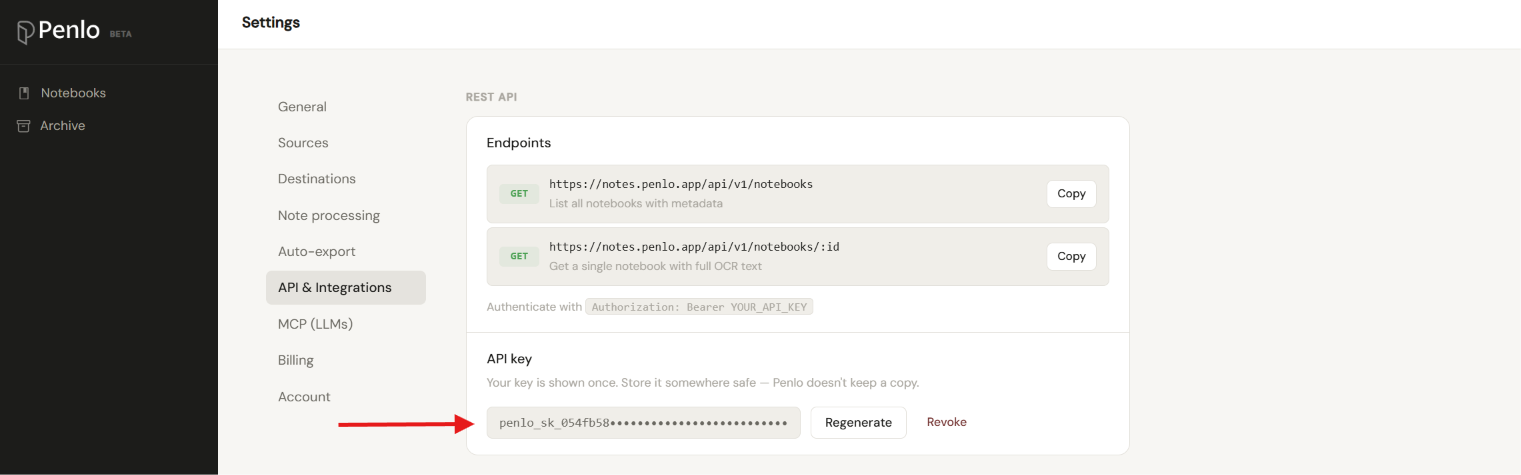
In Penlo, go to Settings → API. Click Generate API Key. Copy it somewhere safe — you won't see it again after closing the dialog.
2. Download the extension

Download the Penlo MCP bundle
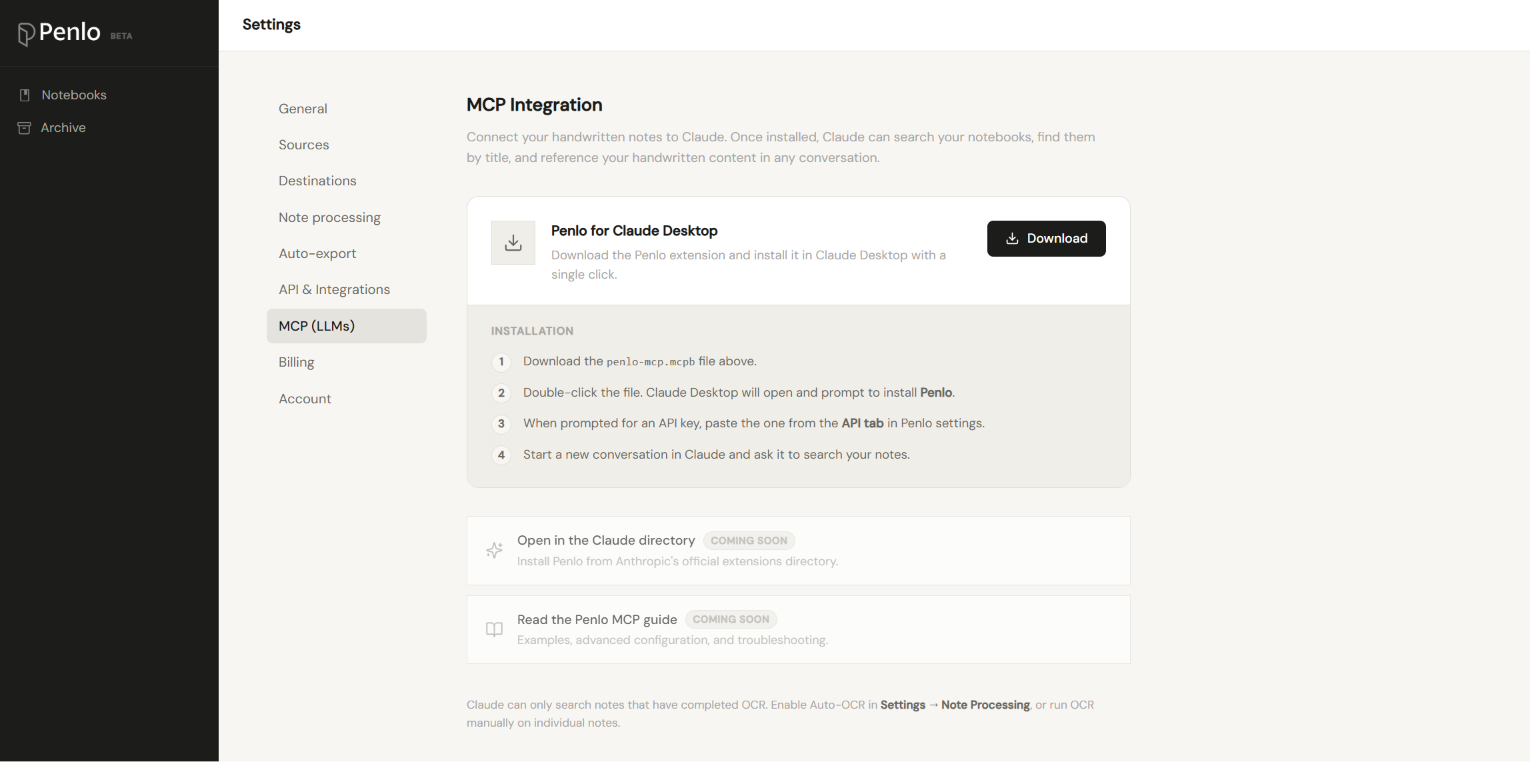
Or, you can do it in Penlo, go to Settings → MCP. Click the Download button. You'll get a file called penlo-mcp.mcpb (~5 MB).
3. Claude desktop installation
- Navigate to Settings → Extensions in Claude Desktop.
- Click "Advanced settings" and find the Extension Developer section.
- Click "Install Extension…"
- Select the
.mcpbfile you downloaded and follow the prompts to install.
Then enter the API key prompt + paste, same as the double-click flow.
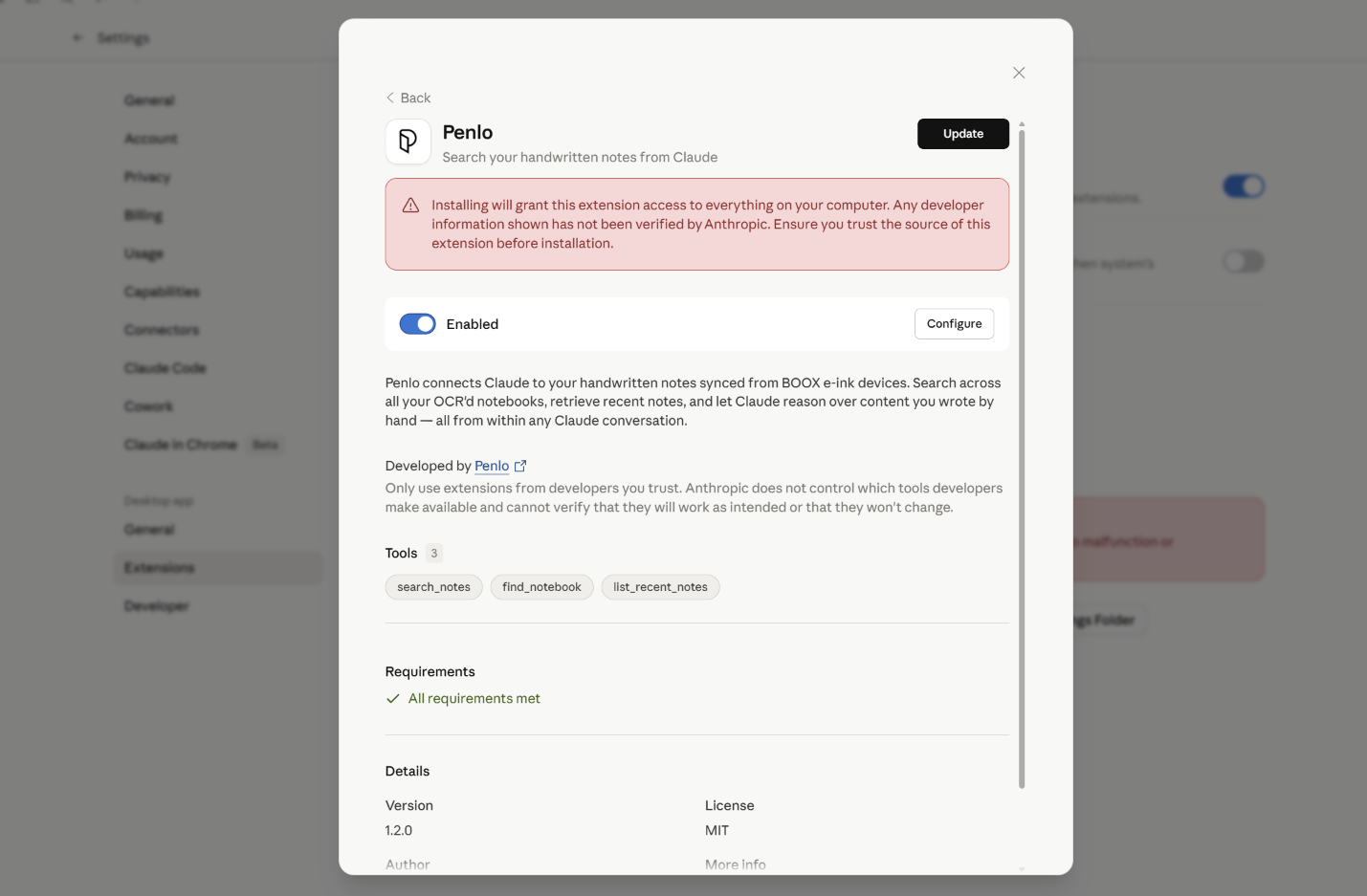
Click Install. Claude then asks for your API key.
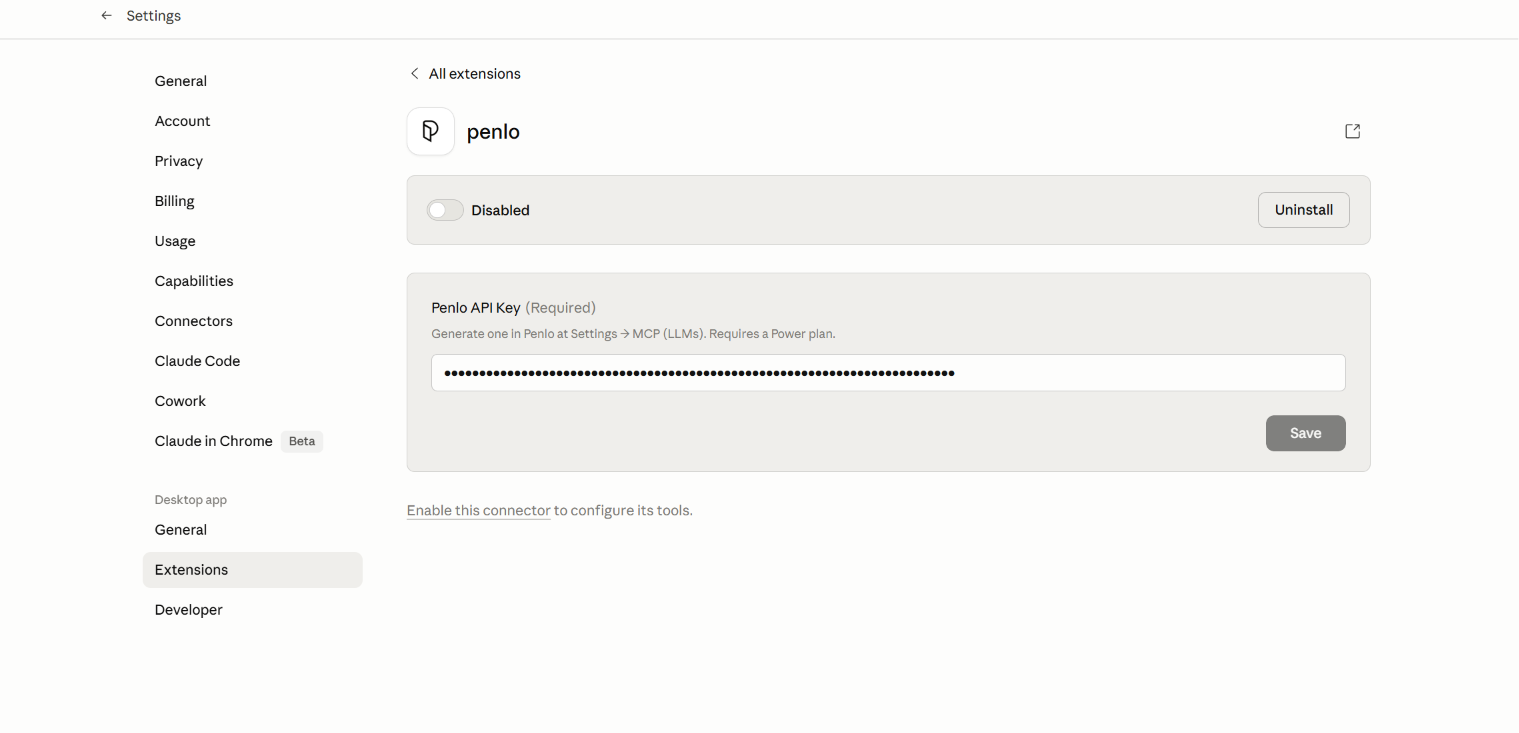
Paste the key from step 1. Done.
4. Try it
Start a new conversation in Claude and ask:
Search my Penlo notes for [a topic you've actually written about].
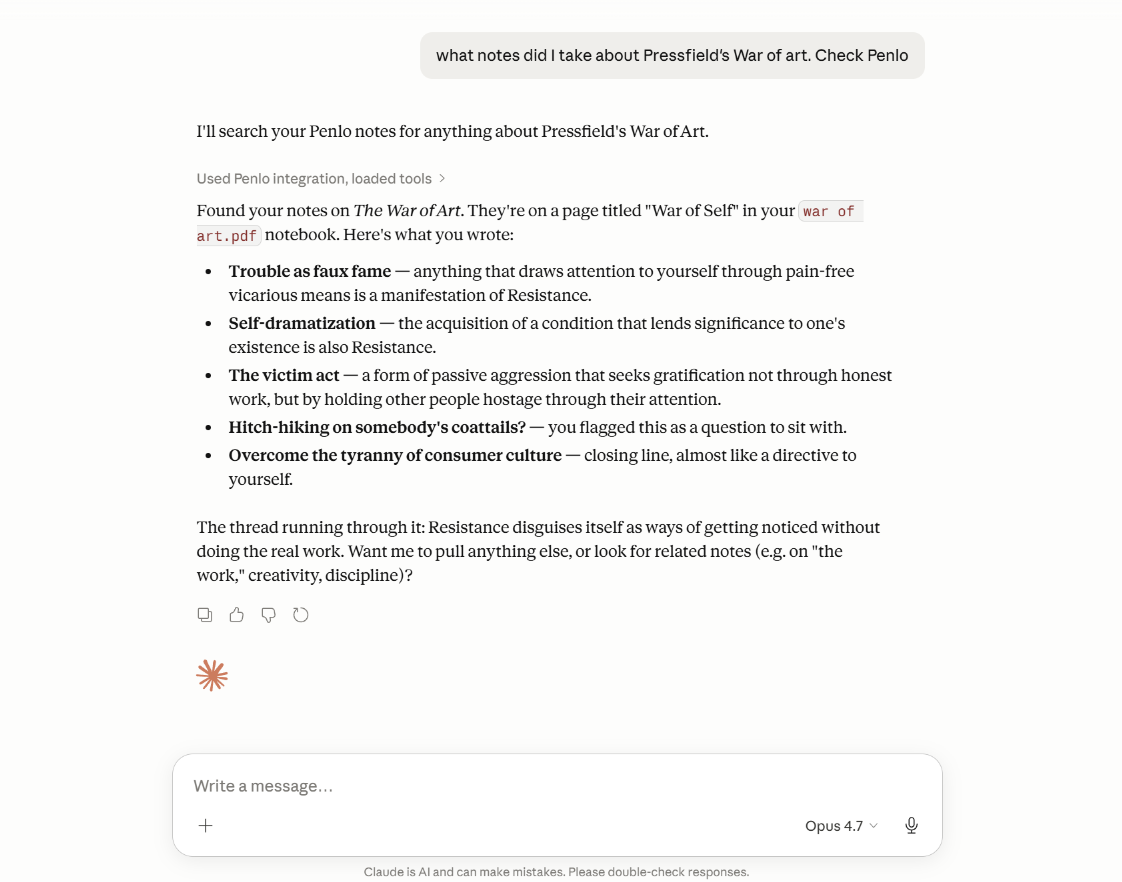
You'll see Claude call search_notes, the tool invocation will expand, and Claude's answer will reference your handwritten content.
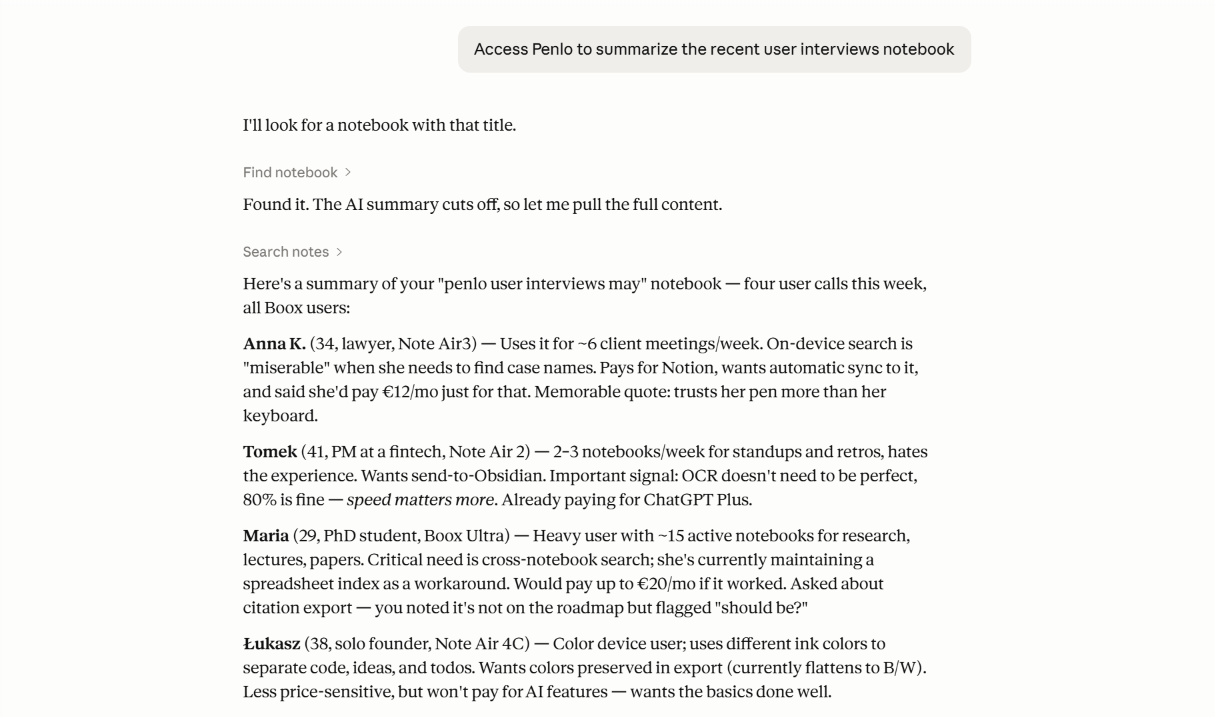
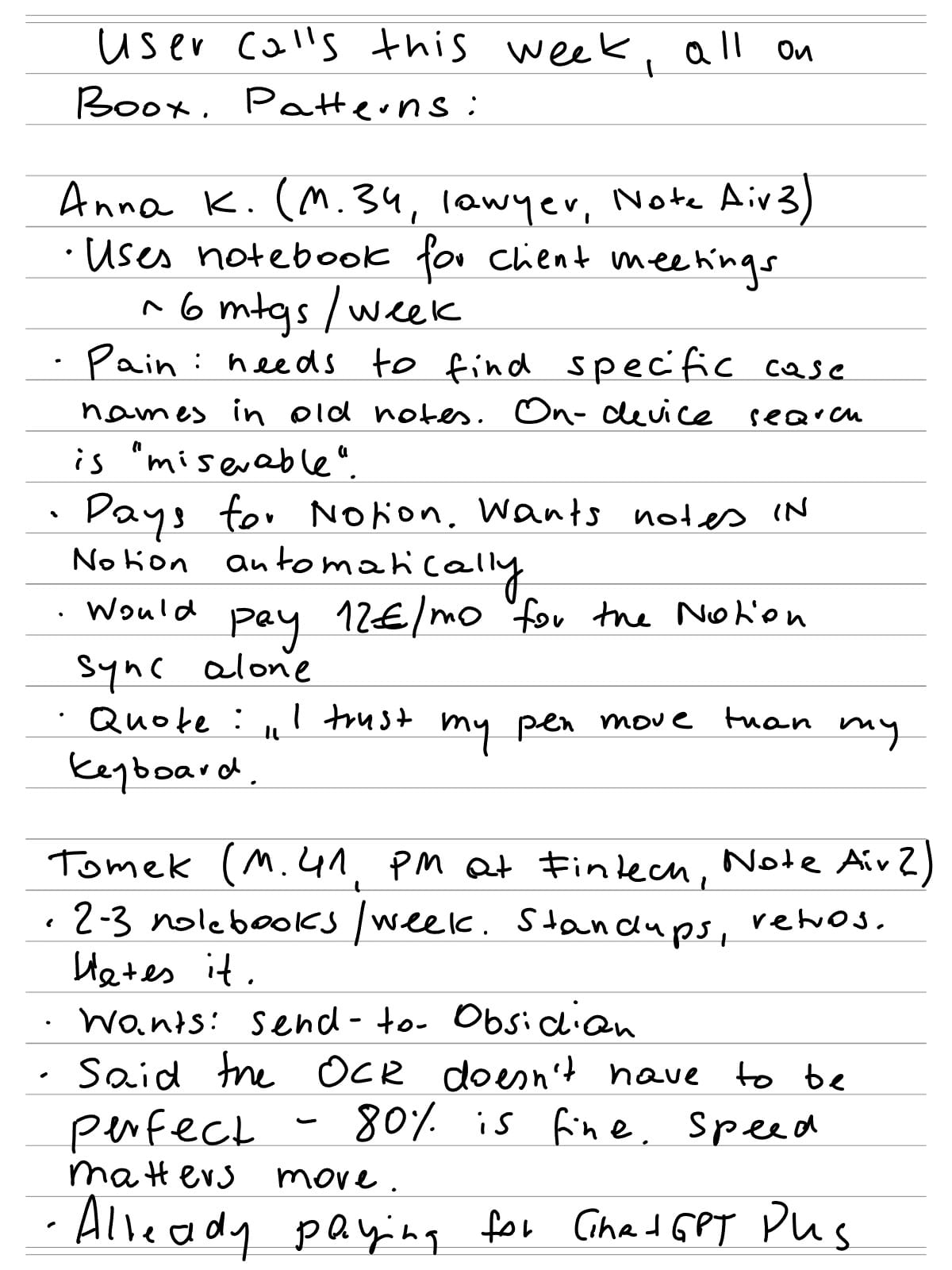
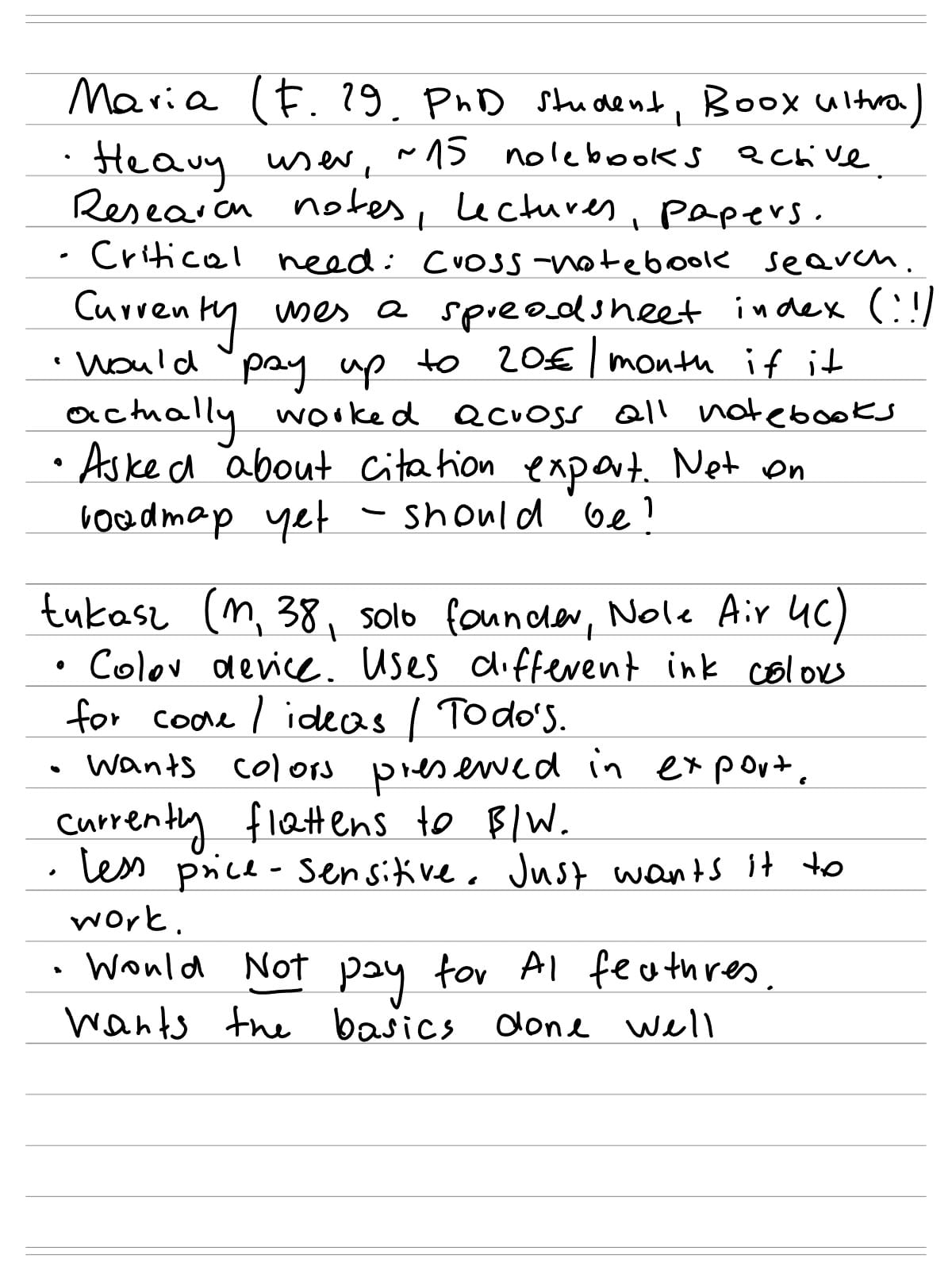
The example above is Claude retrieving my recent notes (rpoduct interviews):
See it in action
Write a few real notebooks. Wait for OCR to finish (green badge per notebook in Penlo). Then open a Claude conversation and treat your handwritten archive like a database.
The interesting prompts aren't the obvious ones. Try:
- Retrieval — finding things you wrote
The 80% case. Use these when you remember writing something but can't remember where.
- "Search my Penlo notes for [topic] — what did I write?"
- "Did I write anything about [person's name] in the last month?"
- "Find every mention of [project name] across my notebooks."
- "What did I write about pricing in the last few weeks?"
- "Pull every quote I jotted down from a meeting with [name]."
Synthesis — turning notes into something usable
Where Claude actually saves you time. Single-shot prompts that compress raw notes into something you'd otherwise spend 20 minutes writing.
- "Summarize my notes from this week in 5 bullets."
- "Turn my notes from [meeting name] into action items, with owners if I named them."
- "Find my notebook from [date or topic] and write a one-paragraph status update for my manager."
- "Pull every decision I wrote down this month."
- "Compress my [book/article] notes into a tweet thread."
- "Find my interview notes from this week and draft a follow-up email to each person."
Cross-notebook reasoning — connections you'd never spot manually
The non-obvious use case. Most people don't realize this is possible until they try.
- "Group my last month of notes by theme."
- "What questions did I write down but never answer?"
- "Find every TODO I wrote in any notebook and give me one combined list."
- "Pull every quote I attributed to [person] across all my notebooks."
- "What ideas have I returned to more than once?"
- "Compare what I wrote about [topic] in [notebook A] vs [notebook B]."
Drafting — using notes as raw material
Treat your notebooks as a private corpus. Claude pulls from your voice, your details, your specifics — not generic LLM filler.
- "Based on my notes from [topic], draft a blog post outline."
- "Find my notes on [client / project] and draft a proposal."
- "Pull from my notes and write a LinkedIn post about [topic] — in my voice."
- "I'm prepping for a talk on [topic]. Find everything I've written about it and give me an outline."
- "Find my reading notes on [book/article] and write a 200-word review."
Specific workflows by role
This is where the post can land emotionally — show the reader a specific version of themselves.
Founders / PMs:
- "What did users tell me they'd pay for, across all my interview notes?"
- "Find every feature request from the last quarter and group them by frequency."
- "What objections came up more than once in my sales calls this month?"
Researchers / students:
- "Find every reference I jotted down for [topic] and format them as a citation list."
- "Compare my notes from [lecture A] and [lecture B] — what concepts overlap?"
- "What sources did I mention but never look up?"
Writers / journalists:
- "Find every interview quote in my notebooks from [month] and pull them into one doc."
- "What story angles did I scribble down but never develop?"
Knowledge workers / consultants:
- "Find my notes from the [client] meetings and summarize their main concerns."
- "What action items did I write down but haven't checked off?"
Meta — finding gaps in your own thinking
The most interesting category. Notes don't just record what you thought — they reveal what you didn't think about.
- "What topics am I writing about most this month?"
- "What questions have I asked myself in writing but never answered?"
- "What ideas have I returned to most often?"
- "Find every time I wrote 'remember to' or 'don't forget' across all notebooks."
Penlo is the enhancement suite for your e-ink tablet -- the layer between your device and the rest of your digital life. It reads your handwriting using AI, makes every note searchable, and sends your notes to Notion, Obsidian, or your email the moment you close a notebook.
Bonus: How to install Penlo MCP in other clients
The .mcpb format only works in Claude Desktop. For everything else, you configure the MCP server manually with a small JSON snippet. The protocol underneath is the same — every config below talks to the same Penlo endpoint.
You'll need three things for every non-Claude client:
- Your Penlo API key (Settings → API)
- Node.js 18+ installed on your machine
- The Penlo MCP server, installed globally:
npm install -g @penloapp/mcp-serverHeads up: as of mid-2026, custom MCP servers are paid-tier-only on most consumer LLMs. ChatGPT requires Plus or higher, Cursor requires the paid plan, and so on. Free tiers can't add custom MCP servers regardless of how Penlo is configured. That's a vendor decision, not a Penlo limit.
ChatGPT (Plus, Pro, Business, Enterprise)
ChatGPT supports MCP through Developer Mode (web, beta).
- In ChatGPT: profile icon → Settings → Connectors.
- Toggle on Developer Mode.
- Click Add MCP server.
- Fill in:
- Name:
Penlo - Command:
npx - Args:
-y @penloapp/mcp-server - Environment variables:
PENLO_API_URL=https://notes.penlo.app/mcpPENLO_API_KEY= your Penlo API key
- Name:
- Save. Start a new conversation. Try the prompts from the previous section.
Cursor
Cursor reads a JSON file at ~/.cursor/mcp.json (Mac/Linux) or %USERPROFILE%\.cursor\mcp.json (Windows). Create it if it doesn't exist:
json
{
  "mcpServers": {
    "penlo": {
      "command": "npx",
      "args": ["-y", "@penloapp/mcp-server"],
      "env": {
        "PENLO_API_URL": "https://notes.penlo.app/mcp",
        "PENLO_API_KEY": "your_penlo_api_key_here"
      }
    }
  }
}
Restart Cursor. Penlo tools become available in chat.
VS Code with GitHub Copilot
Slightly different shape — note the key is servers, not mcpServers. Edit .vscode/mcp.json in your workspace, or the user-level mcp.json in VS Code settings:
json
{
  "servers": {
    "penlo": {
      "command": "npx",
      "args": ["-y", "@penloapp/mcp-server"],
      "env": {
        "PENLO_API_URL": "https://notes.penlo.app/mcp",
        "PENLO_API_KEY": "your_penlo_api_key_here"
      }
    }
  }
}
Reload the window. Penlo tools appear in Copilot Chat's tool list.
Claude Code (CLI)
For Claude Code rather than Claude Desktop:
bash
claude mcp add penlo \
  --command npx \
  --args "-y @penloapp/mcp-server" \
  --env PENLO_API_URL=https://notes.penlo.app/mcp \
  --env PENLO_API_KEY=your_penlo_api_key_here
Other clients
Windsurf, Zed, Cline, Continue, Gemini desktop apps — most use a JSON file with roughly the Cursor shape above. Find your client's MCP docs, drop in the same command / args / env block. If it speaks MCP, Penlo works.


