Junction: a free Windows app that opens every link in the right browser profile
Windows sends every link to one browser and ignores your profiles. Junction is a free app that opens Slack, Teams and Outlook links in the right Chrome or Edge profile, and asks only once.

Michal Wlosik
· 6 min read
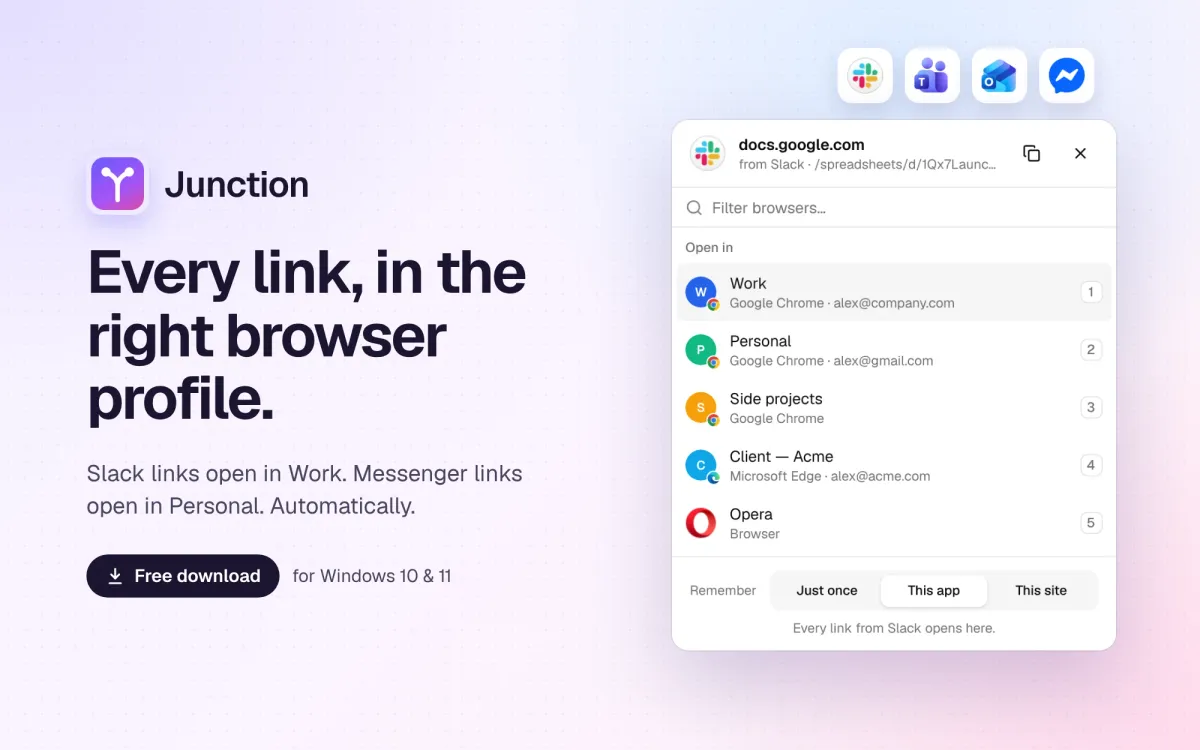
I use three Chrome profiles: one for my own business, one for a client, and one for personal stuff. For years, every link I clicked in Slack, Teams or Outlook opened in whichever profile I'd used last. A shared Google Sheet would open in my personal account and greet me with "You need access". So I'd copy the link, close the tab, switch profile, paste it again. Many times a day. Junction is the small Windows app I built to make that stop, and it's free to download.
The problem
Windows has one setting for this: your default browser. It knows nothing about profiles. Every app hands every link to that one browser, and the browser opens it in the last window you used. If you keep work and personal life in separate profiles, which is the whole point of having profiles, that's the wrong window about half the time.
The cost adds up in small ways:
- The wrong account. Google Docs, Notion, Figma and Jira links open signed in as the wrong person, so you get a "request access" page instead of the document.
- Mixed-up sessions. Client work lands in your personal history and cookies, and personal links end up in the work profile your company manages.
- Constant switching. Copy, close, switch, paste. It takes ten seconds, so it never feels worth fixing, and you do it all day.
There are tools for this. Browser Tamer is a capable one, but you set it up by writing rules and patterns, and it's built for people who enjoy that. I wanted something I could hand to a colleague who has never heard the word "regex" and have it working in a minute.
What Junction does
Junction becomes your default browser, but it doesn't show web pages. When you click a link anywhere on your PC, Junction checks which app it came from and where it points, then opens it in the right browser and profile. It takes a fraction of a second, so you don't notice it's there.
The first time a link arrives that Junction doesn't have a rule for, it shows a small picker right next to your cursor. Pick a profile, choose This app or This site, and you'll never be asked about it again.
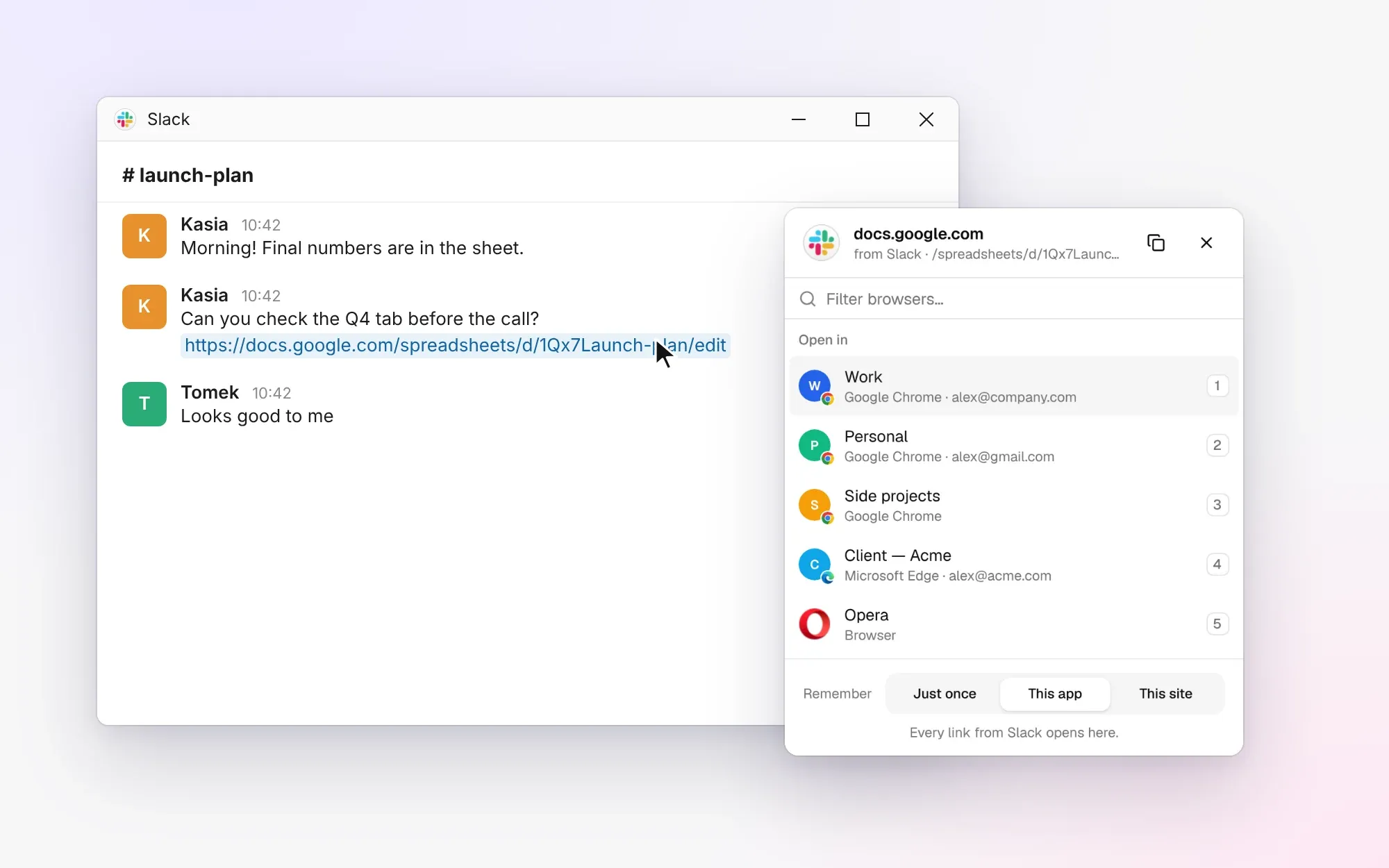
Setting it up takes a minute
- Install Junction. One installer works on every 64-bit Windows 10 and 11 PC, Intel, AMD or ARM, and it doesn't need admin rights.
- Make it your default browser. Windows doesn't let apps do this themselves, so Junction opens the right page in Settings and you pick it under "Web browser".
- Click a link. Junction asks where it should go. Choose "This app" and every link from that app goes there from now on.
That's it. After a day of normal work, most of your links will route themselves.
Rules you can read
Everything Junction has learned lives on one screen, written as plain sentences: links from Slack open in Work, links from Messenger open in Personal, youtube.com always opens in Personal. You can change where a rule goes, switch it off for a while, or delete it.
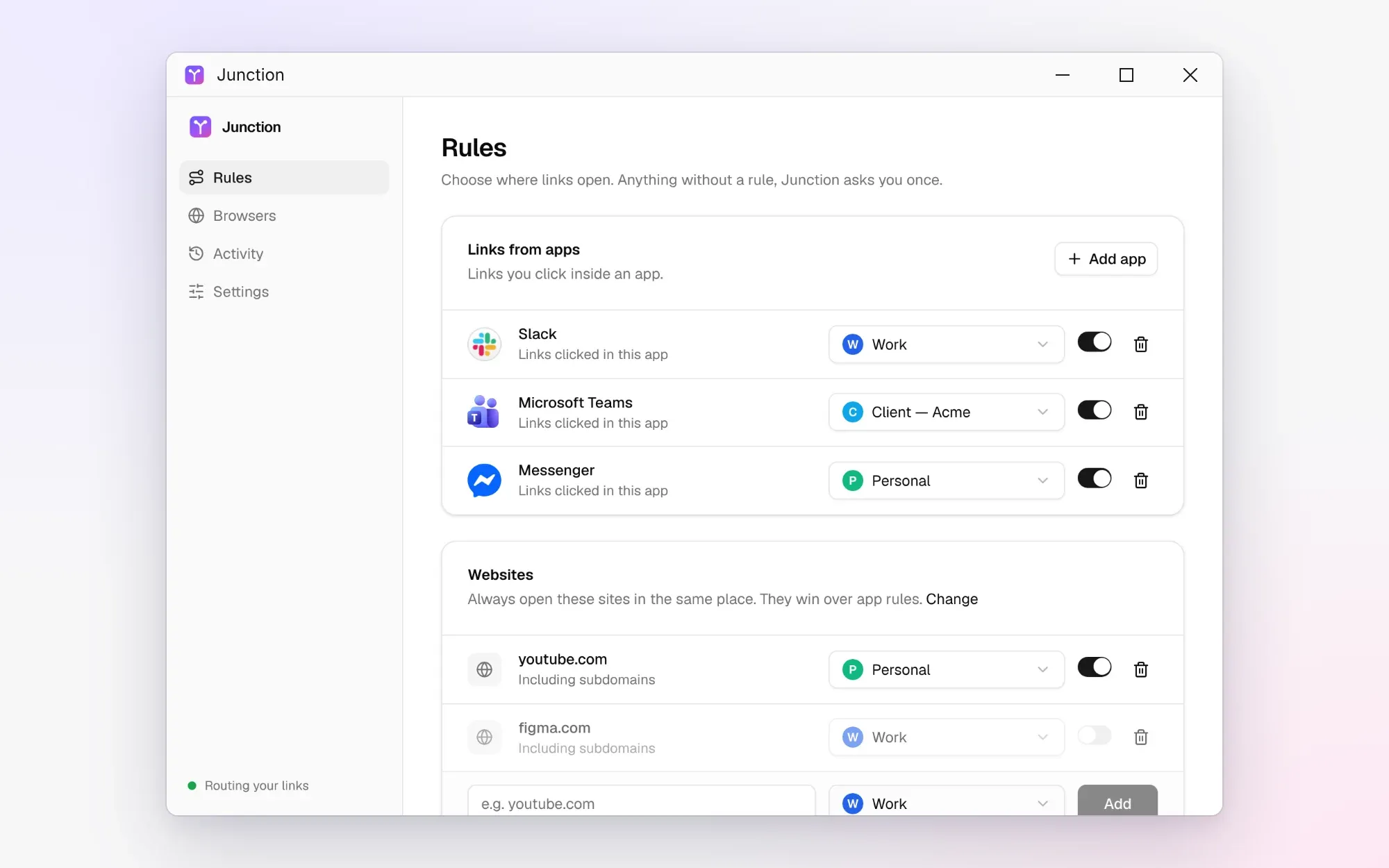
There are two kinds of rules. App rules follow the app you clicked in, which suits most people: Slack and Teams are work, Messenger and WhatsApp are personal. Website rules follow the link itself, for sites that always belong in one place no matter where you found them. When both match, like a YouTube link someone posts in Slack, a setting decides which one wins.
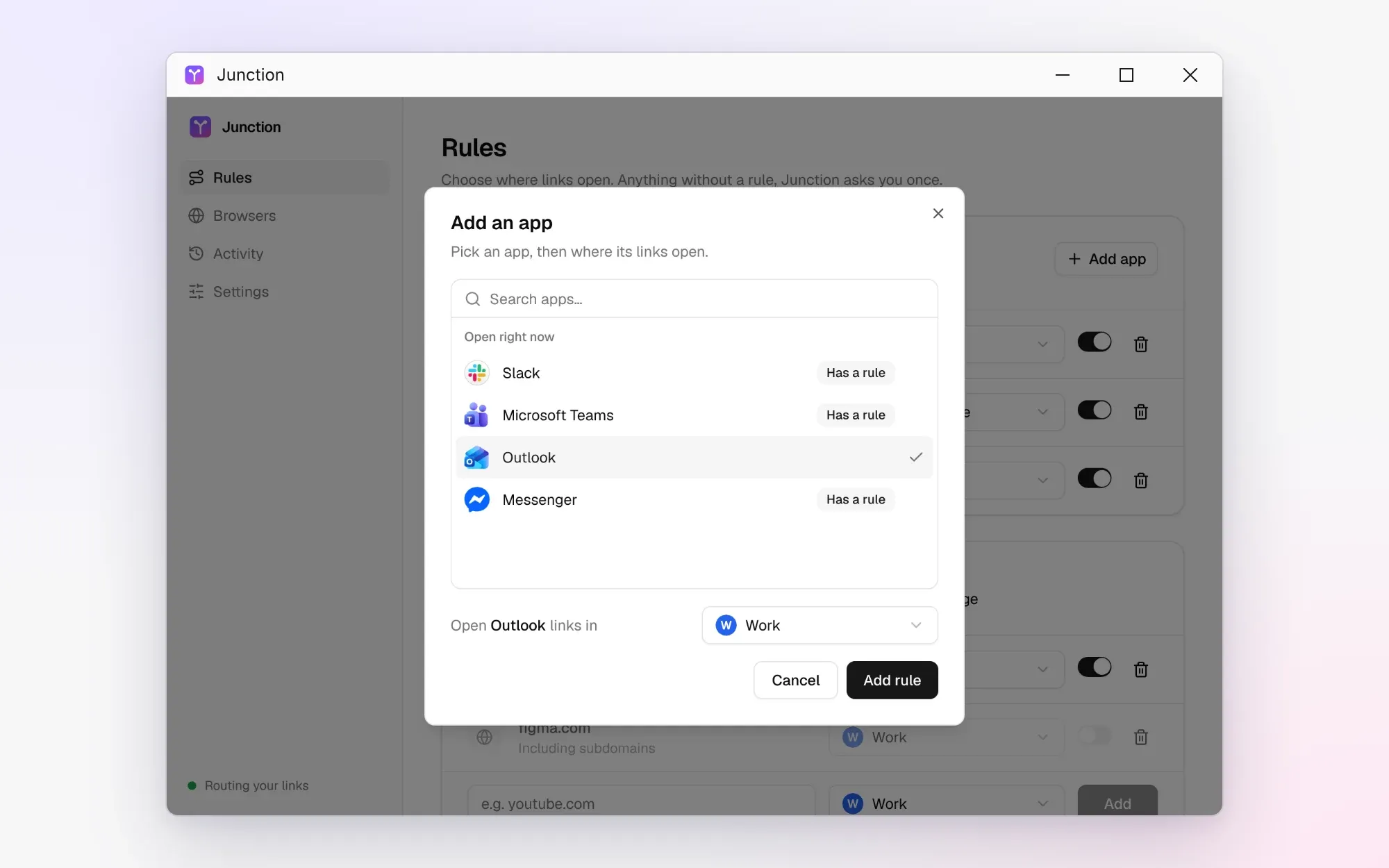
You can also add rules ahead of time. Junction lists the apps that are open right now, with their real icons, so you don't need to know what an app's file is called.
It finds your browsers and profiles
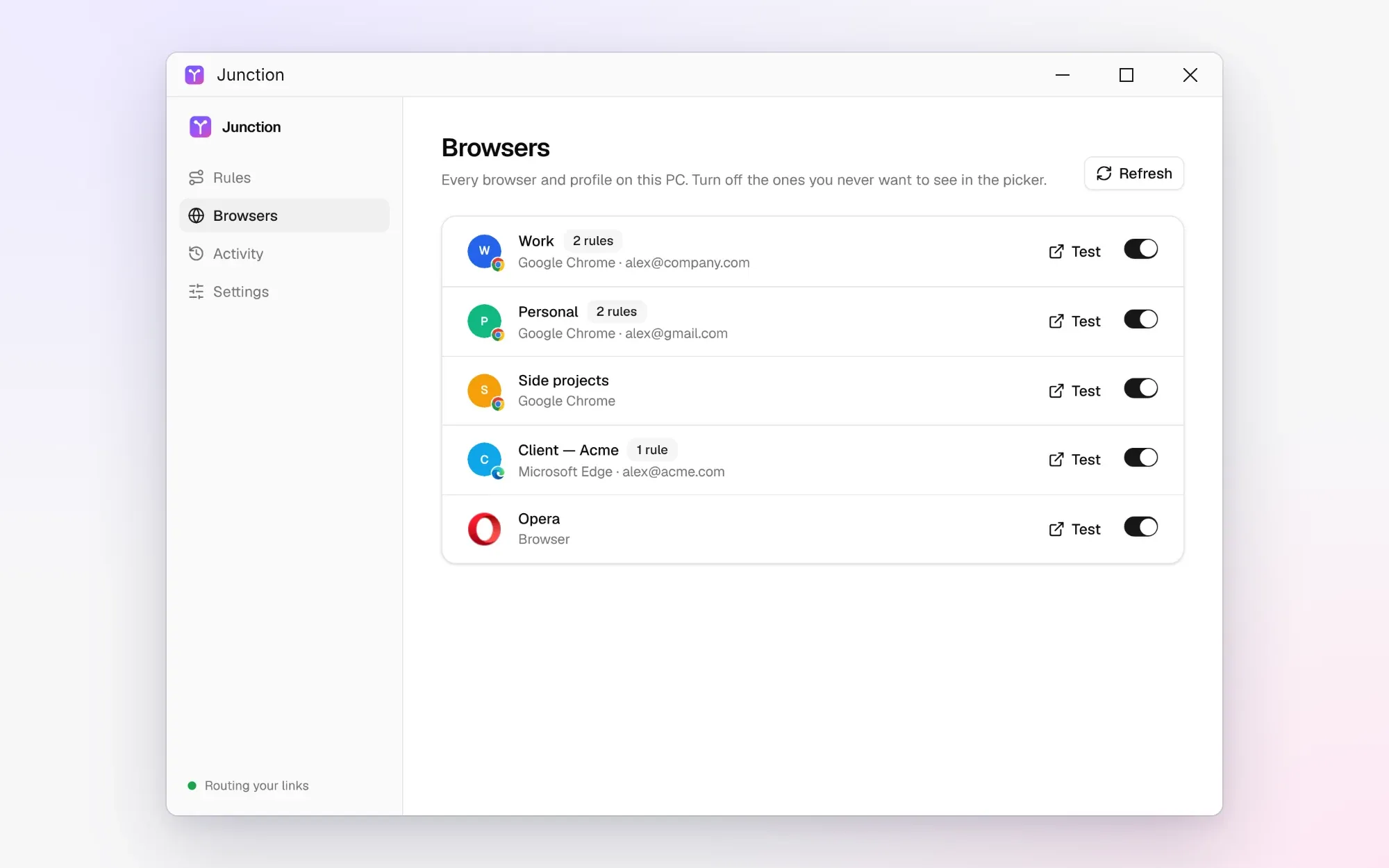
Junction finds every browser on your PC and reads their profiles itself: Chrome, Edge, Brave and Vivaldi profiles with their names, colours and the account they're signed in to, Firefox profiles, and browsers without profiles like Opera. Add a new Chrome profile and it shows up. Hide the ones you never use, and they disappear from the picker.
See what happened, and why
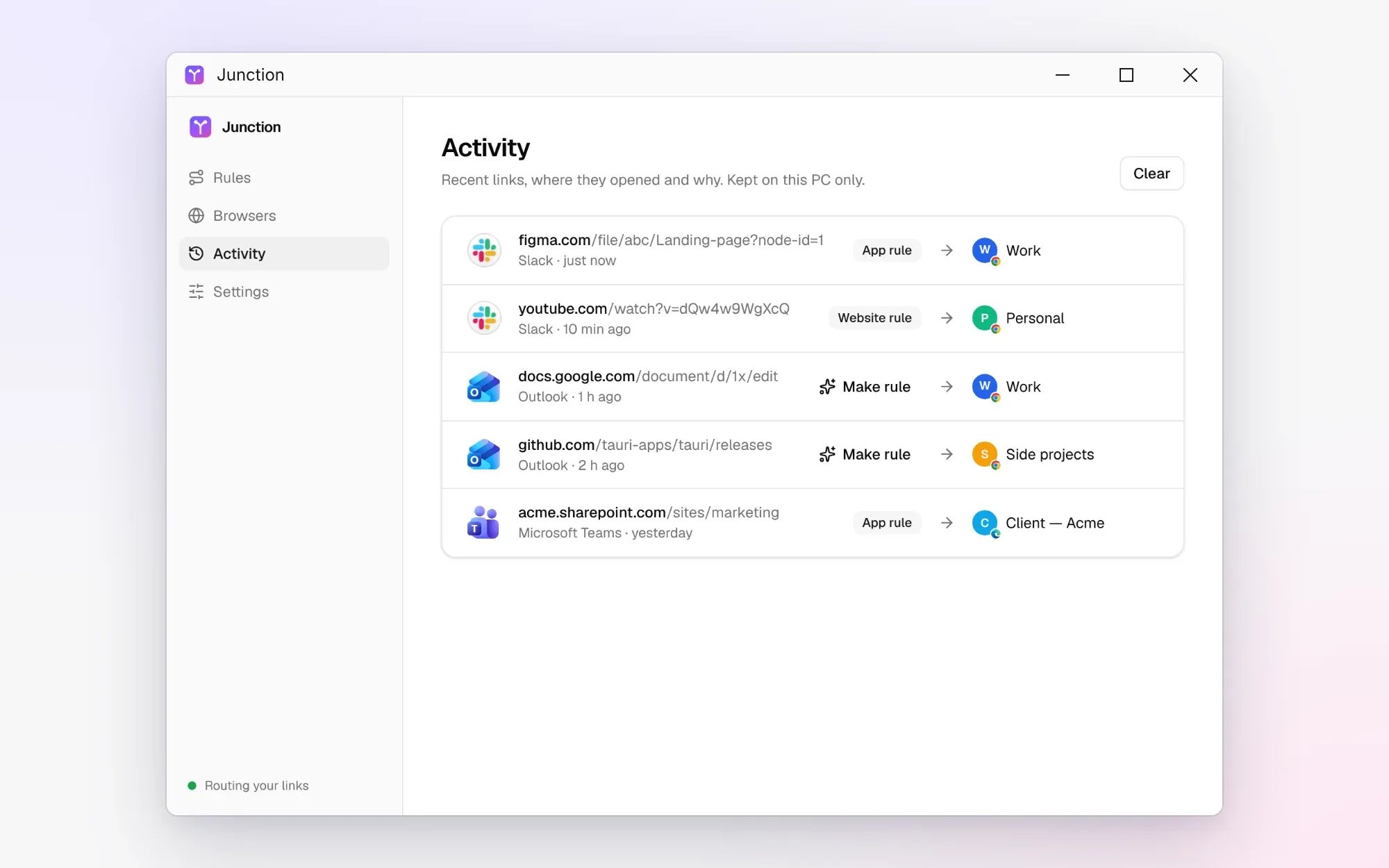
The Activity screen shows recent links: where each one came from, where it opened, and which rule sent it there. If you picked a browser by hand for a link from Outlook a few times, one click on Make rule turns that into a rule.
The small things
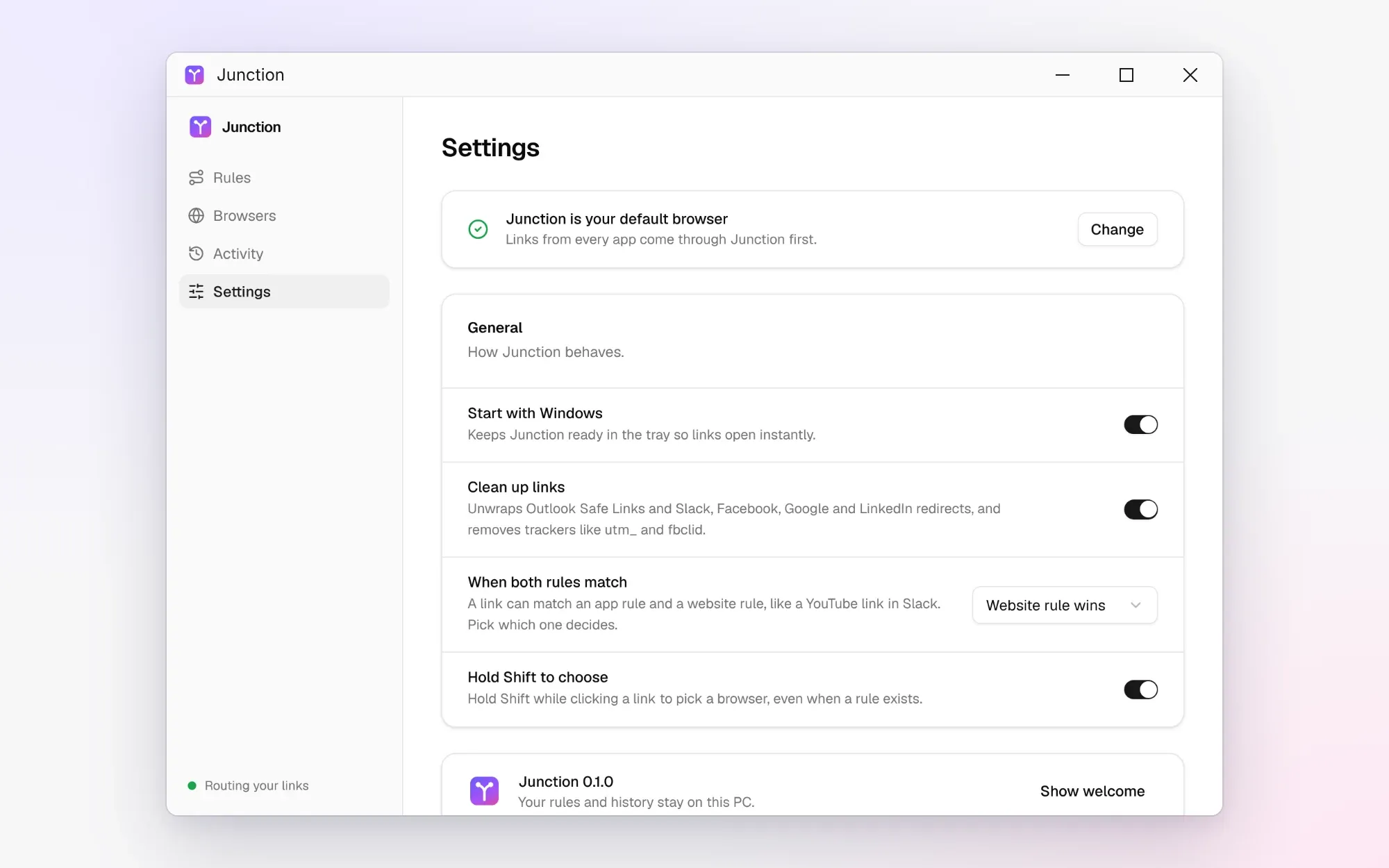
- Cleaner links. Junction unwraps Outlook Safe Links and the redirect wrappers Slack, Facebook, Google and LinkedIn add, and strips tracking tags like utm_ and fbclid before the page opens.
- Shift-click to choose. Hold Shift while clicking any link to pick a browser for that one link, even if a rule exists.
- Always ready. Junction starts with Windows and waits in the system tray, so links open instantly.
- Private by design. There's no account and nothing to sign in to. Your rules and history stay on your PC.
- Light and dark. It follows your Windows theme.
How it's built
Junction is a Tauri app: a small Rust core that talks to Windows, and a React interface built with shadcn/ui. The installer is under 5 MB. As with Penlo and Ectobuilder, Claude wrote most of the code and I did the deciding and the testing, here on my Surface.
The interesting problems were all Windows ones. Windows never tells the browser which app a link came from, so Junction works it out by looking at what launched it and which window was in front. It also has to find the real icons of Store apps like the new Teams and Outlook, which keep them inside their app packages rather than in the program file. And the default browser setting moved to a new place in recent Windows 11 builds, which made an early version wrongly insist it wasn't the default.
Download Junction for free
Junction is free. It runs on 64-bit Windows 10 and 11, on both Intel/AMD and ARM PCs, and the download is a small zip with the installer and a short readme.
One thing to know: Junction isn't code-signed yet, so the first time you run the installer Windows may show "Windows protected your PC". Click More info, then Run anyway.
This is an early version, and I'd love to hear how it works for you, especially which apps it gets wrong. I'm on LinkedIn.
Written by
Keep reading
Ectobuilder: design your Ghost theme by clicking, then publish it in one go
I built Ectobuilder because designing a Ghost theme still meant writing Handlebars. Now you pick one of 17 finished themes, change everything on the page, and publish a real Ghost theme to your site in one click.