I built the e-book reader app I'd always wanted. Here's what it does
Bookbeam is an Android e-book reader built for e-ink first: crisp paged reading on BOOX, natural-voice read aloud with a full cast, bilingual reading, flashcards, Android Auto and a Wear OS app.

Michal Wlosik
· 10 min read
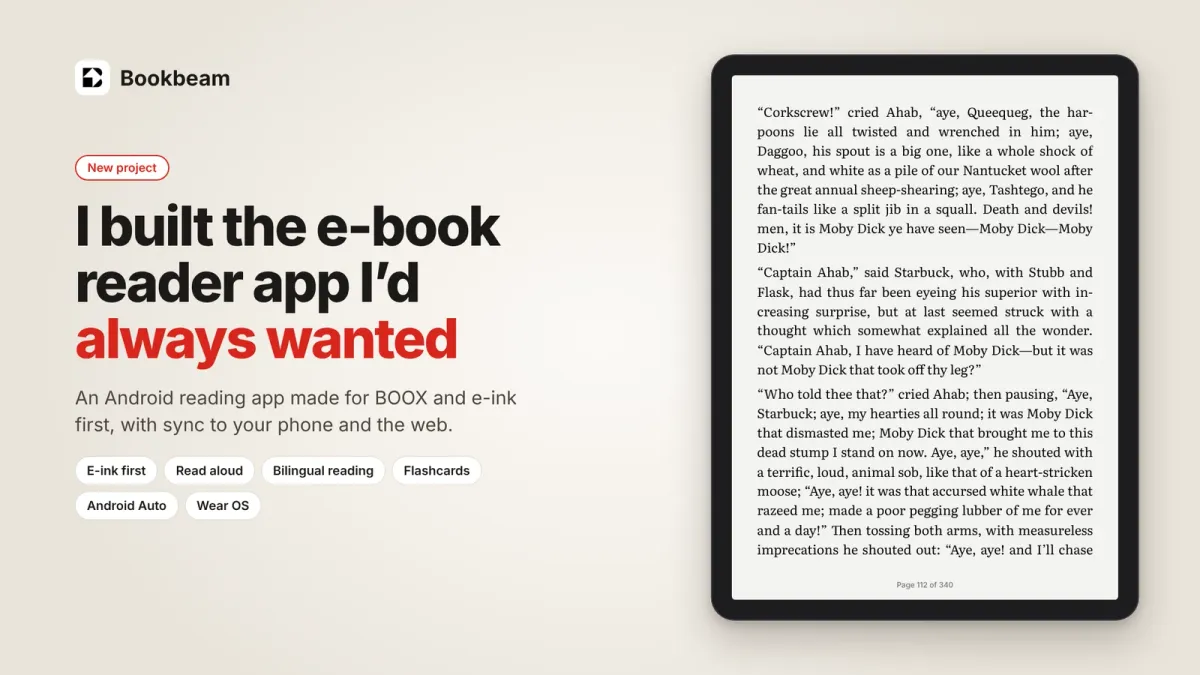
I read on a BOOX tablet almost every day, and for years I couldn't find an Android reading app that felt made for it. Most were phone apps that happened to run on e-ink: pages smeared during animations, menus faded in slow motion, and reading aloud or reading in another language meant juggling three apps.
So I built my own, and I think it's now the best e-book reader you can put on an Android device. It's called Bookbeam. It's designed for e-ink first and works just as well on a phone, in the car and on your watch.

Bookbeam Reader
The e-book reader for Android, BOOX and e-ink tablets. Free, with a 7-day Pro trial.
Here's what it does.
One library for everything you read
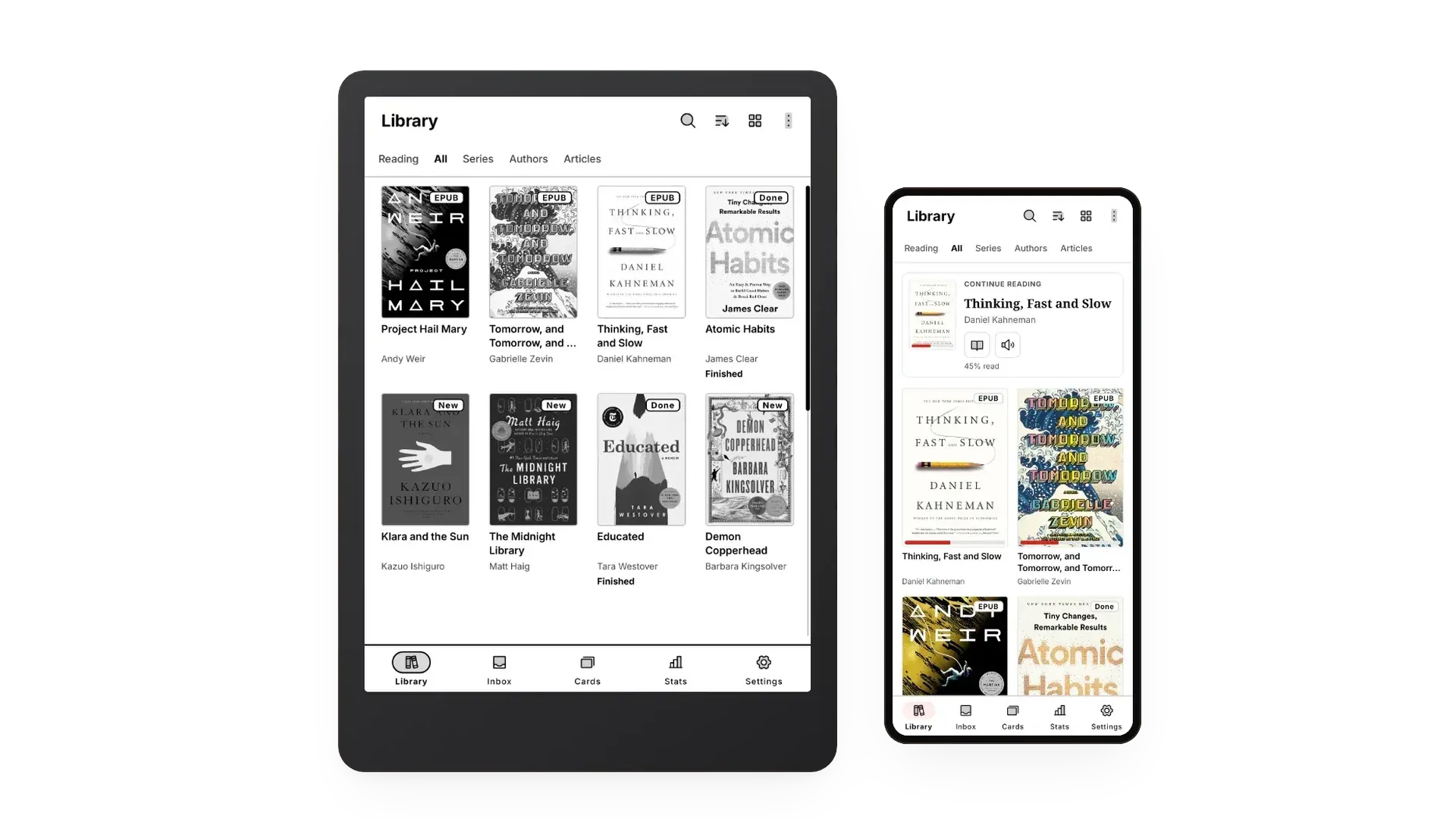
Bookbeam opens EPUB, PDF, MOBI, AZW3 (without DRM), FB2, TXT and CBZ comics, so most of what you already have just works. Books get proper covers, series and authors, and articles and YouTube videos you send from your browser sit in their own tabs next to them. Everything syncs between your e-reader, your phone and a free web library: reading position, highlights, notes, bookmarks and reading stats. If you also use KOReader, Bookbeam can sync progress with it too.
Built for e-ink, not just compatible with it
Every screen in Bookbeam was designed on a BOOX first and checked on a phone second. When the app sees an e-ink screen, it switches into a mode built for it:
- Pages, not scrolling. Lists, settings and the library move a page at a time, like a book, because scrolling on e-paper means blur and ghosting.
- No motion. No ripples, fades, spinners or sliding panels. Page turns are instant.
- Black, white and thick lines. Two-pixel black outlines instead of pale grey borders that vanish on e-paper, and bigger tap targets on e-ink tablets.
- Refresh on your terms. Choose a full refresh every few pages to clear ghosting, use a refresh button any time, and pick the BOOX refresh mode for book pages: Clear, Balanced or Fast. It knows colour e-ink screens too, and keeps a red accent there.
- Turn pages your way. Tap zones for either hand, volume keys, BOOX page buttons and Bluetooth page turners.
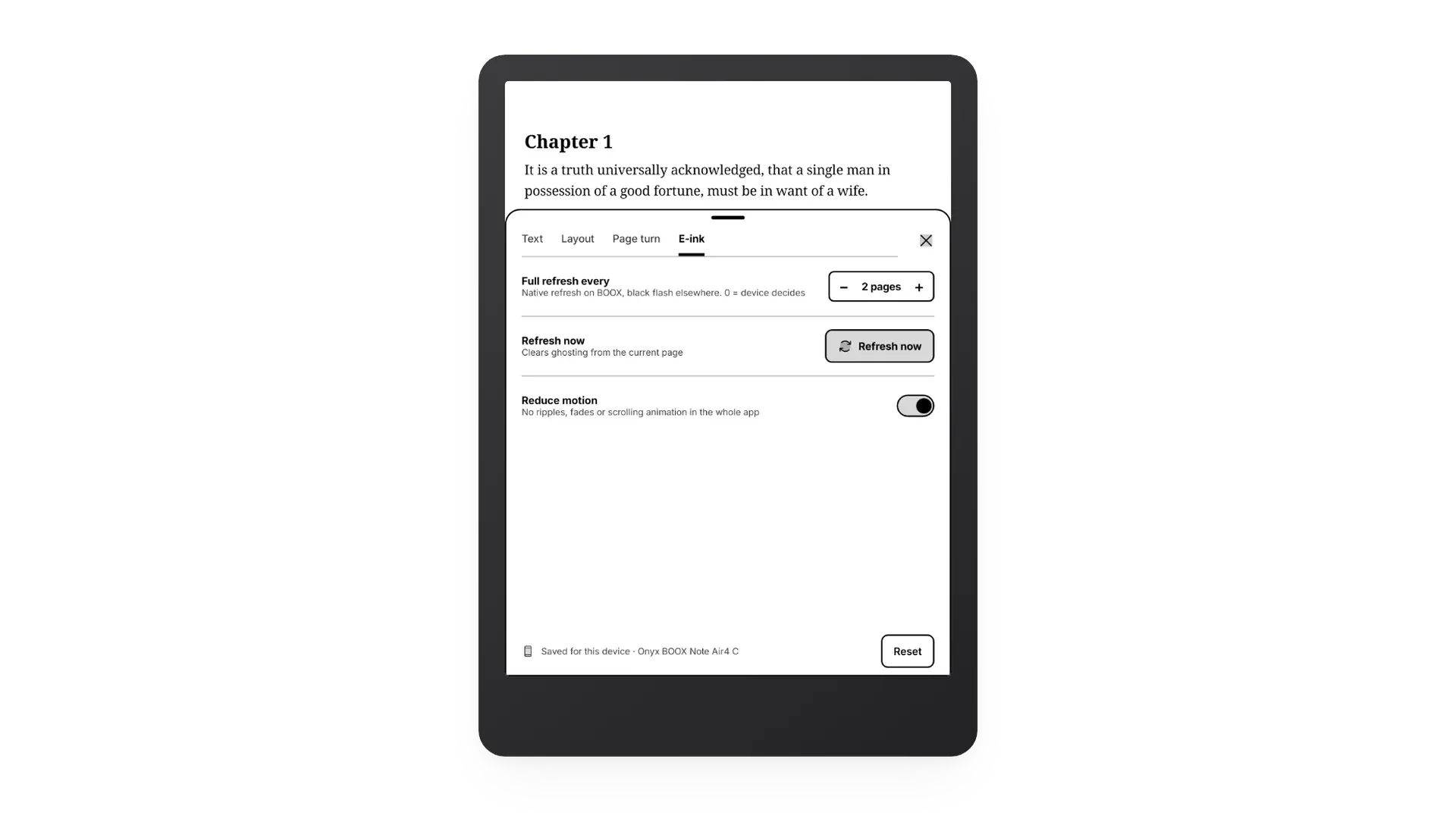
On a phone or a regular tablet, the same app switches to a light, colourful look with smooth scrolling. Settings are saved per device, so your BOOX and your phone each get what suits them. A good e-ink app is one you stop noticing, and that was the goal.
Read aloud that follows the page
Tap play and Bookbeam reads your book to you. You can use the free voice built into your device, which works offline, or, with Pro, switch to natural voices from ElevenLabs and Deepgram right in the player, mid-book.
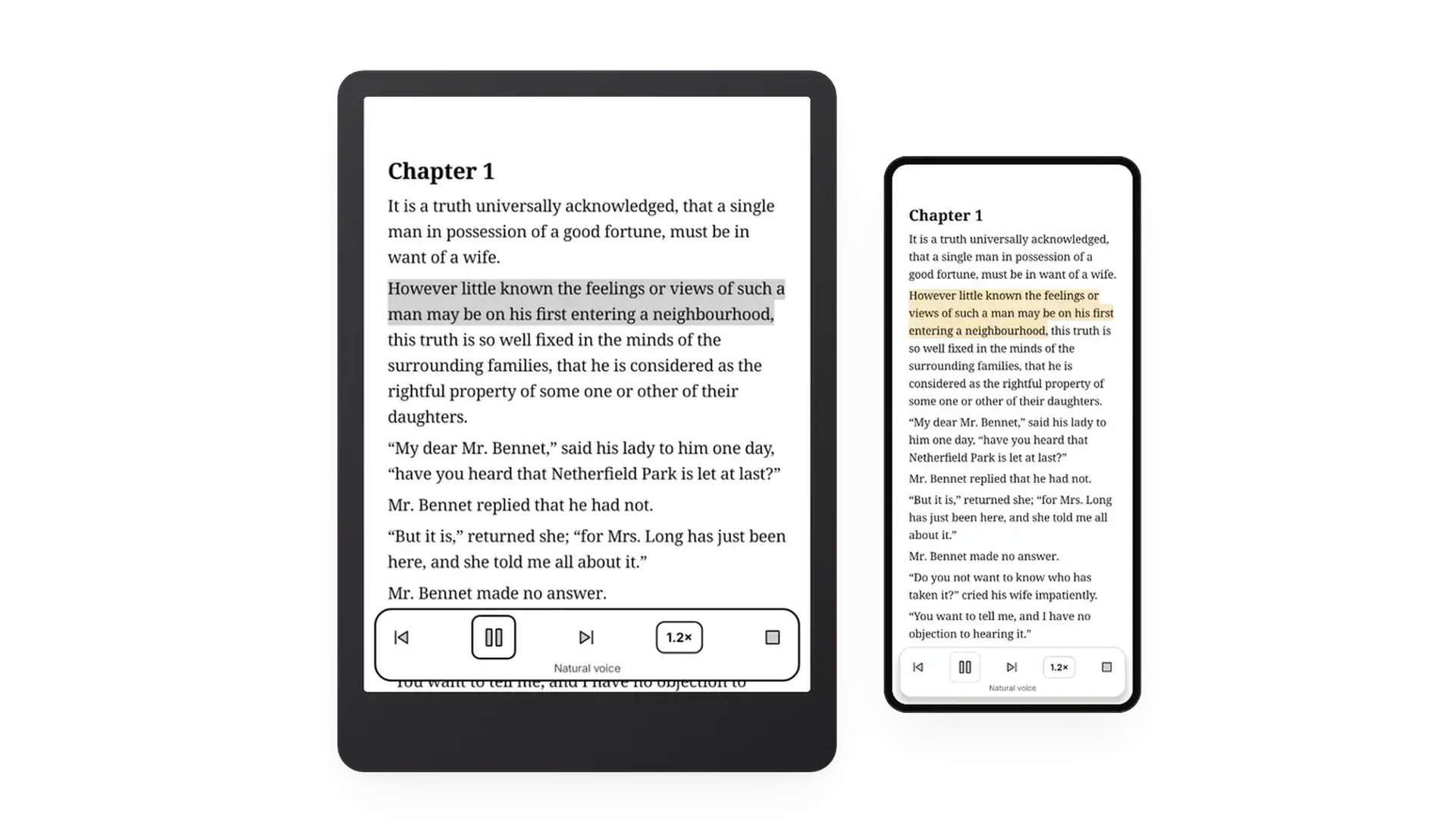
- It follows along. The sentence being read is marked on the page, and the page turns on its own as the voice reaches the next one, even in the middle of a sentence.
- It sounds like reading. Short pauses between paragraphs and longer ones around headings, so chapters don't run together.
- It starts where you are. Play always starts from the page on screen. Skip forward or back by sentence or by paragraph, change speed, or switch voices and carry on from the same sentence.
- Hands-free. Read aloud shows up on your lock screen and works with headphone buttons, so you can pause or skip with the phone in your pocket.
Narrator, Expressive or a full cast
With ElevenLabs voices you choose how a book is performed:
- Narrator: one voice, even delivery. Best for non-fiction and long listening.
- Expressive: one voice that takes emotion and pacing from the text, so a whisper sounds like a whisper.
- Full cast: a different voice for each character in dialogue, with the narrator reading everything else. Characters show up on a cast sheet as they speak, and you can give any of them another voice. Lines with no named speaker stay with the narrator, so nobody gets the wrong voice.
Here's a scene from Moby-Dick in all three modes, as the app reads it on an e-ink tablet. The voices are real ElevenLabs audio. Press play, switch modes, change the speed or open the settings, just as you would in the app.
Set a default in Settings and change it for any book from the reader. Natural voices work in more than 30 languages, and the app checks the book's language for you: if a voice can't read it, it says so in the player instead of reading nonsense.
Listen in the car
Bookbeam works with Android Auto (Pro). Your library shows up on the car screen as covers, and you pick up exactly where you stopped on your phone or e-reader.
- Chapter progress bar with elapsed time and chapter length. Drag it to jump within the chapter.
- Speed and voice buttons right on the car screen.
- Download chapters for offline before a drive with no signal.
- No silences. With Expressive or Full cast, the next passages are prepared ahead, and if one isn't ready in time the Narrator voice reads it instead of stopping.
- Even loudness. Whispers stay audible over road noise and shouts don't make you jump.
More on the Android Auto page.
Read in two languages, and keep the words
I have a linguistics and ESL background, and I've always learned languages best by reading real books slightly above my level. That's why bilingual reading is the feature I'm proudest of. Turn it on and every paragraph gets its translation right underneath, in more than 50 languages. You read the original, glance down when you need to, and keep going.
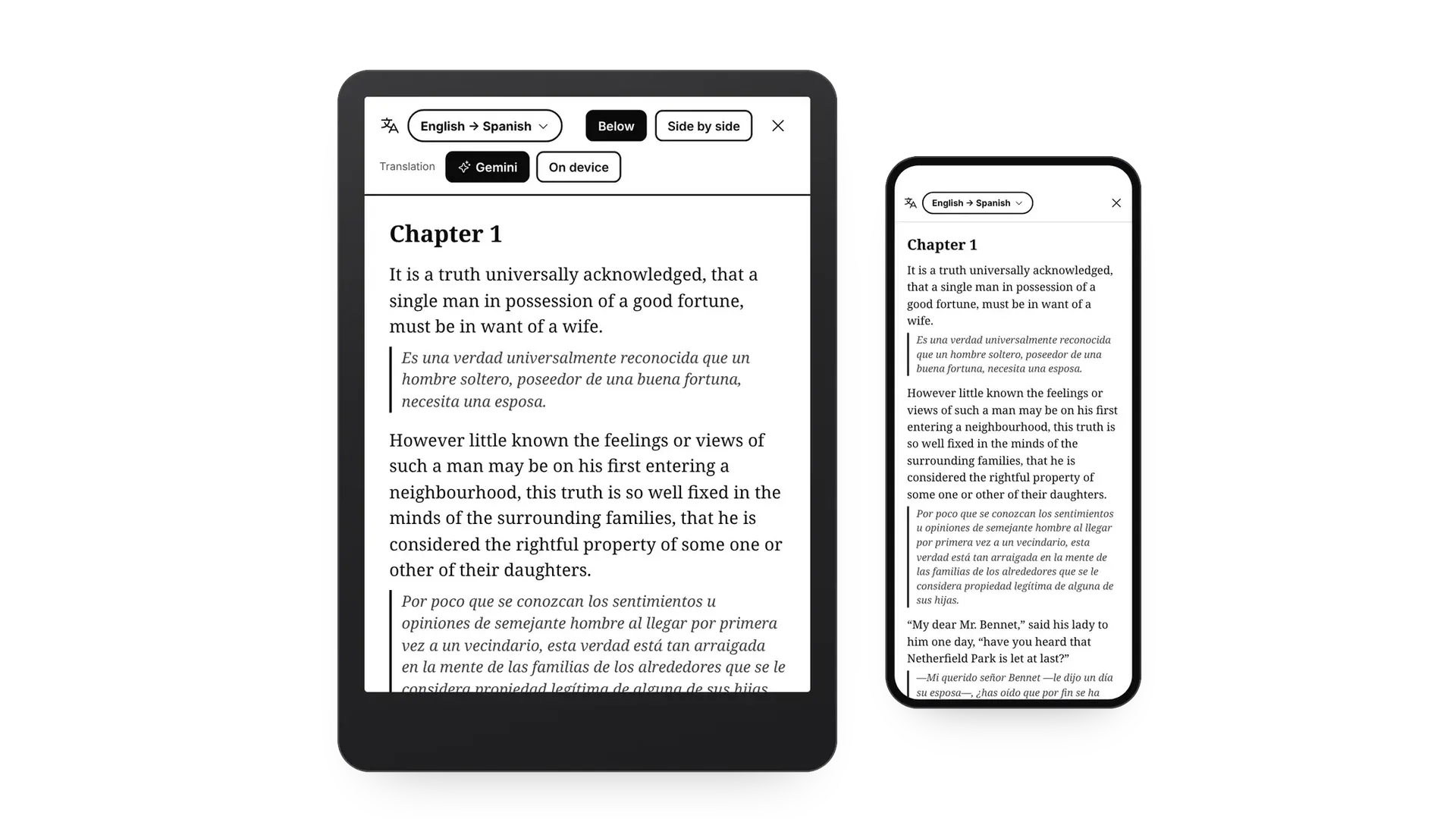
Turn a tablet sideways and you get facing pages: the book on one page and the translation on the other, paragraph for paragraph, like a parallel-text edition. One tap swaps the sides. Held upright, you can also put the two languages side by side in columns.
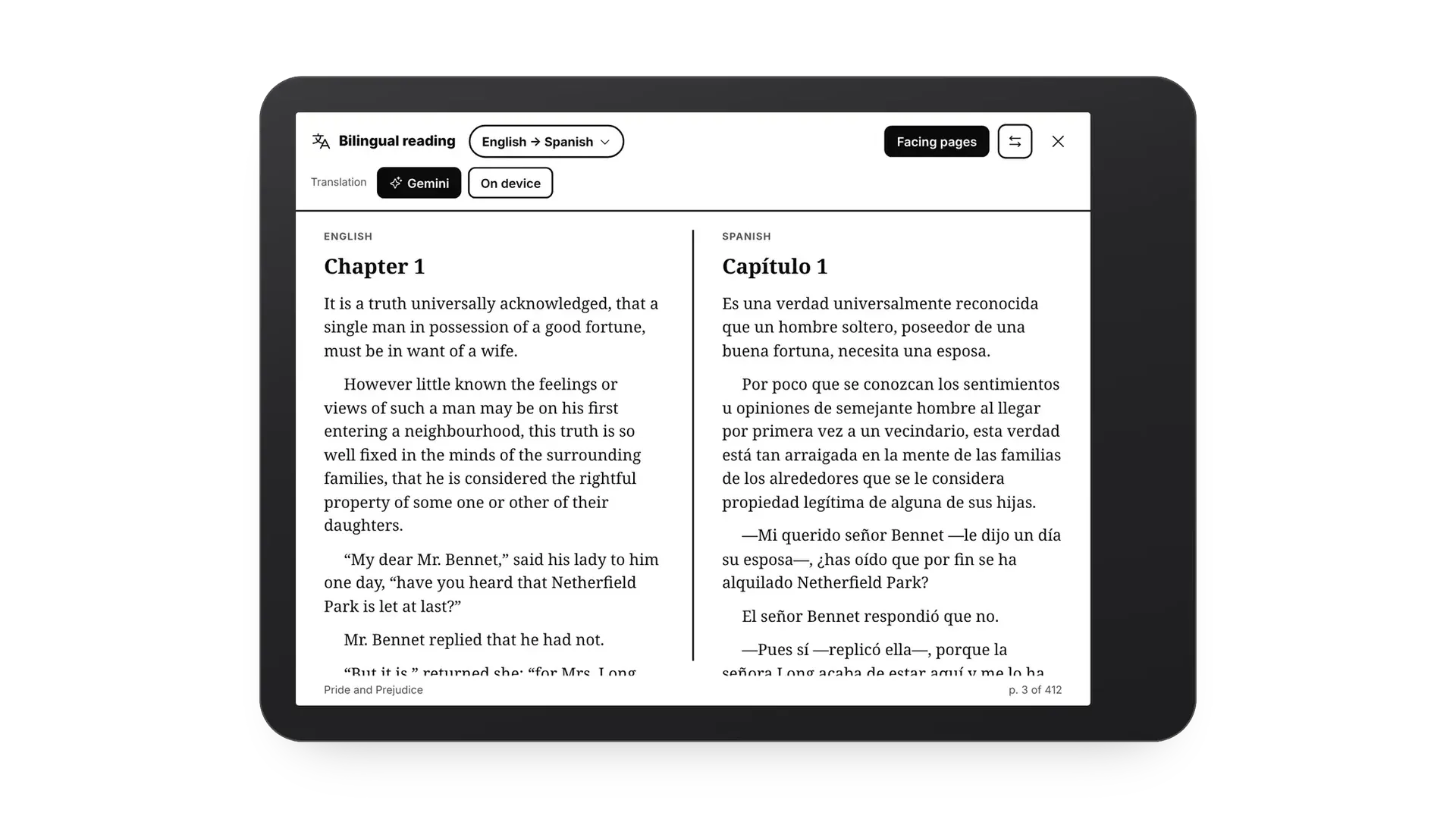
Bilingual reading is part of Pro, and there are two ways to translate:
- On device downloads a language pack once, about 30 MB, and then works offline.
- Gemini reads each paragraph in context, so names, tone and dialogue come out the way a published translation would.
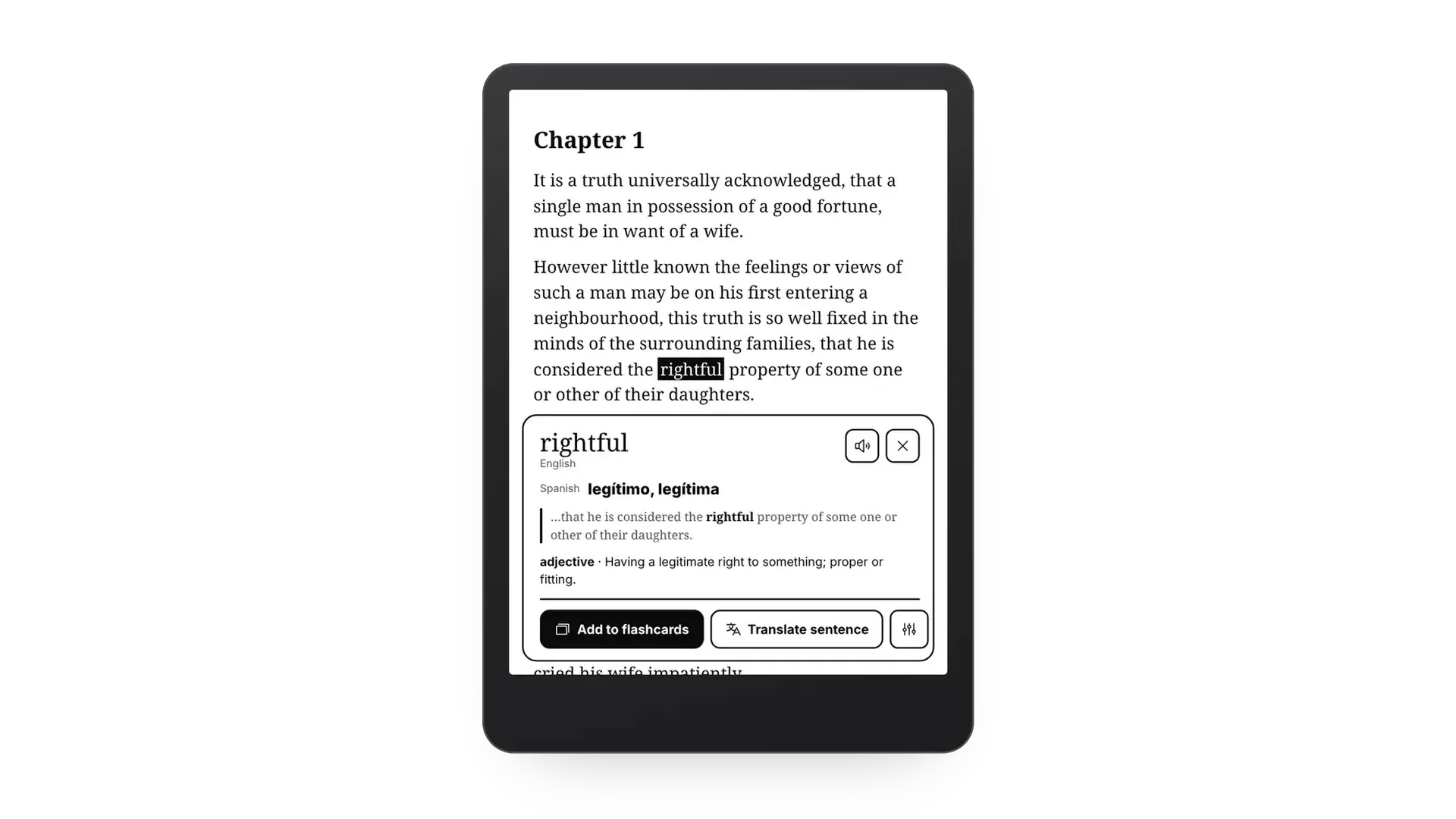
Select any word and a card shows its translation, its meaning and the sentence it came from. Hear it pronounced, translate the whole sentence, or add it to your flashcards in one tap.
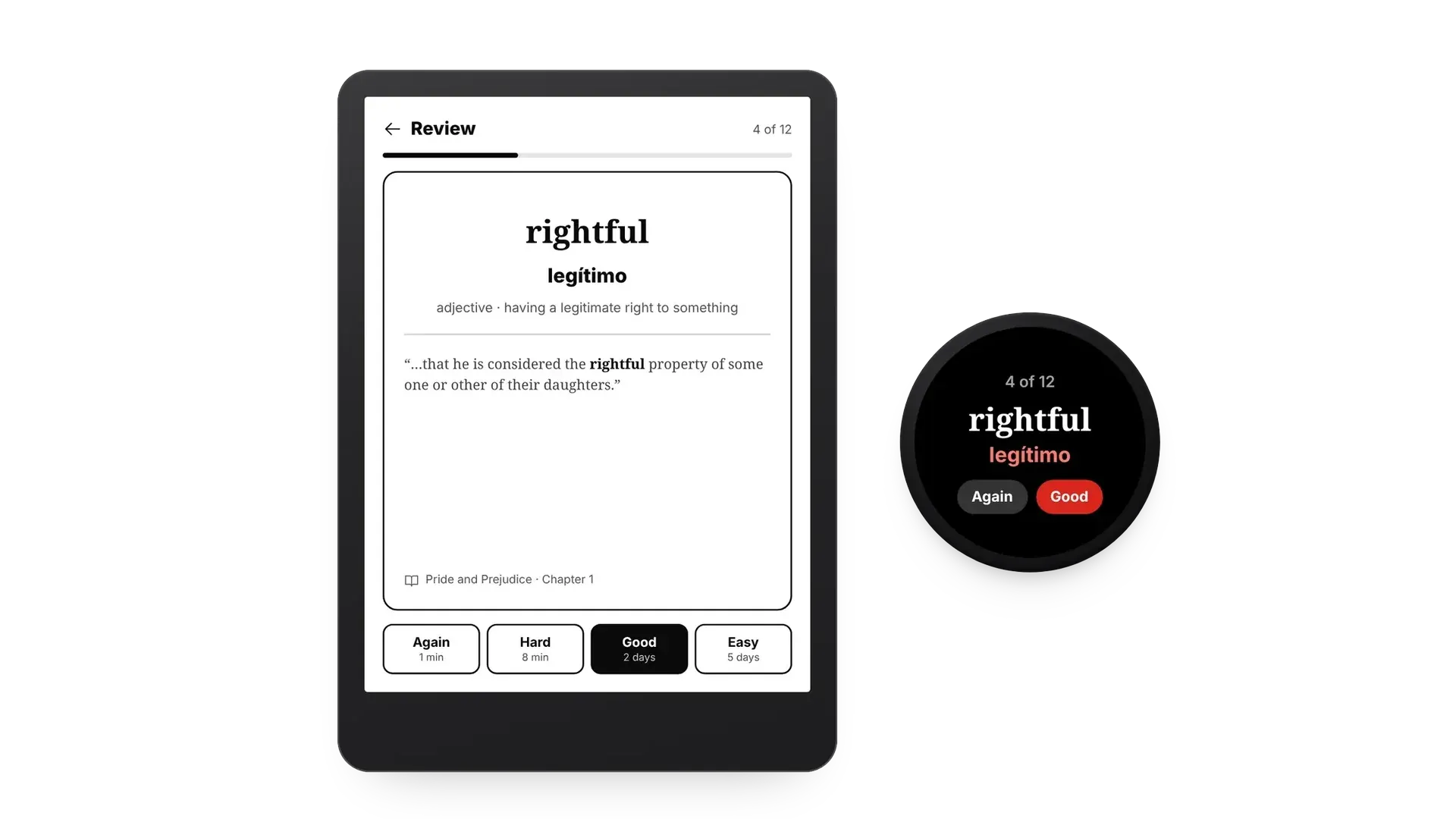
Saved words become flashcards with their translation and the original sentence. You review them with spaced repetition, rating each card Again, Hard, Good or Easy, on your e-reader, your phone or your watch.
Pro also has word glosses: set your level, from A1 to C2, and Bookbeam writes a small translation above just the words that are likely new to you. All the language features are on the language learning page.
Your highlights, notes and bookmarks from every book live on one Notes screen, and a tap takes you back to the exact spot.
For long novels Pro also has a book guide: a spoiler-free list of the characters, places and terms, only as far as you've read. It's for when you pick a book up after two weeks and can't remember who anyone is.
Learning a language by reading?
Try bilingual reading, word glosses and the book guide free for 7 days. No card needed.
Widgets for your home screen
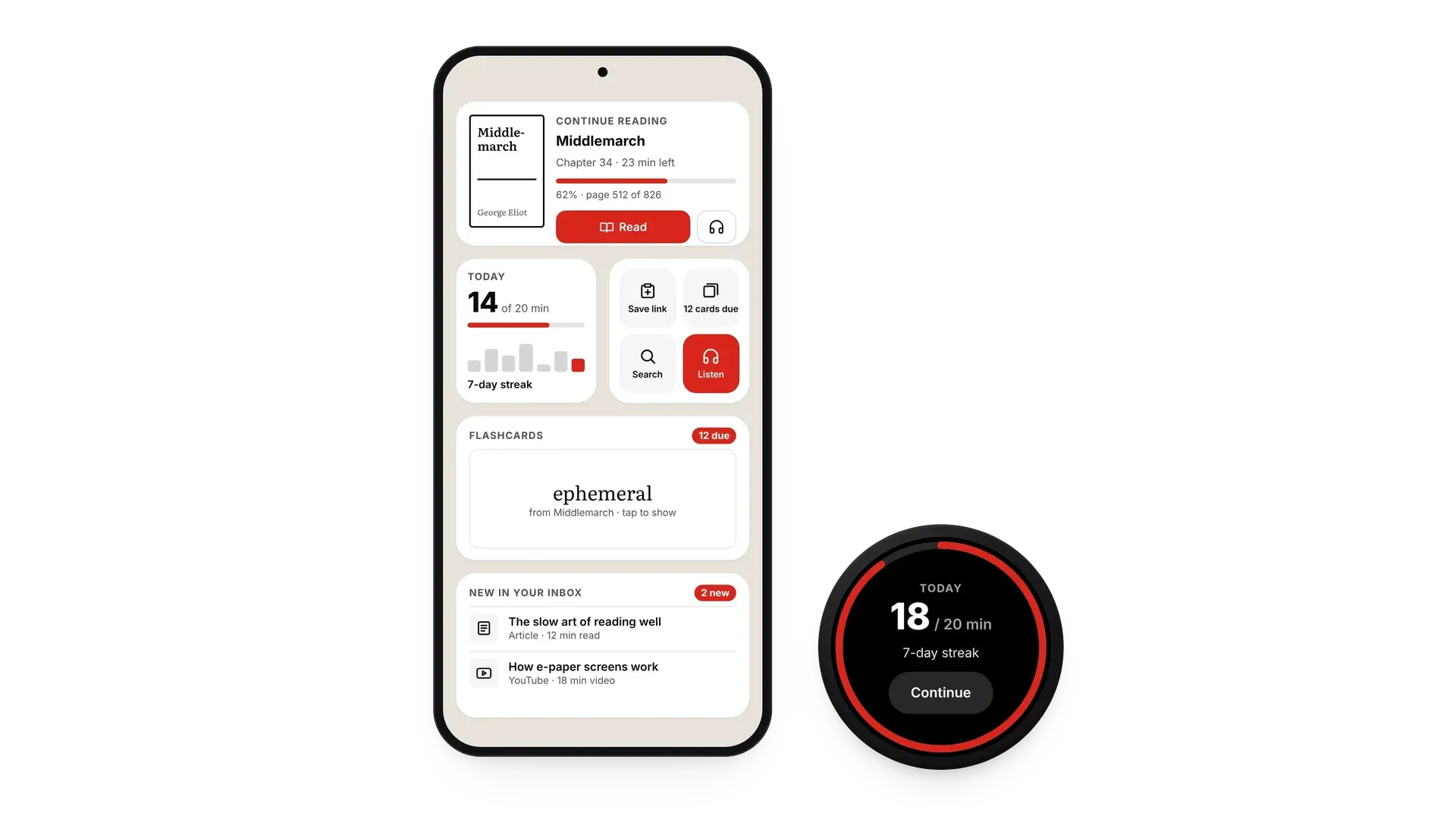
Home-screen widgets put your reading one tap away without opening the app:
- Continue reading with your current book, progress, and a button to start listening.
- Today with the minutes you've read, your daily goal and your streak.
- Flashcards you can flip and grade right on the home screen.
- New in your inbox with the latest articles and videos you sent.
- Quick actions to add a book, review cards, search or listen.
And a Wear OS app
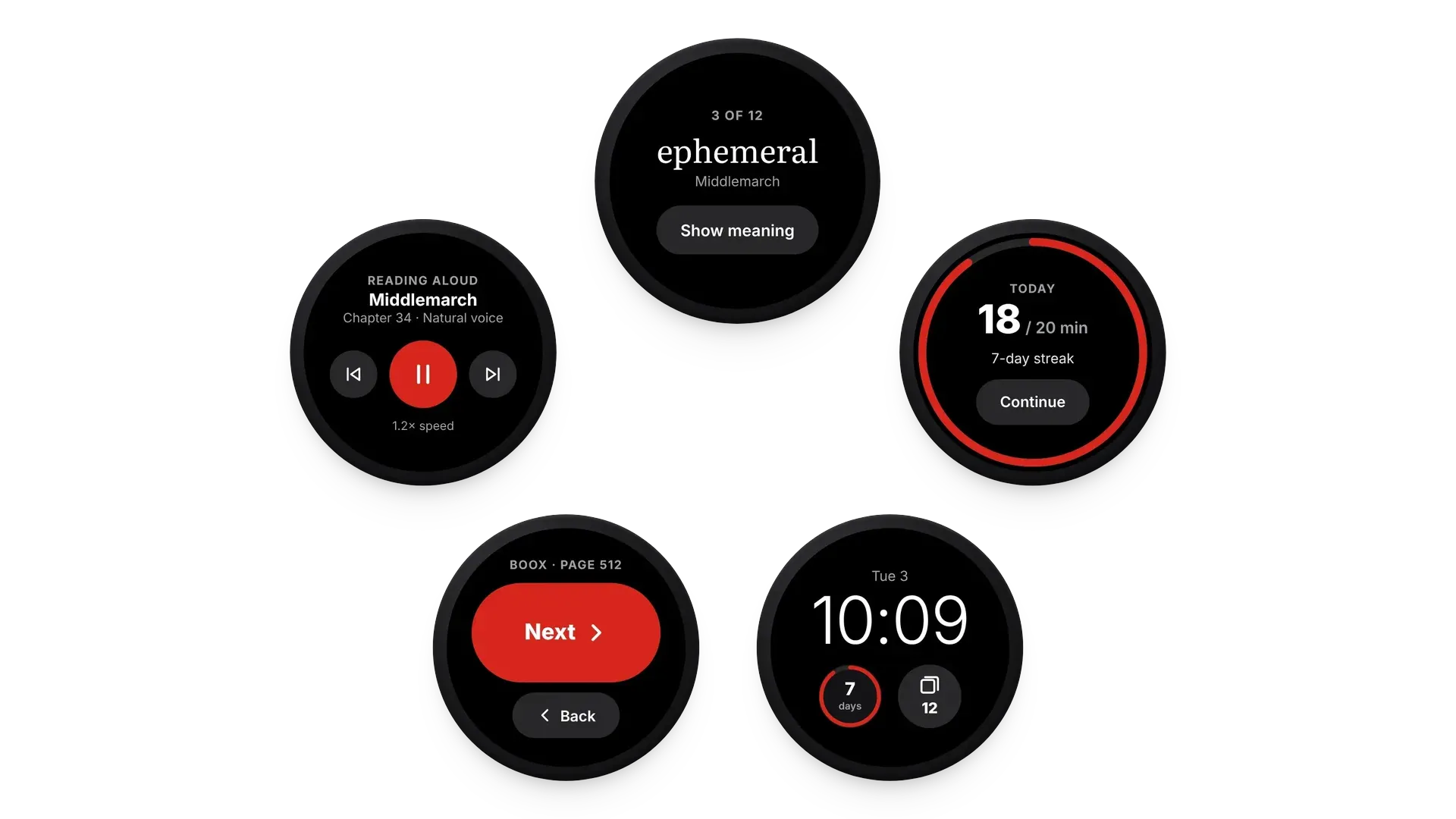
Bookbeam also runs on Wear OS watches. It signs in through your phone, so there's nothing to set up on the watch, and it keeps reading close at hand:
- Flashcards in ten seconds while you wait for a coffee.
- A reading tile and watch-face complications for today's minutes, your streak and the cards you have due.
- Read-aloud controls to pause, skip a sentence or go back from your wrist.
- A page turner (Pro) for Bookbeam on your phone or tablet: tap Next or turn the crown.
You can read more on the Wear OS page.
Send the web to your reader
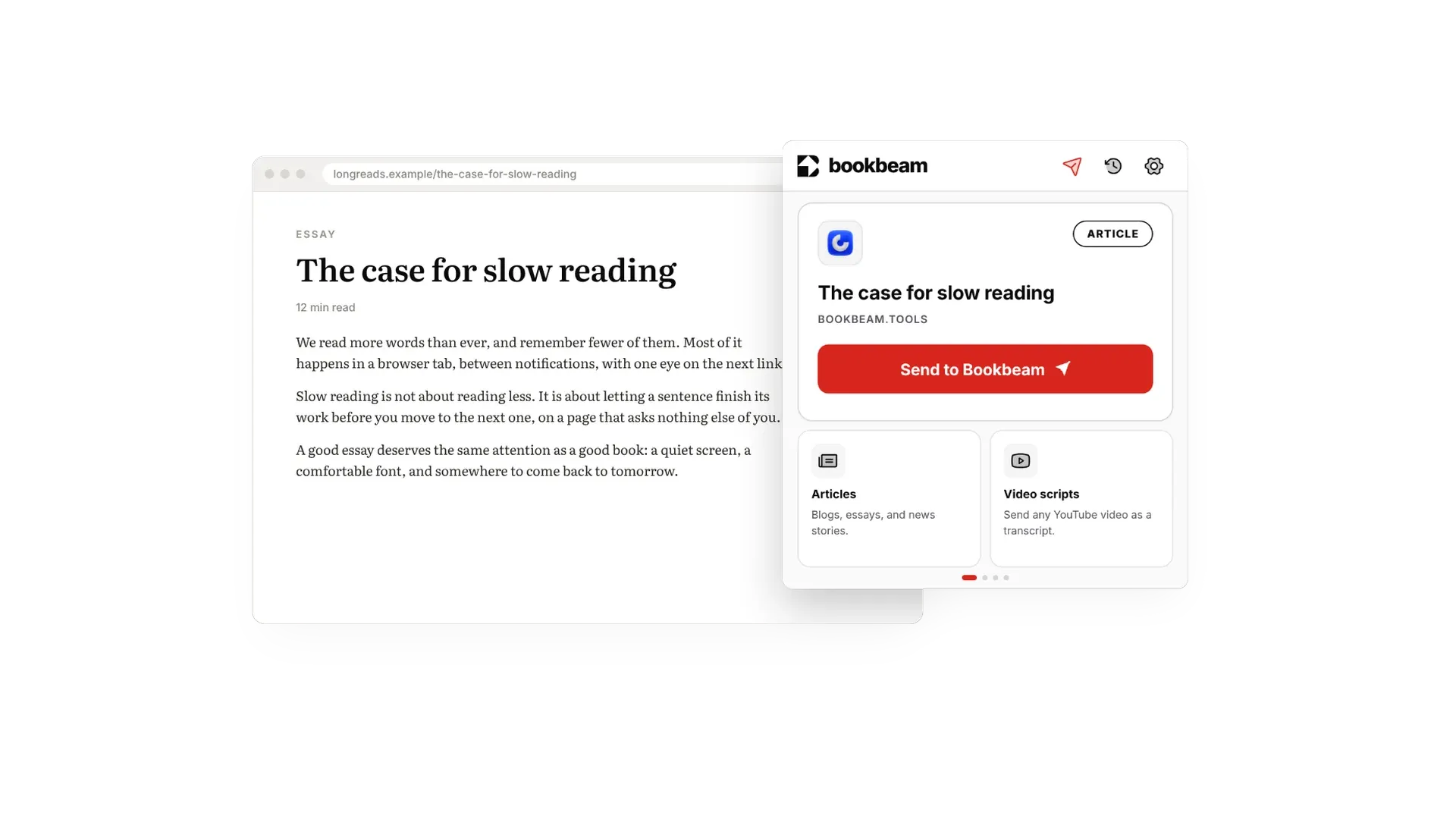
Bookbeam started as a Chrome extension, and it's still here. The Send to Bookbeam extension, part of Pro, turns any article or YouTube video into a clean book in your library in one click. Find something long on your laptop, send it, and it's waiting on your tablet when you sit down to read. YouTube videos become readable transcripts with chapters and clickable timestamps, because a 40-minute interview is often a 10-minute read.
How I built it
Bookbeam is four pieces sharing one backend: the Android app, the Wear OS app, the web library and the extension, all on a single Supabase project for accounts, storage and sync. I built it fast and with AI: Claude was my pair programmer for most of the code, and I did the deciding, testing every change on a BOOX and a phone side by side. Writing code is the quick part now. The slow part is the judgement calls, like what belongs on an e-ink screen and what doesn't, and that's the part I enjoy most.
Everything that changes from release to release is on the changelog.
Free and Pro
Free is genuinely useful: the full reader, sync, the device voice, the dictionary and flashcards. Pro adds bilingual reading, word glosses, Gemini translation, natural voices, the book guide, Android Auto, the Chrome extension, more storage and more devices. Lifetime is Pro features for a one-off payment, with natural voice bought as voice packs.
Free
- The full reader, e-ink mode and sync on 2 devices, with 1 GB of storage
- Device voice read aloud (works offline)
- Dictionary, on-device word translation and flashcards
- Home-screen widgets (all but Highlight of the day) and the Wear OS app (without the page turner)
- 5 books sent to e-readers a month
Pro: $6.99 a month or $59.99 a year
- Everything in Free, on 5 devices, with 25 GB of storage
- Natural voices: 1.5 hours a month, with Narrator, Expressive and Full cast
- Bilingual reading (on device or Gemini), word glosses and Gemini translation of pages, words and sentences
- Book guide, Android Auto and the Wear OS page turner
- Chrome extension: unlimited articles and 60 YouTube videos a month
- Unlimited books sent to e-readers
Lifetime: $129, paid once
- Pro features on 5 devices, with 10 GB of storage
- Natural voices through voice packs: $14.99 for 5 hours that never expire
- Chrome extension: unlimited articles and 30 YouTube videos a month
Try it
If you read on a BOOX, another e-ink tablet or an Android phone, have a look at bookbeam.tools. The free web library already works in any browser, and the Android app is on Google Play. If you're learning a language by reading, try bilingual mode during the trial; it's the feature I built for myself. Feedback is very welcome, on LinkedIn or through the website.
Read on e-ink, listen in the car
Bookbeam is free on Google Play for BOOX, e-ink tablets and Android phones. Your library syncs to the web too.
Written by
Builder, product marketer and AI enthusiast. I ship my own apps, like Sift (siftphotos.pro), Penlo (penlo.app), Ectobuilder (ectobuilder.com) and Cubbie (cubbie.pro), and write about building and marketing them with AI.
Keep reading
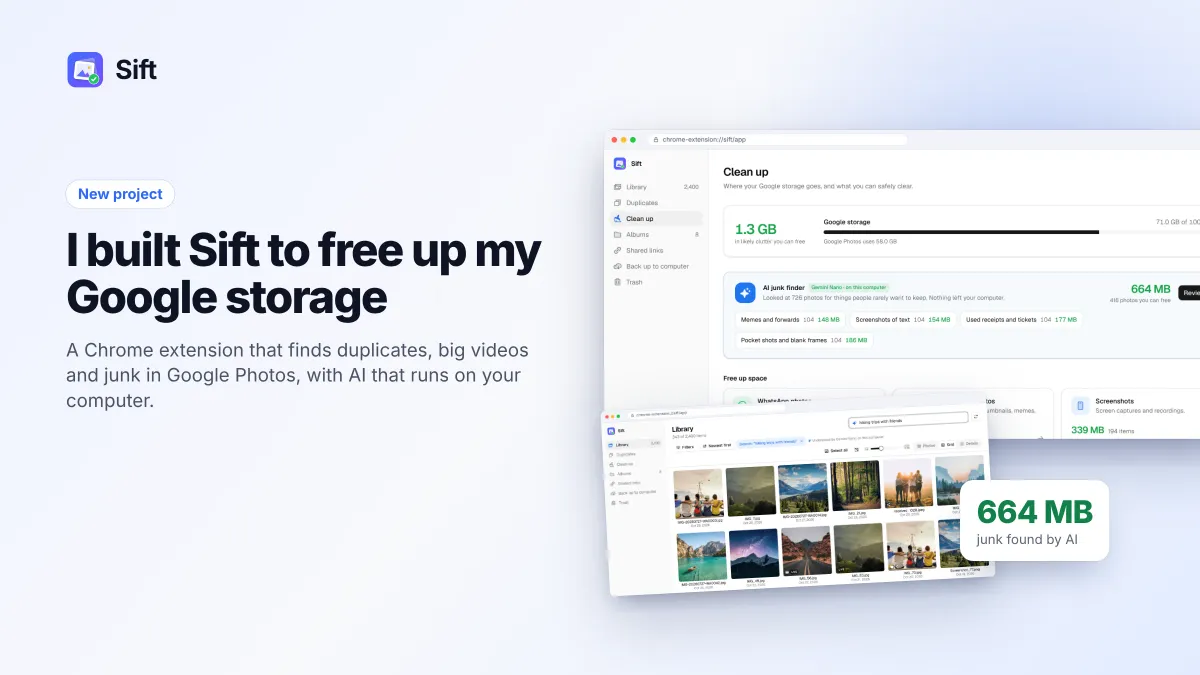
I built Sift to free up Google storage, with AI that never leaves your computer
Sift is a Chrome extension that finds duplicates, big videos and junk in Google Photos, shows how much space each clean-up frees, and uses Chrome's on-device AI so your photos never leave your computer.
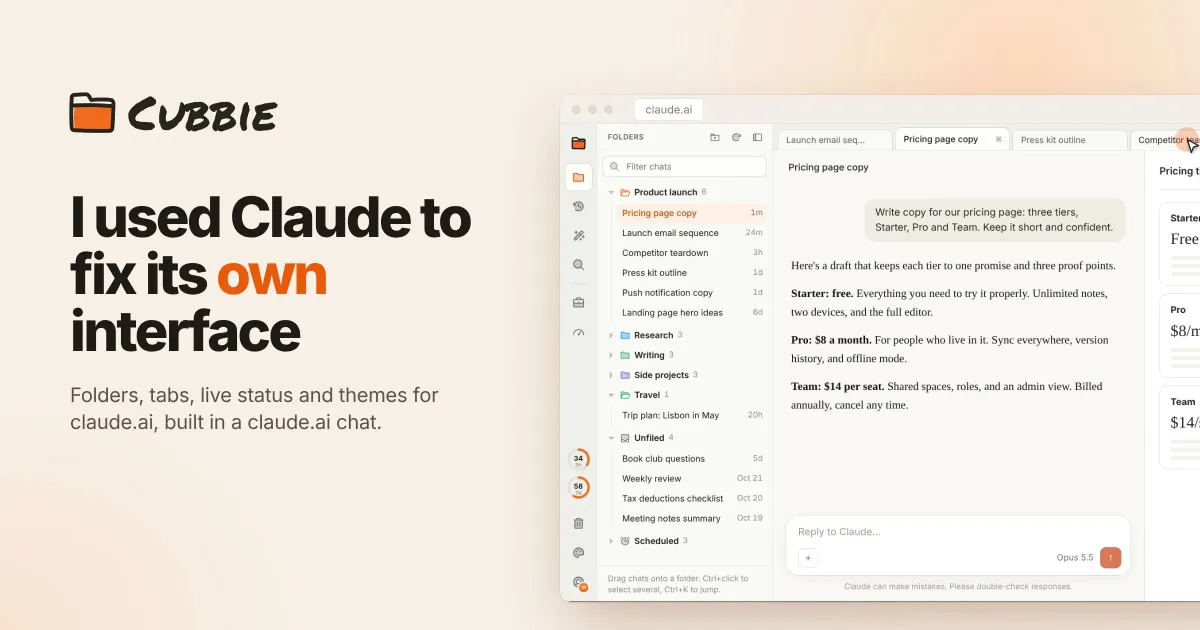
I gave claude.ai the sidebar it was missing. Meet Cubbie
Cubbie is a free Chrome extension that gives claude.ai folders, tabs, a Ctrl K switcher, a glow when a reply is being written, and themes for the whole page.
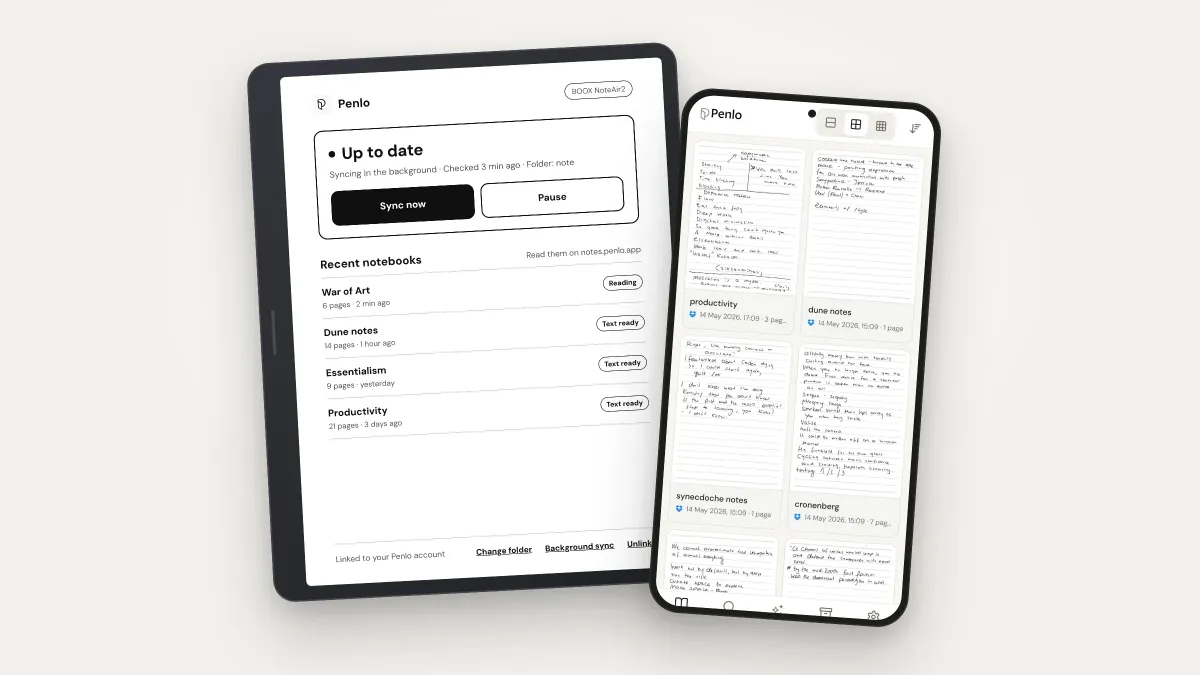
Penlo now syncs straight from your BOOX. Here's everything it does with your handwritten notes
Penlo makes the handwritten notes on your e-ink tablet searchable. Here's the full tour: direct BOOX sync with the new Android app, Dropbox and OneDrive for every other tablet, pairing in one tap, Penlo AI, exports and MCP.