

Two writers reading the same brief will produce completely different content.
The problem is that voice is pattern-based, not rule-based. It lives in the specific word choices, sentence rhythms, punctuation habits, and structural quirks that emerge across hundreds of posts. No bullet-point list can capture that.
LLMs can.
When you feed an AI model like Claude or ChatGPT a dataset of actual posts, it does what humans struggle to do - it detects subtle patterns across large volumes of text. It notices that someone never uses exclamation points, tends to start sentences with "Here's the thing," keeps posts under 200 characters, and favors direct statements over questions. These micro-patterns define voice far more than any abstract descriptor.
The workflow is simple:
- Export posts from an X account
- Upload them to an LLM
- Ask it to analyze the voice or generate new content in that style
This guide walks through exactly how to do it - the tools, the prompts, and some practical applications beyond voice cloning (like tracking what content actually performs).
Step 1: Exporting posts from X
To train an AI on someone's voice, you first need their posts in a format the AI can read.
X's native export feature is limited to your own account and isn't designed for analysis. Third-party tools fill this gap.
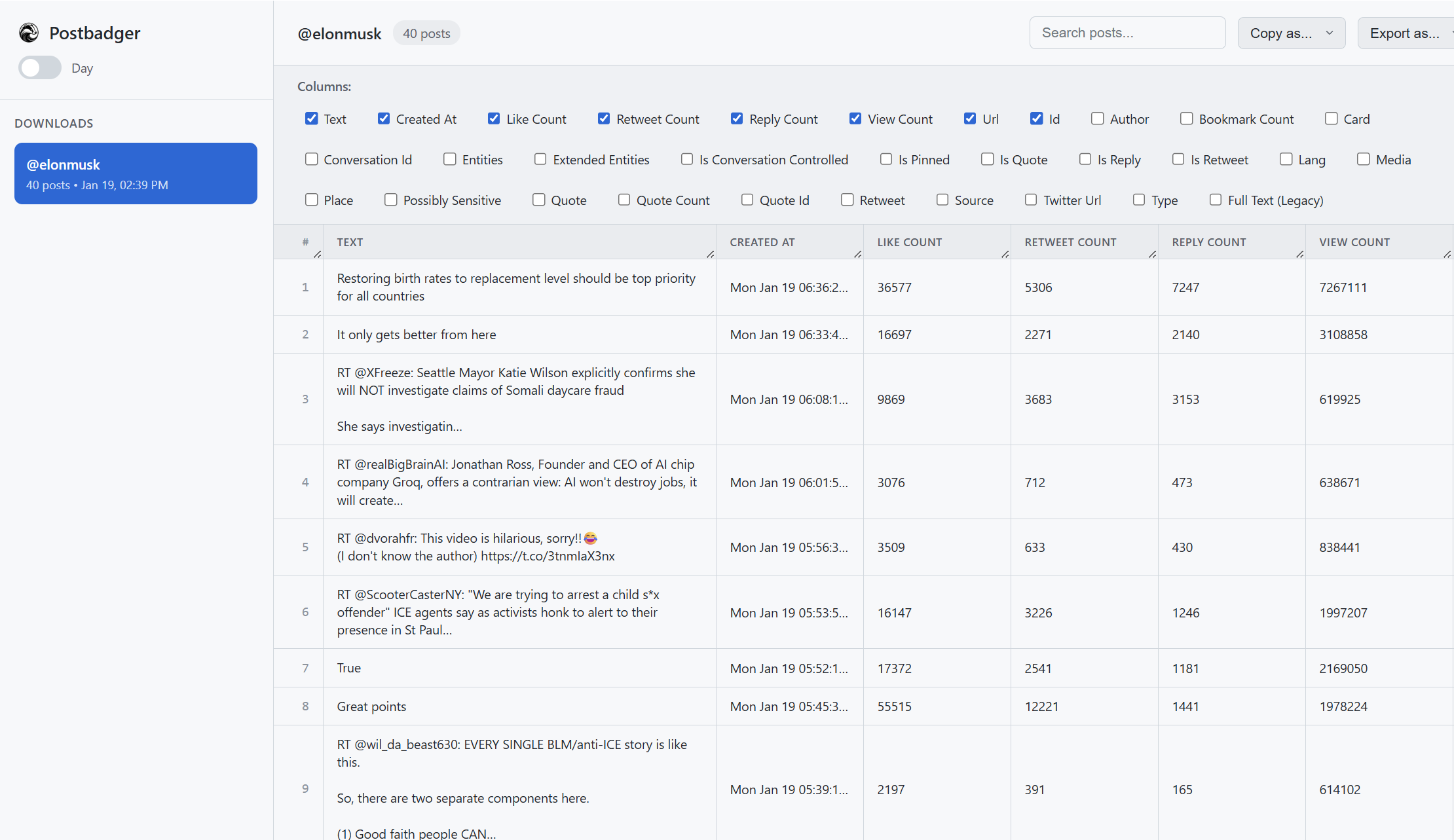
I've been using a Chrome extension called Postbadger for this workflow. It lets you export posts from any public profile or search query directly to CSV, JSON, or PDF.

Export tweets. Train AI on any voice. Track what performs.
Postbadger turns any X profile into structured data you can actually use - for competitor research, content analysis, or feeding to Claude/ChatGPT.
How to export posts with Postbadger
- Install the extension from the Chrome Web Store
- Navigate to any X profile you want to analyze
- Open the extension and hit Downoad Posts (use the date filters if needed)
- Once ready, Postbadger will display the Editor tab. Here, you can choose which data points to include (post text, engagement metrics, dates, etc.)
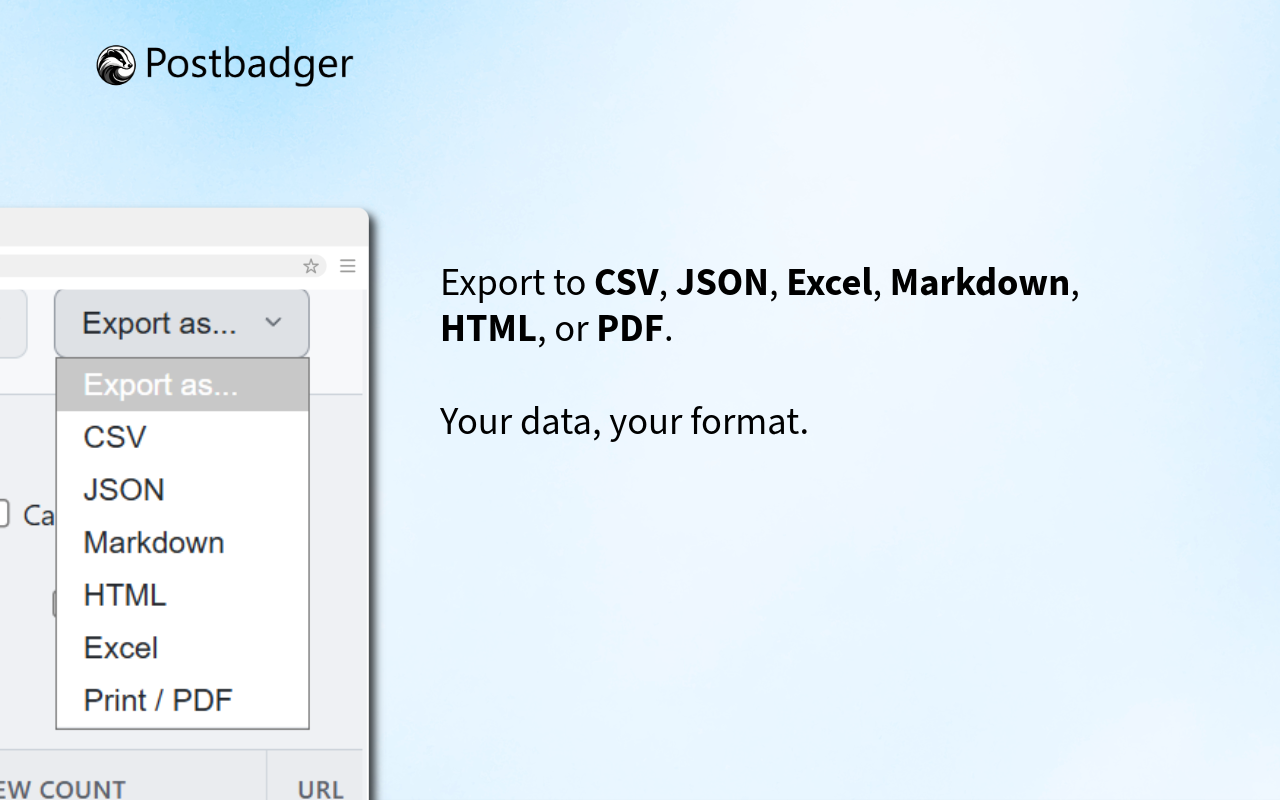
- Export content in a selected format (CSV, JSON, Markdown, HTML, Excel, PDF, Plain text)
Important: Working around the 800-post limit
Here's something to know upfront: X's API limits search results to approximately 800 posts per query. This isn't a tool limitation - it's how X's infrastructure works.
If you're archiving a prolific account with thousands of posts, the workaround is straightforward: run multiple exports with different date ranges.
For example:
- Export 1: January 2024 - June 2024
- Export 2: July 2024 - December 2024
- Export 3: January 2023 - June 2023
- And so on...
You can then combine these files or feed them to your LLM in batches. For voice training purposes, you often don't need every post anyway - a representative sample of 200-500 strong posts is usually sufficient.
Step 2: Choosing the right export format for LLMs
Postbadger offers several export formats. Here's how each performs for AI training:
| Format | Best for | Pros | Cons |
|---|---|---|---|
| Markdown | AI voice training | Cleanest format for LLMs; no extra formatting noise; lightweight | Not ideal for spreadsheet analysis |
| CSV | Data analysis, spreadsheets | Easy to filter/sort in Excel or Google Sheets; works well with AI | Can have formatting issues with special characters |
| JSON | Developers, API integrations | Preserves nested data structure; ideal for programmatic use | Less readable for non-technical users |
| Excel | Reporting, team sharing | Ready-to-use in Microsoft Excel; easy to share with stakeholders | Larger file size than CSV |
| HTML | Web publishing, archiving | Preserves visual formatting; viewable in any browser | Not ideal for AI training or data analysis |
| Archival, presentations | Universal viewing; professional appearance; print-ready | Hard for AI to parse; not editable | |
| Plain text | Quick copy-paste, simple use | No formatting overhead; works anywhere | Loses metadata like dates and engagement stats |
Use Markdown for AI voice training - it's the cleanest format for feeding into Claude or ChatGPT. Use CSV or Excel if you also want to analyze engagement metrics or filter posts before uploading.
Step 3: Uploading to Claude or ChatGPT
Once you have your export file, getting it into an AI assistant is straightforward.
In Claude:
- Start a new conversation
- Click the attachment/paperclip icon
- Upload your CSV file
- Claude will automatically parse the contents
In ChatGPT:
- Open a new chat
- Click the attachment icon
- Upload your file
- ChatGPT will confirm it can read the data
Both platforms can handle files up to several MB, which is more than enough for most post exports.
Step 4: Training the AI on voice and style
Now comes the interesting part. You need to prompt the AI to actually learn from the data rather than just acknowledge it.
Here are several prompts I've tested and refined:
I've uploaded a CSV file containing posts from [Name/Brand]'s X account.

Please analyze these posts and create a detailed "Voice Profile" that includes:

1. Typical sentence structure and length
2. Vocabulary patterns (common words, phrases, or expressions)
3. Tone characteristics (formal/casual, serious/humorous, etc.)
4. How they handle different content types (announcements, opinions, engagement with others)
5. Any distinctive quirks or signature elements
6. What they avoid (topics, language, styles)

Use specific examples from the posts to support each observation.
Prompt 1: Basic voice analysis
Based on the posts in this file, write a system prompt I can use in future conversations to make you write in this exact voice and style.

The system prompt should be detailed enough that someone unfamiliar with this account could use it to generate authentic-sounding content.

Format it so I can copy and paste it directly.
Prompt 2: Creating a reusable system prompt
This is incredibly useful - it gives you a portable "voice module" you can use in any future conversation without re-uploading the data.
Using the voice and style demonstrated in the uploaded posts, write 5 new tweets about [TOPIC].

Match the typical:
- Length and formatting
- Tone and attitude
- Use of punctuation, emojis, or lack thereof
- How they typically hook readers in the first line

Do not copy any existing posts. Create original content that would blend seamlessly with their existing feed.
Prompt 3: Generate new content in their voice
I'm uploading posts from two different accounts: [File 1] is from Brand A, [File 2] is from Brand B.

Compare their voices across these dimensions:
- Formality level
- Humor usage
- Engagement style
- Content themes
- Posting rhythm (based on dates if available)

Then explain how you would adjust your writing to switch between these two voices.
Prompt 4: Voice comparison (useful for agencies)
After the AI generates content, use this follow-up:
Compare what you just wrote to the original posts in the file.

What's different? What did you miss?

Now rewrite it with those observations in mind.
Prompt 5: Iterative refinement
Real-world example: Capturing a CEO's voice
Here's a practical example from my own workflow. I needed to draft social content for a company whose CEO has a very active X presence - direct, occasionally contrarian, heavy on first-principles thinking. The kind of voice that's easy to recognize but hard to describe.
Instead of trying to document the voice manually, I exported about 400 of his posts using Postbadger, uploaded the CSV to Claude, and ran the voice analysis prompt above.
Claude identified patterns I hadn't consciously noticed:
- He rarely uses more than two sentences per post
- He almost never uses exclamation points
- He frequently starts posts with "The problem with..." or "Most people think..."
- He uses metaphors from engineering and physics
- He never uses hashtags
When I asked Claude to generate new posts on topics he hadn't covered, the output was remarkably close to his actual style. My drafts needed far less revision, and he commented that they "sounded like him."
Beyond voice training: Tracking post performance
While I initially used Postbadger for voice training, I've found an equally valuable use case: content performance analysis.
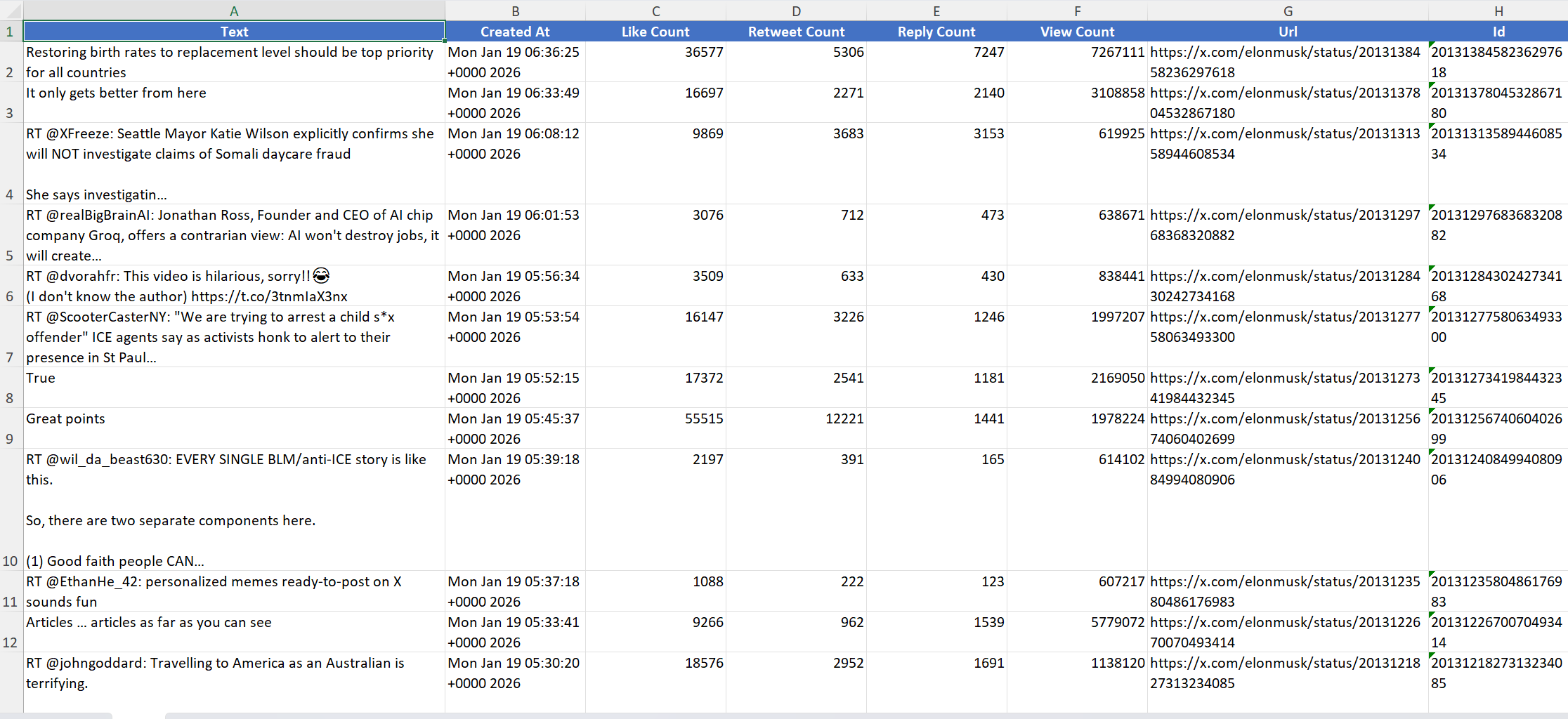
When you export posts, you're not just getting the text - you're getting the engagement metrics: likes, reposts, replies, views, and timestamps.
This data is gold for understanding what actually resonates with an audience.
What you can learn from export data
High-performing content patterns:
- What topics get the most engagement?
- What time of day produces the best results?
- How does post length correlate with performance?
- Do questions outperform statements?
- How do threads perform vs. single posts?
Content gaps:
- What themes does this account cover that you don't?
- What formats are they using that you haven't tried?
Prompts for analyzing post performance
Upload your exported file (CSV, to Claude or ChatGPT and try these prompts:
I've uploaded a CSV/Markdown file containing posts with engagement metrics (likes, reposts, replies, views).

Please analyze this data and:

1. List the top 10 best-performing posts by engagement rate (total engagements / views)
2. Identify common patterns among these top performers:
   - Topics or themes
   - Post length (short vs. long)
   - Formatting (questions, statements, lists, threads)
   - Time of posting (if timestamps are included)
   - Use of media, links, or plain text
3. List the 5 worst-performing posts and explain what might have gone wrong

Be specific - quote from the actual posts to support your analysis.
Prompt 1: Identify top performers and patterns
Analyze the posts in this file and categorize each one into content types (e.g., educational, promotional, personal story, industry commentary, engagement bait, announcements).

Then create a performance summary table showing:
- Category name
- Number of posts in that category
- Average likes, reposts, and replies per category
- Best-performing post in each category

Which content categories should this account do more of? Which should they cut back on?
Prompt 2: Content category breakdown
Look at the top 20% of posts by engagement in this file.

Extract the "formulas" or templates that could be reused. For each formula, provide:
- A description of the pattern (e.g., "Contrarian take starting with 'Unpopular opinion:'")
- 2-3 examples from the actual posts
- Why you think this format works
- A blank template I could use to write new posts in this style

I want actionable templates I can reuse, not just observations.
Prompt 3: Find repeatable winning formulas
Based on the timestamps and engagement data in this file, analyze:

1. What days of the week get the highest engagement?
2. What times of day perform best?
3. How does posting frequency affect performance? (Do back-to-back posts hurt engagement?)
4. What's the average engagement decay - how quickly do posts stop getting traction?

Recommend an optimal posting schedule based on this data.
Prompt 4: Optimal posting strategy
I've uploaded posts from a competitor's account.

Based on their content and engagement patterns:
1. What topics are they covering that get high engagement?
2. What content gaps do you see - topics they haven't addressed that their audience might want?
3. What could I do differently or better to compete for the same audience?
4. Which of their post styles could I adapt (ethically) for my own voice?

Give me 5 specific content ideas based on this analysis.
Prompt 5: Competitor gap analysis
Integrating with Notion for content tracking
If you manage content in Notion (as many marketers do), Postbadger integrates beautifully through multiple methods - from quick copy-paste to full database imports.
Method 1: Copy-paste rich text (fastest)
For quick transfers, Postbadger lets you copy posts as rich text and paste them directly into Notion with formatting intact.
- In Postbadger, select the posts you want to export
- Click "Copy as rich text"
- Open your Notion page and paste (Ctrl/Cmd + V)
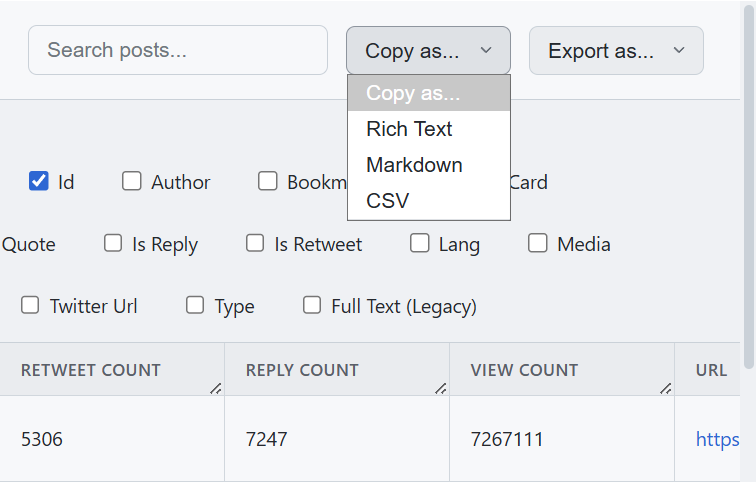
The posts will appear with their original formatting preserved - including line breaks, links, and basic styling. This method is ideal when you need to quickly grab a handful of posts for reference or a swipe file.
Method 2: Copy-paste markdown
If you prefer more control over formatting, copy as Markdown instead:
- In Postbadger, select your posts
- Click "Copy as Markdown"
- In Notion, paste into any page
Notion natively understands Markdown, so headers, bold text, links, and lists will render correctly. This is useful when you want clean, consistent formatting without any rich text quirks.
Method 3: Import CSV for full data (recommended for analysis)
When you need engagement metrics and want to build a searchable, filterable content library, CSV import is the way to go.
Step 1: Export from Postbadger
- Select the posts you want to export
- Choose CSV as your export format
- Make sure to include all relevant columns: post text, date, likes, reposts, replies, views, and URL
Step 2: Import into Notion
- Open Notion and navigate to the page where you want your content database
- Type
/tableand select "Table - Inline" to create a new table - Click the "..." menu in the top-right corner of the table
- Select "Merge with CSV"
- Upload your Postbadger CSV file
- Notion will automatically create columns matching your CSV headers
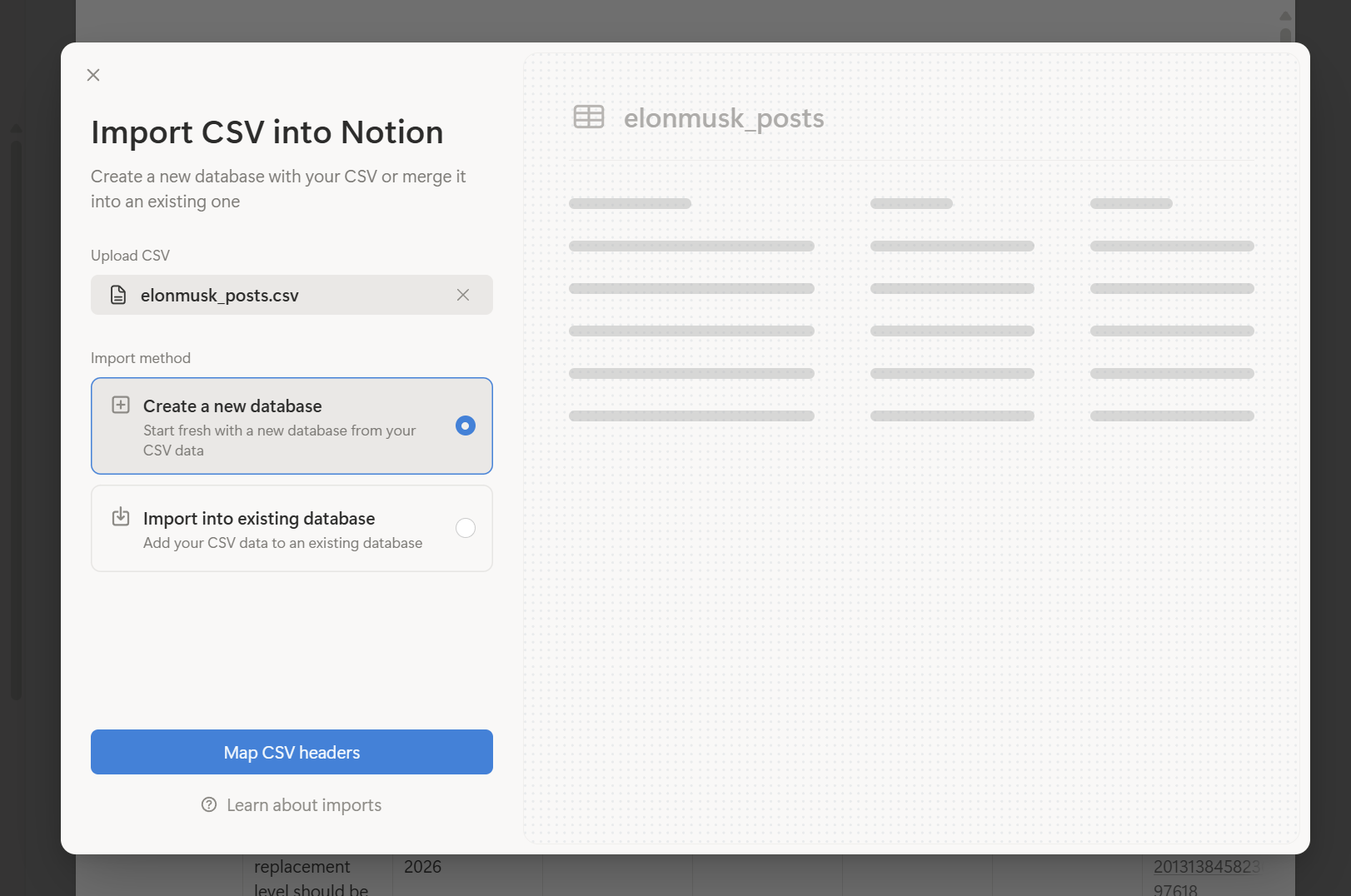
Once converted, you can:
- Set property types: Change "Likes" and "Reposts" columns from text to number format for proper sorting
- Add formulas: Create an "Engagement Rate" column that calculates (likes + reposts + replies) / views
- Create relations: Link posts to other databases like your content calendar or campaign tracker
Creating useful database views
Once your data is in a proper Notion database, create multiple views to surface different insights:
"Top performers" view:
- Filter: Views > 1000 (adjust based on your account size)
- Sort: Likes descending
- This becomes your swipe file of proven content
"Content calendar" view:
- Switch to Calendar view
- Set the date property to "Date posted"
- Visualize posting frequency and identify gaps
"Recent hits" view:
- Filter: Date posted is within the last 30 days
- Sort: Engagement rate descending
- See what's working right now
"By content type" view:
- Add a "Content type" select property (educational, promotional, personal, engagement, etc.)
- Group by this property
- Manually tag posts or use AI to categorize in bulk
Adding custom analysis columns
Extend your database with calculated or manually-tagged properties:
round((prop("Likes") + prop("Reposts") + prop("Replies")) / prop("Views") * 100 * 100) / 100
Engagement rate formula for Notion
This gives you a percentage you can sort by. And here are some more ideas to try:
- Content category (select): Create options like: Educational, Promotional, Personal story, Industry commentary, Thread, Question, Announcement
- Repurposed? (checkbox): Track which high-performing posts you've already turned into other content.
- Notes (text): Add observations about why a post performed well or poorly.
Keeping your database updated
Your Notion content database should be a living document. Here's a simple maintenance workflow:
- Weekly: Export the past week's posts from Postbadger, merge the CSV into your existing Notion database. Notion will add new rows without duplicating existing ones (as long as the URL column matches).
- Monthly: Review your "Top performers" view. Tag high-performing posts with content categories if you haven't already. Add notes on why certain posts worked.
- Quarterly: Export fresh data for accounts you're tracking. Look for shifts in what content types perform best. Update your content strategy based on the data.
Using Notion AI to analyze your posts instantly
Once your posts are in a Notion database, you can use Notion's built-in AI assistant to get immediate insights without leaving the platform. This turns your static content archive into an interactive analysis tool.
How to access Notion AI
There are two ways to use Notion AI with your posts database:
- AI chat panel: Click the sparkle/AI icon in the bottom-right corner of Notion (or press Cmd/Ctrl + J) to open the AI chat. From here, you can ask questions about any content on the current page, including your database.
- Inline AI: Highlight any text or click into an empty block and press Space, then type your question. Notion AI will generate a response right on the page.
For analyzing your posts database, the AI chat panel is usually more useful since it can reference the entire table.
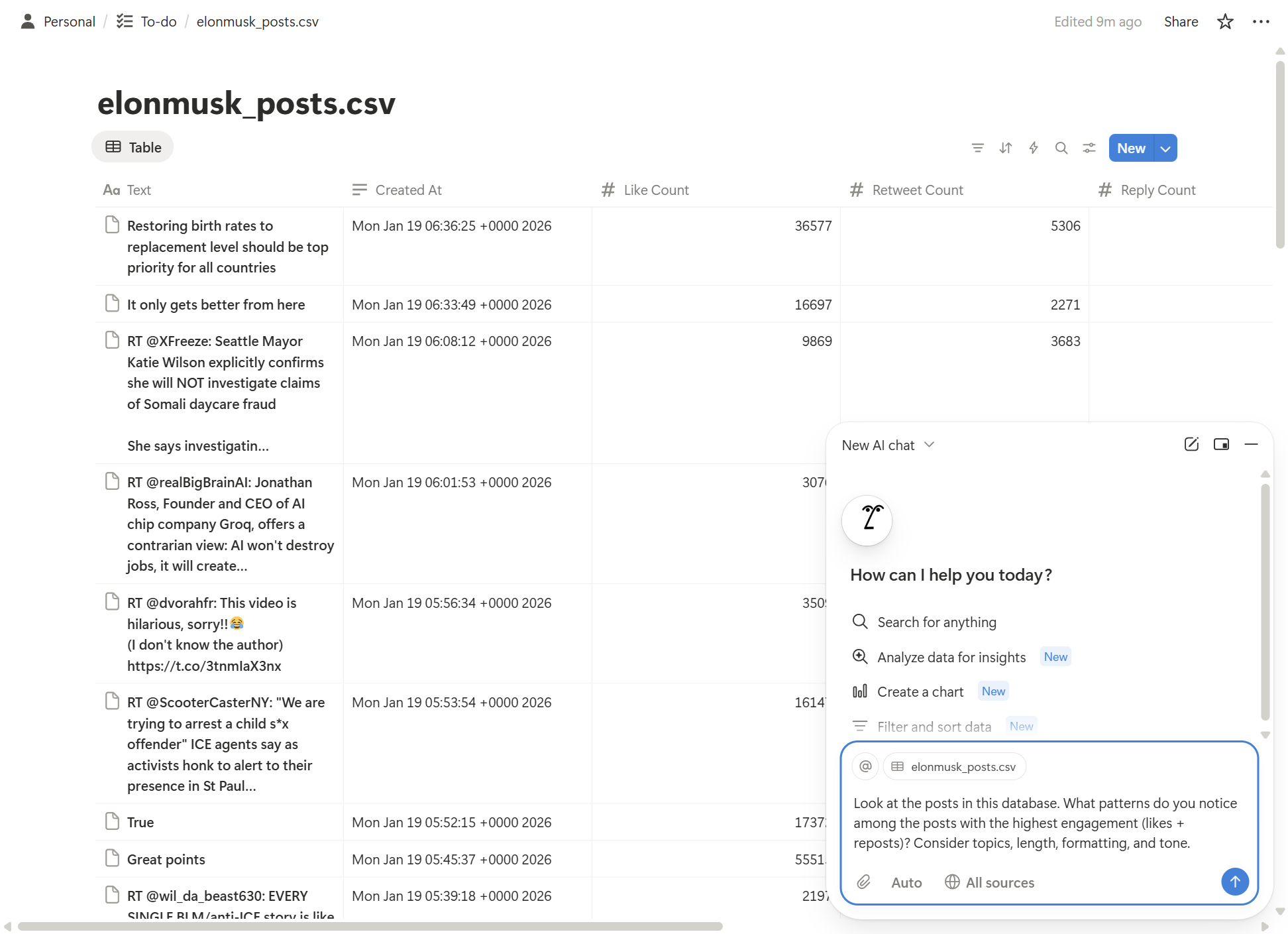
Example prompts for content analysis in Notion AI chat
Here are prompts you can copy and use directly with Notion AI:
Look at the posts in this database. What patterns do you notice among the posts with the highest engagement (likes + reposts)? Consider topics, length, formatting, and tone.Prompt 1: Identify top-performing content patterns
Summarize the performance of posts in this database. Include: total number of posts, average likes per post, most liked post, least liked post, and any trends you notice over time.Prompt 2: Generate a content performance summary
Based on the topics covered in these posts, what subjects or themes appear to be missing? What related topics might this account consider covering?Prompt 3: Find content gaps
List the opening lines (first sentence) of the 10 posts with the highest engagement. What do these hooks have in common?Prompt 4: Extract winning hooks
Looking at the dates in this database, what's the average posting frequency? Are there any gaps or periods of high activity? How does posting frequency correlate with engagement?Prompt 5: Analyze posting frequency
Review all posts in this database and categorize them into content types (educational, promotional, personal story, opinion, question, announcement, thread, etc.). Create a summary showing how many posts fall into each category.Prompt 6: Categorize content types
Compare the engagement metrics of posts from the first half of the data to the second half. Has performance improved, declined, or stayed consistent? What might explain any changes?Prompt 7: Compare time periods
Based on the top 20% performing posts in this database, suggest 10 new post ideas that follow similar patterns but cover fresh angles or topics.Prompt 8: Generate content ideas
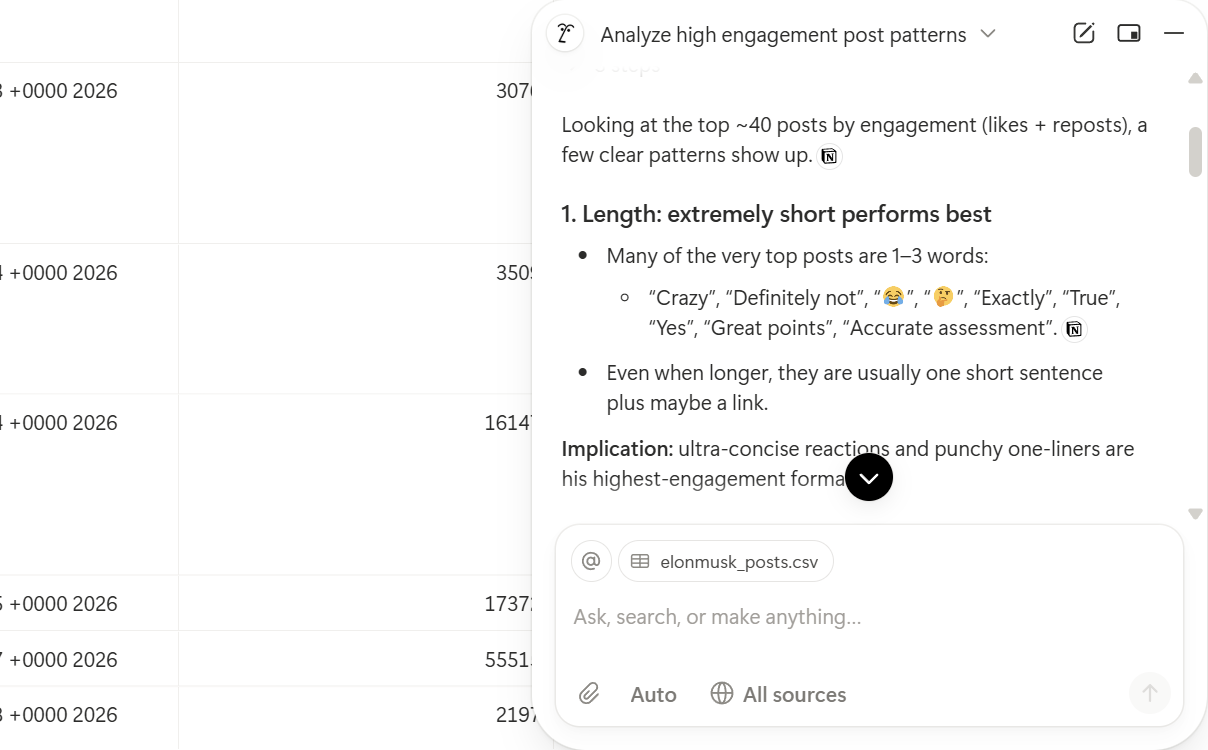
Tips for better Notion AI results
- Be specific about metrics: Instead of asking "which posts did well," specify "which posts have more than 500 likes" or "sort by the engagement rate column."
- Reference your columns: Notion AI understands your database schema. You can say things like "look at the Likes column" or "filter for posts where Views is greater than 10,000."
- Ask follow-up questions: After an initial analysis, drill deeper. "Why do you think that post outperformed the others?" or "What would a post combining these top elements look like?"
- Request specific formats: Ask for "a bullet list," "a table comparing," or "a one-paragraph summary" to get output in the format you need.
- Combine with views: Apply a filter or view first (like your "Top performers" view), then ask Notion AI to analyze only what's visible. This focuses the analysis on the subset you care about.
Limitations to keep in mind
Notion AI works best with databases under a few hundred rows. For very large datasets (1,000+ posts), consider:
- Filtering to a specific date range before analyzing
- Creating a separate database with only top-performing posts
- Exporting to a dedicated AI tool like Claude for deeper analysis
Also note that Notion AI's responses are generated based on what's visible on the page. If your database is collapsed or in a toggle, expand it first so the AI can access the full content.
Practical applications for marketing teams
For copywriters:
- Build a voice library of client accounts
- Generate first drafts that require minimal revision
- Quickly adapt to new client voices during onboarding
For social media managers:
- Analyze what content types perform best
- Identify optimal posting times from historical data
- Build swipe files of high-performing posts for inspiration
For agency teams:
- Maintain consistent voice across multiple team members
- Onboard new writers to client accounts faster
- Create objective voice documentation that removes guesswork
For personal brands:
- Analyze your own historical content to understand what works
- Maintain consistency even when you're burnt out or rushed
- Train assistants (human or AI) to draft content in your voice
Tips for better results
Curate before training: Don't just dump every post into an LLM. Filter for quality. Remove replies, remove low-engagement posts, focus on standalone content that represents the voice you want to capture.
Update periodically: Voices evolve. If you're working with an active account, refresh your export every few months to capture how their style has shifted.
Use multiple LLMs: Claude and ChatGPT have different strengths. Claude tends to be better at nuanced voice matching; ChatGPT is sometimes more creative with variations. Try both.
Save your system prompts: Once an LLM generates a good voice profile, save it somewhere permanent. You don't want to repeat the analysis every time.
Combine with examples: Even after training, providing 2-3 example posts alongside a request improves output quality significantly.
Getting started
The workflow is simpler than it might seem:
Export tweets. Train AI on any voice. Track what performs.
Postbadger turns any X profile into structured data you can actually use - for competitor research, content analysis, or feeding to Claude/ChatGPT.
- Install Postbadger from the Chrome Web Store
- Export posts from your target account(s) as CSV
- Upload to Claude or ChatGPT
- Run the voice analysis prompt
- Generate content or save the voice profile for later
The entire process - from installation to having a working voice profile - takes about 15 minutes.
Once you've done it once, you'll find yourself using this workflow constantly. It fundamentally changes how you approach ghostwriting, brand consistency, and content analysis.
Conclusion
The gap between "understanding" a brand voice and "replicating" it has always been the hardest part of content work. Traditional documentation doesn't capture the nuance. Reading through hundreds of posts manually isn't scalable.
By combining post export tools with LLMs, you can bridge that gap systematically. The AI does the pattern recognition; you provide the editorial judgment.
Whether you're training an AI assistant, building a performance tracking system, or simply trying to understand why certain content works - having exportable, analyzable post data is the foundation.
Give it a try with an account you know well. You'll be surprised what patterns emerge when you let the data speak.


